Timecard Ingestion — Admin Guide
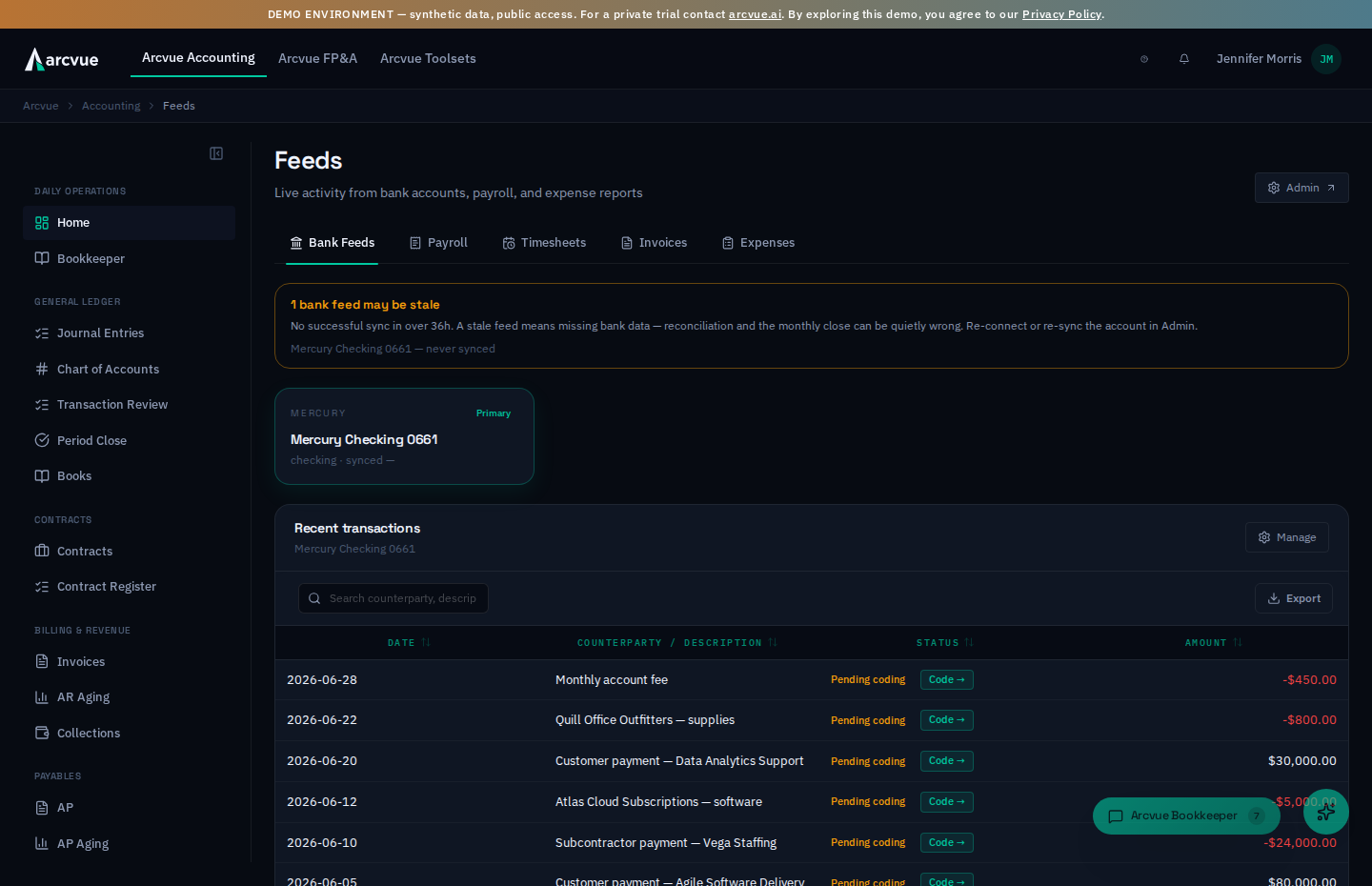
This is the pipeline that keeps employee time flowing into Arcvue so the books and the invoices are current. As the operator you don't usually run it — it runs itself every night — but you own knowing it's healthy and what it means for the business when it isn't. This guide starts with the plain picture, then gives the hands-on commands for when you (or your admin) need to act.
Part 1 — The picture (read once, no jargon)
What "ingestion" means and why it matters to you
Your people log their hours somewhere (today, in your prior accounting system). Before Arcvue can cost that time or bill it to a customer, those hours have to get into Arcvue. "Ingestion" is just that: the nightly hand-off of time from the timekeeping system into Arcvue.
Why you should care: if ingestion stalls, your invoices silently come up short. The system won't error — it'll just bill fewer hours than were actually worked, because the rest never arrived. Catching that is the main reason this guide exists.
The four steps, in plain terms
Every night the job does this, in order:
- Pull recent time out of the timekeeping system — a rolling window, whatever its approval state. Each night's pull picks up new entries and refreshes the status of ones it has already seen, so time approved days later still moves on its own.
- Link each contract to its timekeeping ID, so the hours can be matched to the right contract. (Without this, the hours arrive but can't be filed — they pile up "unmatched.")
- Post the time — file each approved hour against the contract that earned it.
- Check in — record that the job ran, so the app can warn you if it ever stops.
 timekeeping system  ──►  staging  ──►  link to contract  ──►  posted time
  (all recent hours)     (holding)       (match it up)      (approved, ready to bill)
Two rules that explain most of what you'll see
- Only approved time moves. Time that an employee logged but hasn't submitted, or that a supervisor hasn't approved, is held back on purpose — you should never bill time nobody signed off on. It posts on its own once it's approved. So "missing hours" is usually upstream approval, not a system fault.
- A contract has to be linked before its time can post. A contract loaded from its signed PDF doesn't automatically know its timekeeping ID. The link step fills that in. Until it's linked, that contract's hours sit unmatched.
- Holiday hours do not come through ingestion once Arcvue owns time entry. Before cutover, paid holidays arrive from the legacy system like any other hours. After it, Arcvue plans each person's holidays from the holiday calendar and enters them on their timesheet when they open that pay period; the person certifies them like any other day. So a post-cutover holiday that is "missing" is a holiday-plan question (is the person entitled, and have they opened the period), never an ingestion fault.
How edits and corrections are handled (the "net" rule)
When someone fixes a timesheet — moves hours from one charge code to another, or corrects a wrong entry — the timekeeping system keeps the whole history: the original entry, a reversal of it, and the corrected entry all sit on the record. Arcvue posts the net of each charge code per person per day — it adds up the pluses and minuses and files only the result. So:
- A correction that the employee fully undid (entered 8h, reversed all 8h) posts nothing — exactly right, because no time was actually worked there.
- Eight hours moved off code A onto code B posts 0 on A and 8 on B — the time follows the move, and code A isn't left holding hours that were moved off it. (Leaving them on A would overstate that cost pool — a compliance problem at audit.)
You don't do anything for this; it's automatic. It matters to you because it's why the posted hours can be lower than the raw count of timesheet lines: the raw lines include reversals that cancel out. The posted number is the real, net time worked.
How to know it's healthy (your daily glance)
Every Admin screen carries a health strip above the section list. It reads All checks passed in green, or N warnings found in amber, which opens to the list. If ingestion ran on schedule, no warning names it. If the list shows Timecard ingest (daily) — for example Timecard ingest (daily): last successful run 31h ago (threshold 25h), or no successful run on record — the nightly job hasn't checked in: go to Part 4.
The warning appears only where this job does work for your company, which is while your timecards still arrive from a previous timekeeping system. A company that keeps its time in Arcvue never sees it.
Staleness isn't the only signal. A run can "check in" successfully and still post nothing. Flightdeck (the live pipeline map — see the Flightdeck guide) flags that the same day: the Timesheets box goes amber with a zero-throughput signature whenever a nightly run evaluated eligible rows but posted none of them. That means the job ran fine — but every row it looked at was held back into suspense. Check the contract links first (Part 3), then the suspense cases (Part 4). Note what this signal does not cover: time that isn't yet approved upstream never reaches evaluation at all, so an all-unapproved lull stays green — that gap is what the pre-billing check in Part 2 (the Timesheets tab periods) exists to catch.
Part 2 — Normal operation (what you actually do)
Most days: nothing. The job runs automatically at 07:45 UTC (before the morning billing/work begins). Your only routine action is the daily glance at the health strip on the Admin screens.
The one habit worth keeping: before a billing run, confirm time is current. Open Accounting → Cash → Feeds and select the Timesheets tab. The tab lists posted time by Period, most recent first, with a Status column (Posted / Pending / Suspense / Deferred to mirror) and Employees, Postings, Hours, and Labor $ per period. Confirm the most recent period reaches the end of the period you're billing. If it's behind, time hasn't finished arriving — wait for the nightly run or trigger one on demand (Part 3).
Part 3 — When you need Arcvue to act
Everything in this section runs on Arcvue's side. There is nothing to install and no server access to arrange — the point of reading it is so you can ask for exactly what you need and know what to expect back.
Run ingestion on demand
The nightly run covers normal billing. Ask Arcvue support for a run on demand when you need time to land sooner — you are billing today, or a source outage has since cleared. Tell them the period you are waiting on.
There are two variants: a full run that re-pulls from the timekeeping system, and a faster re-post of time already staged, used when the pull succeeded and only the posting step needs to repeat. Support picks the right one; you only need to say what you are waiting on.
Confirm the result yourself: open Accounting → Cash → Feeds, select the Timesheets tab, and check that the most recent Period reaches the end of the period you are billing.
Link a newly added contract
When you load a new contract from its award PDF, its time will not post until the contract is linked to the code your timekeeping system uses for it. The nightly job does this for you — normally you load the contract and the next run picks it up.
If you need it linked before the next nightly run, ask Arcvue support to run the linker. It reports anything it could not match, which is a real finding worth seeing: usually either the contract is not loaded yet, or the timekeeping code is missing from its list of known numbers.
The linker matches each contract through the contract alias table — the master list where every variant of a contract's number (the timekeeping system's internal code, the FAR contract number, task-order numbers, vehicle numbers) points to one contract. That's how it finds the right contract even when the timekeeping code looks nothing like the contract number. It only fills in links that are missing, reports anything it couldn't match, and never guesses — so it's safe to run any time.
Part 4 — When ingestion stalls
Two different signals point here. The staleness warning below means the job didn't run. The zero-throughput amber on Flightdeck (see "How to know it's healthy" in Part 1) means the job ran but posted nothing — work that one as a links/suspense problem, starting at "A controller reports a contract billing $0 or short hours" below.
The health strip shows a Timecard ingest (daily) warning
The nightly job has gone more than 25 hours without a successful run, or has never recorded one. Diagnosing this is Arcvue's job — report it to support and say when the warning first appeared. The warning's System Health link opens the machine's health page; nothing there restarts the job.
The two usual causes, so you know what you are likely to hear back:
- The timekeeping source was unreachable — the pull step could not connect. Usually temporary, and the next nightly run clears it on its own. If you are billing today, ask for a run on demand once the source is back.
- The job did not run — the schedule needs attention on Arcvue's side. Nothing changes on your end; time resumes posting once it is restored.
While it is stale, time you are expecting will not appear on the Timesheets tab. Treat any billing run in that window as working from incomplete time.
A controller reports a contract billing $0 or short hours
Work down this list — it moves from the most common (and least technical) cause to the least:
- Is the time approved upstream? Only approved time posts. Short hours are almost always unapproved timesheets in the timekeeping system — confirm there first. This is the answer the large majority of the time.
- Is the contract linked? Ask Arcvue to run the linker in preview mode
(Part 3). If the
contract shows under "UNMATCHED," its hours can't be filed.
- Unmatched because the contract isn't loaded yet → load it from its
award PDF, then run the linker with
--apply. - Unmatched because an alias is missing → add the contract-number variant as an alias on the contract, then re-run the linker.
- Unmatched because the contract isn't loaded yet → load it from its
award PDF, then run the linker with
- Is the billing setup complete? Getting time posted is separate from being able to bill it. If time is posting but the invoice still has no lines, the gap is on the billing side (the contract's rate card / labor categories), not ingestion — see the Controller guide.
"Suspense" rows that won't post
"Suspense" is the holding area for rows the system won't post automatically because something looks off. On the Timesheets tab these show a red Suspense status chip. Normal cases:
- A charge code that nets above 24 hours for one person in one day — only reachable through bad source data (a real day can't exceed 24h on one contract), so it's held for review rather than posted. (Ordinary reversals net down and post fine — see "the net rule" above; they don't land here.)
- A charge code that nets negative — more reversal than original time, which shouldn't happen. Held for someone to look at; never posted as a negative.
- Unmatched contract — the contract isn't linked yet (see above).
None of these block the rest of a person's hours from posting and billing.
Background — why the "link" step exists
A contract created from its award PDF doesn't automatically know its internal timekeeping key. Without that key, the system can't match timekeeping hours to the contract, and every hour lands in suspense. The link step fills that key in for every contract — matching through the canonical alias table — so PDF-loaded contracts (the bulk of the active portfolio) bill correctly. It's idempotent and runs as part of the nightly job, so once a contract is loaded it links itself on the next run.