Debt & Refinancing — User Guide
Purpose
The Debt & Refinancing module is where you keep your debt portfolio and model what changing it would do. It holds your active facilities and their amortization schedules, tracks your covenants against live EBITDA, and lets you run refinance and accelerated-paydown analyses on the spot — each with breakeven, NPV, and covenant impact.
Who uses it: access follows your tenant's role-based permissions — leadership and finance roles get the module, and whether a given role has read/write or read-only is set in your permission configuration.
Finding it
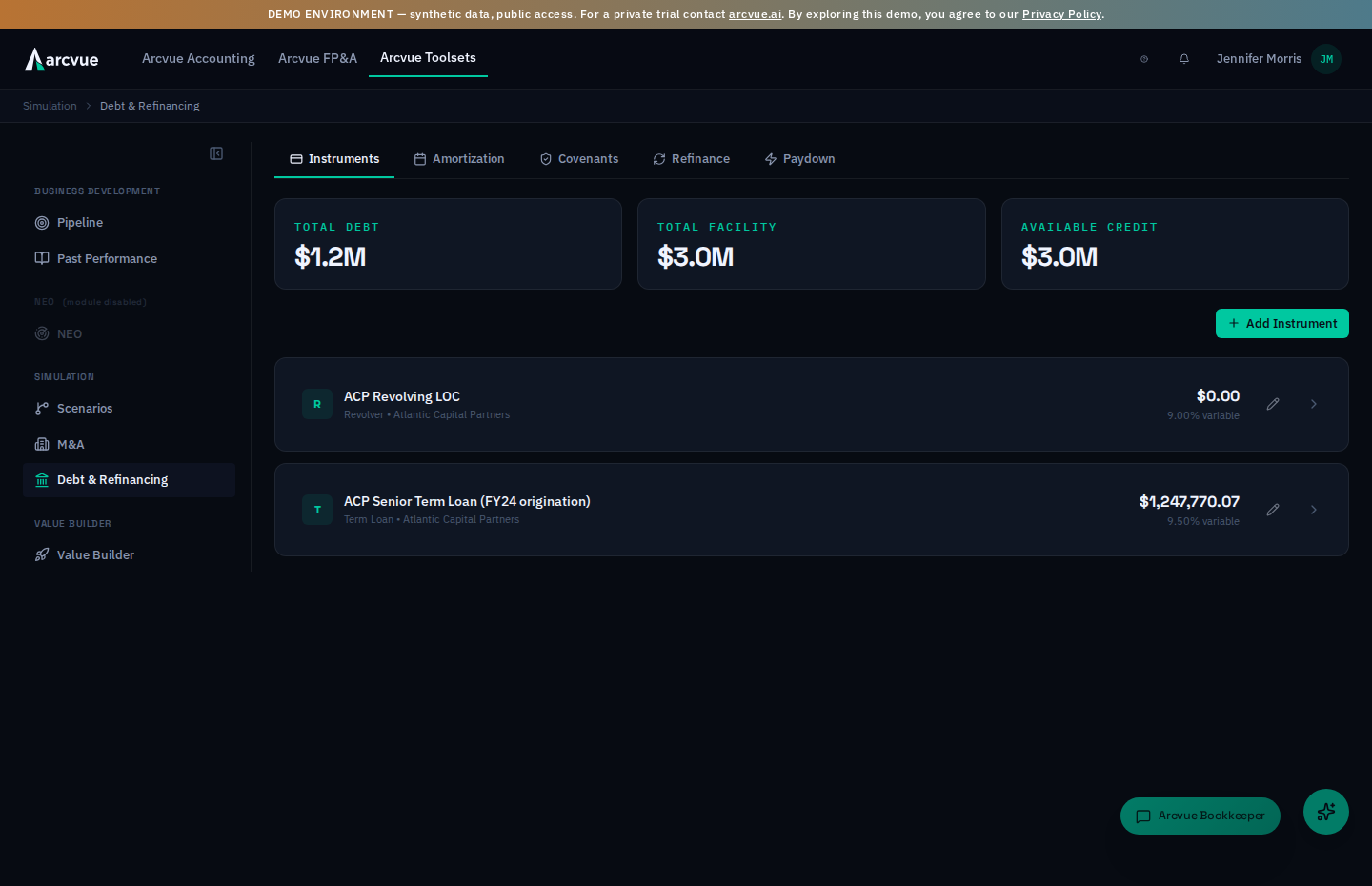
In the left navigation, open Toolsets → Debt & Refinancing (/debt). The
page opens on the Instruments tab; a tab bar across the top switches between
the five views: Instruments, Amortization, Covenants,
Refinance, and Paydown.
Instruments
Record Rate Change opens the panel for a new effective-dated rate, and the same button reads Cancel while that panel is open. A rate is a value you supply with the date it took effect — each change is a new entry rather than an edit of the old one, so the history stays readable.
Your active debt facilities. A KPI row shows Total Debt, Total Facility, and Available Credit, and below it each facility is a card showing its name, type, lender, current balance, and rate. Click a card to expand its detail — original principal, maturity, facility limit, last payment date, and the most recent twelve rows of its amortization schedule.
This tab manages your real debt portfolio (not a sandbox):
- Add Instrument opens a drawer to create a facility — name, type (Term Loan, Revolver, Subordinated Debt, Seller Note, Earnout, or Other), lender, original principal, interest rate, rate type (fixed or variable), maturity date, facility limit, and notes.
- Annual Payment Month — for a note that repays principal once a year (a sub-debt note due each November, say) rather than in twelfths. Leave it on Spread evenly across the year for a level schedule; pick a month and the whole annual principal payment lands there. It is validated to a real month — a value the calendar does not have would silently never repay — and it can be corrected later from the same drawer.
- Origination Date — when the instrument starts. For a note repaid in installments this is the first payment date. Interest accrues from here, and a forecast that begins after this date opens at the balance already amortized rather than at the original principal — so a note left without one can open a forecast at its full face value even though payments have been made against it, overstating leverage.
- Status — Active counts the instrument toward total debt; Retired keeps it in the record and excludes it from the totals. Retire a facility that has been repaid, or one another instrument now supersedes — an earnout converted into a seller note, say. Nothing is deleted: an obligation that really existed stays in the history, it just stops being counted as debt you still owe.
- The pencil on any card edits that facility — every field above, on an instrument that already exists.
These records feed the amortization schedule, the covenant math, and the analysis tabs, so keep them current.
Adding an instrument
Add instrument opens a form. The fields that decide how the schedule is built:
| Field | What it does |
|---|---|
Instrument Name | What you will recognize it by everywhere else in the module. |
Original Principal ($) | The face amount at execution. Amortization is built from this, not from today's balance. |
Interest Rate (%) | The rate as of the agreement. |
Facility Limit ($) | The maximum available. It applies to a revolver; on a term instrument it stays blank and the instrument list shows a dash rather than a zero. |
Payment Day of Month | Which day payments land, 1 to 31. It shifts every date in the generated schedule, so set it before you read the amortization table. |
Interest Rate (%) is a value you supply, not one Arcvue derives.
Arcvue does not model an index plus a margin, because the margin comes from a
leverage grid your lender tests against covenant definitions written into your
specific agreement. A derived rate would be a confident wrong number, which is
worse than a stale one somebody owns. When the rate changes, record the new
rate with its effective date — the schedule picks up the right rate for each
period from those terms.
Attaching the executed agreement
Upload the signed document to the instrument and the module keeps it with the numbers it justifies.
Choose an executed debt agreement file to uploadtakes a PDF or a Word document.Date the agreement was executed (optional)is the date on the signature page. It is what orders amendments correctly, so a later amendment sits after the original rather than wherever the upload happened to land. Leave it blank if you do not know it.Lender named on the agreement (optional)records the counterparty as the document names them.Cancel this upload; nothing has been storedbacks out. The label says what it does on purpose — the most common reason to hesitate over a cancel is not knowing whether a partial upload left something behind.
Amortization rules
An expanded instrument card carries an Amortization Rules panel: the
principal rules its schedule is built from, each with its Effective date and
Principal. Add Rule opens a short form and becomes Cancel while the
form is open, so a button reading Cancel there means a form is already
expanded below it.
| Field | What it does |
|---|---|
| Effective Date | When this principal starts. Required. |
| Monthly Principal / Annual Principal | The amount. Its label follows Per. |
| Per | Month or Year: whether the amount is paid every month or once a year. The forecast reads the amount exactly this way. |
| Notes | Optional, for example Y2: 10% amort. |
Save writes the rule and rebuilds the debt schedule, confirmed as Amortization rule saved and schedule rebuilt. If the rule saved but the rebuild did not, a warning says the figures below may be stale. The pencil on a rule opens it for editing, and Update saves the change.
The x on a rule removes it at once and rebuilds the schedule. It does not ask first, so click it deliberately; to restore a rule, add it again.
A rule saved before Per existed carries a note saying it does not state whether its amount is per month or per year, and how the forecast is reading it. Edit the rule and choose Per to state it.
Amortization
The month-by-month payment schedule for a fiscal year. Use the ← / → buttons to change the year; a KPI row summarizes that year's Principal Payments, Interest Payments, and Total Debt Service.
Interest by instrument ranks the debts that cost you something that year, with a bar showing each one's share of the total. It answers the question the Interest Payments card raises and used to leave unanswered — before this, the only way to see which debt drove the number was to open each instrument in turn and add up twelve rows of its schedule.
A debt that cost nothing that year is named underneath rather than ranked. A converted earnout or an undrawn note carries no interest, and a row reading $0.00 in a list about cost is noise — but leaving it out silently invites "where did my note go", so it is listed by name on one quiet line.
The figures tie to the card above them: a revolver draw is not debt service, so it is excluded from both, and the instrument rows always sum to the year total. The block is hidden unless at least two debts actually cost something — one paying debt is nothing to split, and a single row restating the card above it would be noise however many other instruments you hold.
The schedule table lists Date, Instrument, Beginning balance, Principal,
Interest, and Ending balance, with a Source badge marking each payment
Actual (already posted) or Projected. Click any column header to sort the
schedule; the header stays frozen while the rows scroll. The Export button
downloads the schedule as a branded, print-ready Excel workbook
(debt-payment-schedule.xlsx).
Covenants
Live compliance for your two debt covenants — DSCR and Leverage — each as a status card. The card shows a PASS / BREACH / Pending badge, the Threshold and current Actual value, and the Cushion (for a minimum like DSCR) or Headroom (for a maximum like Leverage), plus the underlying Adj. EBITDA, Debt Service, and Funded Debt. If no covenants are set up, the tab prompts you to configure covenant thresholds first.
DSCR = Adjusted EBITDA ÷ Debt Service (higher is safer; stay at or above the minimum). Leverage = Funded Debt ÷ Adjusted EBITDA (lower is safer; stay at or below the maximum).
What counts as Debt Service
Not every instrument on the Instruments tab enters the DSCR denominator, and this is the part to check first when the number disagrees with what you expected:
| Instrument | Contributes |
|---|---|
| Term debt | Principal + interest |
| Revolver / line of credit | Interest only |
| Sub debt, seller notes, earnouts | Nothing |
Only active instruments count.
Why the revolver is interest-only: draws and paydowns are not a fixed repayment schedule, so revolver principal is not debt service — it is borrowing and repaying. Counting it would make the ratio swing with your working capital rather than with your ability to service term debt, which is not what the covenant measures.
Why sub debt, seller notes and earnouts are excluded: they are not fixed bank debt service. Leaving them in is not conservative, it is wrong in both directions — a negative earnout remeasurement can drive computed debt service below zero and make a tight quarter look comfortable.
If your credit agreement defines it differently, the definition is configurable per tenant — the instrument types that count are a setting, not a constant. The agreement governs; set the configuration to match it rather than reconciling the difference by hand each quarter.
The stress table runs your covenants against a downside
case rather than the plan. Stressed Adj. EBITDA is the adjusted EBITDA
under that case, shown per fiscal year beside the DSCR and leverage results.
The thresholds in those column headings are your agreement's, not defaults —
they are read from the covenant definitions, which is why the minimum and
maximum are printed in the heading itself rather than assumed. Click a column
heading to sort the table, and Export downloads it to Excel; it is the
result a lender asks for.
Refinance
Model refinancing one or more existing facilities. Check each active loan you want to fold into the proposed new facility, enter the New Rate (%), New Term (months), and Closing Costs ($), then click Analyze. When you select multiple loans, the engine compares the proposal against their combined balance, balance-weighted average rate, and longest remaining term.
The results show:
- Headline KPIs — Monthly Savings, Total Interest Saved, Breakeven (months to recover closing costs), and NPV of Savings.
- Current vs Proposed terms side by side — rate, remaining/new term, monthly payment, total interest, and total cost. Under Current Terms a line names the rate's provenance — Rate in force since <date> (Oldest rate in force since … when the loans you selected carry different dates), or Priced from the instrument record — no rate change recorded — because a rate you supplied is only as current as its effective date, and an undated rate looks equally authoritative whether it was set last week or last year.
- Balance Rundown Comparison — a chart of the current versus proposed balance over time.
The panel is headed Refinance Analysis. Its instrument
picker is a list you can select more than one from — refinancing is usually
several facilities collapsing into one, so the analysis is built to take a set
rather than a single instrument. Only active instruments carrying a balance are
offered.
Paydown
Model extra payments on a single loan. Pick the loan, enter an Extra Monthly Payment ($), and click Calculate. The results show:
- Headline KPIs — Time Saved, Interest Saved, Original Interest, and New Interest.
- Original vs Accelerated schedule side by side — payoff months, total interest, and monthly payment.
- Balance Paydown Comparison — a chart of the original versus accelerated balance rundown.
- The same rate-provenance line as Refinance — Rate in force since <date> — beneath the KPIs.
Paydown analysis runs one loan at a time.
The panel is headed Accelerated Paydown Analysis, and unlike
Refinance it takes one instrument, chosen from a dropdown that opens on
Select... until you pick. Only active instruments appear.
Results are shown as two cards side by side so the comparison is the point:
Original Schedule — payoff in months, total interest, and the monthly
payment — against the accelerated case on the same three lines.
Covenant status colors
Throughout the module, covenant readings are color-coded:
| Color | Meaning |
|---|---|
| Green | Healthy — DSCR at or above its minimum, Leverage at or below its maximum |
| Red | Breach — DSCR below the minimum, or Leverage above the maximum |
| Gray / — | No value to measure yet |
On the Covenants tab specifically, the badge reads PASS, BREACH, or Pending.
Intangible assets
Intangible Assets is a small register on this page for assets you amortize rather than depreciate — acquired customer relationships, capitalized software, goodwill components. It sits with Debt because both are long-lived balances that unwind on a schedule.
Add Intangible opens the row form. Asset Name and Acquisition Date
identify it; Initial Value and Useful Life (yrs) drive the arithmetic.
The table then carries:
| Column | What it holds |
|---|---|
Acq Date | The acquisition date — the same field the form calls Acquisition Date. |
Initial Value | What it went on the books at. |
Life (yrs) | Useful life in years. |
Annual Amort | Initial value spread over that life. |
Accum Amort | What has been amortized to date. |
Net Book Value | Initial value less accumulated amortization — what is left. |
Empty, it says so and tells you what adding one buys you rather than showing a bare table.
Relationships to other modules
- Financial Statements → Covenants — the same DSCR/Leverage discipline, presented as a per-year statement view alongside the Balance Sheet and Cash Flow.
- Treasury — where the broader cash and debt-service picture is modeled.
- M&A — models deal-specific debt at close; Debt & Refinancing models standalone facility decisions on your existing book.
- Admin → Debt Register — where an administrator maps each balance-sheet debt account to its instrument, corrects a balance that has drifted, and sets the revolver facility limit this screen's covenant test measures against. If a covenant result here disagrees with the amortization schedule, that is the first place to look. See the Debt Register guide in the Admin user guides.
Working with the schedule
The amortization schedule is a sortable grid with a frozen header row that stays visible as you scroll, and it exports to Excel in one click.
When a panel cannot load
A panel with no data and a panel that could not reach the server mean opposite things, and this screen now keeps them apart.
Instruments, the payment schedule and covenant status each report a failed request on their own, with a Retry control. No debt instruments means the request completed and your portfolio is genuinely empty -- a fact to act on, and the reason that empty state invites you to add one. A failed request says only that the question could not be asked, so nothing on the screen describes your debt until it loads.
Covenant status is the one to read carefully. That panel exists to tell you whether you are in compliance, so a failure there is not merely missing information: until it loads it cannot tell you that anything is in breach, and No covenants configured would have implied there was nothing that could be.
The Refinance and Paydown analyzers pick instruments from a list drawn from the same source. If that list could not be loaded they say so above the picker rather than presenting an empty selector, because an empty picker on a screen with no message reads as a portfolio with nothing in it. If an analysis itself cannot run, the result area says The refinance analysis could not be run. Nothing below has changed. (or the same for paydown), so an earlier result is never mistaken for a new one.