NEO — Business Development & Capture
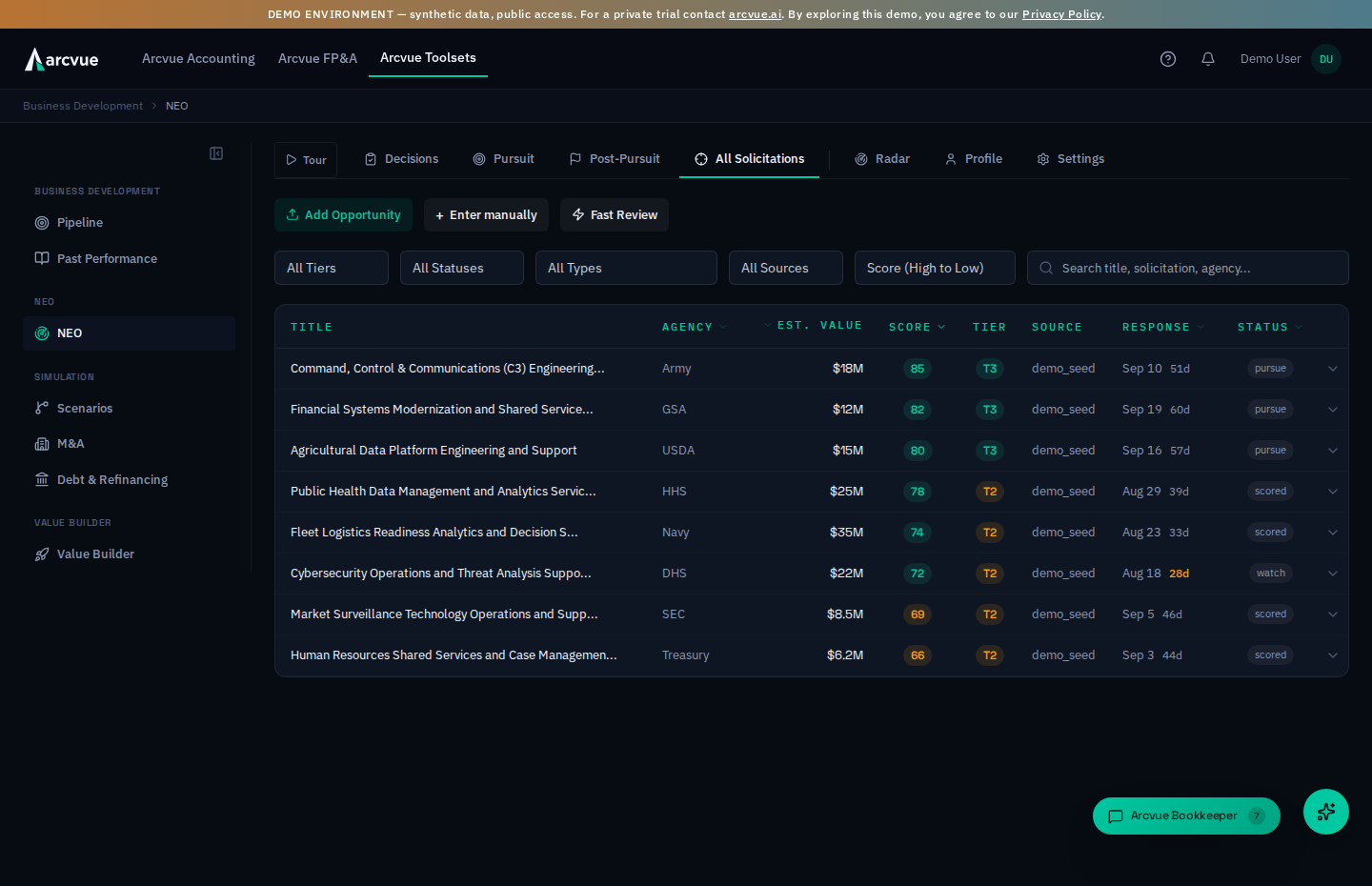
NEO is Arcvue's federal business-development engine. It pulls government solicitations from every source you use, screens and scores each one against your company's real qualifications, sorts the survivors into decision queues, and then carries the ones you pursue through capture and proposal all the way to a recorded win or loss. The goal is simple: spend your team's time only on the opportunities you can actually win, and never miss one you should have seen.
Who uses it: everyone on the business-development team. What you can do depends on your role:
- Anyone with access can view every opportunity, queue, score, pursuit, and the company profile.
- BD roles (CEO, COO, CGO, admin, and operations / division / growth leads) make bid / no-bid / watch decisions, manage pursuits, and edit capture detail.
- Executives and admins (CEO, COO, CGO, admin) can force an opportunity through the full pipeline, generate proposals, import a solicitation by hand, run AI research, and trigger a sync.
- Settings — scoring weights, portal credentials, exclusion keywords, and the company profile — are edited by CEO, COO, or admin only.
Finding it
In the left navigation, open Toolsets → NEO. NEO has ten tabs, in two groups: the daily-workflow group — Home, Decisions, Pursuit, Submitted, All Solicitations, Partner Interest, Partners, Partner Ecosystem — and the reference/config group — Radar, Profile, Settings.
Home opens on what you personally owe across the other tabs, so it is the one to start from rather than the one to skip.
Part 1 — The ideas you need first (read once)
How a raw posting becomes a scored opportunity (the funnel)
NEO doesn't just list solicitations — it runs each one through a funnel so a human only ever looks at the ones worth a decision. The stages get progressively more expensive, so cheap checks run first and only survivors reach the costly AI reads:
- Sources. New postings arrive nightly from SAM.gov, GSA eBuy, PIEE, and a forwarded-email inbox (see Part 3). Each lands as a raw record.
- Pass 1 — the disqualifier (no cost). Deterministic, fact-based checks drop the obviously-ineligible: an expired or too-soon response deadline, a title that matches one of your exclusion keywords, or a solicitation restricted to a contract vehicle, clearance, set-aside, or size standard you don't hold. A single cheap AI micro-screen also asks one question — is the government buying professional services, or a product? — and drops confident product/commodity buys, since you're a services firm.
- Tier 1 — metadata scoring (no AI). Survivors get a first score from structured facts alone: contract value, how narrow the eligible-bidder pool is, period of performance, and your history with the agency.
- Tier 2 — the notice read (AI). The system reads the solicitation's description and judges relevance and fit against your capabilities, inferring the likely incumbent, expected number of bidders, and whether it's a new award or a recompete.
- Tier 3 — the document read (AI). For the strongest survivors, NEO downloads the actual RFP/SOW documents, parses the requirements (Section L/M equivalents), and matches them against your past-performance record — then assigns the final score.
- Triage. The scored opportunity lands in a decision queue for a human bid / no-bid / watch call (the Decisions tab).
Two rules make the funnel trustworthy:
-
Nothing winnable is thrown away. A gate you can't meet as a prime — a set-aside you don't hold, a clearance above your ceiling, a vehicle you're not on, a size standard you exceed — is never a kill. It routes the opportunity to the JV / Sub lane instead, so you can evaluate it for a teaming or subcontractor role.
-
Every kill is reversible. Killed opportunities are kept, not deleted, and each carries the reason it was killed. Use Reopen on All Solicitations when the reason stops holding, or remove the offending exclusion keyword and update your profile so matching opportunities come back. Reopening asks why, and the choices are Set-aside changed, Scope changed, Deadline extended, Teaming now available, Killed in error and Other.
That list is not the no-bid reasons inverted, and the difference is the POINT. A kill is reversed because the solicitation moved — the set-aside opened up, the scope changed, the date slipped, a partner turned up — not because you reconsidered. Killed in error is the one exception, and it is the case the control was built for. Naming the reason is what lets the reopened record answer "why is this back?" a month later.
-
Watched work never expires out of view. A watched opportunity stays on the Pursuit tab after its response date passes, marked Expired. That is on purpose: people watch an opportunity — including a sole-source award, which has no competitive deadline at all — because they want the recompete. The response date is about this competition; the watch is about the next one.
When NEO can't score something because the source data was missing — a portal link with no attachment, or a notice it couldn't read — it doesn't guess a score. It parks the opportunity in the Needs Data queue with the reason and retries automatically every night as documents become available.
The score, and the four signals behind it
Every scored opportunity carries a composite score from 0 to 100, shown as a colored badge (green = strong, amber = middling, red = weak). The composite is built from three strategic axes, each also 0–100 with a one-line rationale you can hover to read:
- Fit — how well the work matches what your company does. (Only available once the AI has read the notice at Tier 2.)
- Competitive Position — how favorable the field is: how narrow the eligible pool is, whether there's an incumbent, how many bidders to expect.
- Strategic Value — how much the win is worth to you: contract size, period, agency relationship, vehicle on-ramp.
A fourth signal, Lift, rides alongside but is informational only — it never gates a decision. Lift measures how much of the proposal NEO can help automate (high automability = low lift to bid).
Alongside the score, each opportunity carries an evaluation tier (1, 2, or 3) marking how deep the analysis has gone — and only a Tier 3 opportunity (fully scored, with its documents read) can earn a top-tier "green / pursue" rating.
Part 2 — The tabs
Home — what you owe, and when
Home answers one question: what do I owe, and when. Two counters at the top say how much; the calendar underneath says when; a Changes panel below the calendar says what moved under you; and the three cards at the bottom break it down into your open actions, the solicitation dates you are tracking, and what you have closed in the last two weeks.
The two counters count actions and dates together, deliberately — a Red Team review tomorrow is not less urgent than a task due tomorrow:
| Counter | What it counts |
|---|---|
| Overdue | Actions and dates on your bids that are past due, within the last 30 days |
| Due this week | The same, falling in the next seven days |
Whose bids the calendar shows. It has two modes and remembers which one you chose. My bids shows only bids you are named on — you are named on a bid when someone lists you as its capture, proposal, pricing or contracts lead on that pursuit's Capture tab, or assigns you an action on it. All bids shows every bid in the pipeline, whoever runs it; if your job spans the whole pipeline (a growth officer, a proposal manager, a contract manager), that is your view. Each button carries its own count. If nobody has named you on anything, the calendar opens on All bids and says why rather than showing an empty month.
Narrowing it. Two rows of chips sit above the grid — one for the kind of date, one for the stage the bid is in. Stage chips carry their own counts and only appear for stages that actually have something in them. Nothing is filtered until you filter it, so a month that looks wrong is not a filter you forgot. When a filter is on, a clearing control appears beside that row — Show all kinds and All stages — and it is absent otherwise, so the presence of one is itself the signal that something is hidden.
Page between months with Previous month and Next month. Two toggles sit in the header: Whose bids to show — the My bids / All bids pair, each carrying its own count — and Calendar layout, which switches between Month and List. Opening a day shows its detail; Close day dismisses it.
The screen carries its own help, and it knows things this page cannot. Using the calendar opens a panel explaining the same ground as this section — but with your numbers in it: how many bids you are named on, how many dates that is in the range you are looking at, and how many exist across the company. When a month looks emptier than you expected, that panel answers it in one line and this page cannot.
An empty calendar always tells you why, and each reason has its own way out. This is worth knowing because a blank month otherwise reads as nothing is due, which is the one conclusion you cannot safely draw:
| What it says | What it means | The way out |
|---|---|---|
| Nothing matches the filters you have on | Your own chips are hiding the dates | Clear the filters |
| You are not named as a lead on any bid | Nobody has listed you as capture, proposal, pricing or contracts lead, and no action is assigned to you | Show every bid instead |
| Nothing of yours in this month | You are named on bids, just none with a date here — it names how many dates the company has in range and how many bids you are on | Show every bid |
| No dates in this month | Genuinely nothing scheduled | Page to another month, or switch to List |
Only the last of the four means the pipeline is quiet. The other three mean the view is narrowed, and the difference matters most on the day you are checking whether anything is about to be missed.
What counts as a date. Eight kinds. A chip's color tells you its kind, never its urgency — the grid already says when a thing is:
| Kind | Where it comes from |
|---|---|
| Proposal due | The customer's submission deadline. It follows the solicitation — a new date posted on SAM.gov or eBuy replaces it — and you can set it yourself on the pursuit's Capture tab when you know better than the posting. A date entered there stays until the government posts a different one |
| Questions close | Last day to submit questions to the contracting officer |
| Review gate | A color-team review — Pink, Red, Gold, White Glove — scheduled on the pursuit's Capture tab |
| Milestone | Any other dated commitment on the capture schedule |
| Action | An open action with a due date — yours if it is assigned to you, wherever the bid sits |
| Internal target | Our own target date for the pursuit, set on the pipeline, independent of the customer's deadline |
| RFP release (est.) | When the capture lead expects the RFP to post — our estimate, entered on the pursuit, not a date from the customer. It plots only while the pursuit is still ahead of the solicitation (DRB, Watch, Qualified, Capture); once the RFP is out, the deadline is the date |
| Est. start | Estimated period-of-performance start, from the solicitation |
The filter chips above the grid show only the kinds present in the range you are looking at, each with its count — so the filter row doubles as a summary of the month. Saturdays and Sundays are drawn exactly like weekdays, because bids are submitted on them.
Getting around. Click a date to open everything scheduled that day with full titles; click any entry to open that pursuit; Today returns you to the current month; Month / List switches between the grid and a chronological agenda that covers the last week and the next four months in one pass.
Why a month can look empty. You are on My bids and none of yours has a date that month (the empty state says so and offers the company view); a stage or kind filter is on (chips only ever narrow — clearing them always shows more); or nothing is genuinely scheduled, in which case List shows the whole window instead of paging month by month. To get more onto it: name the leads on each bid, give your review gates a date on the pursuit's capture schedule, and give actions a due date — an action without one is real work the calendar cannot place.
Changes to what we're drafting. Directly under the calendar and above the cards, because it is the only panel here that can invalidate what you had planned — everything else on this page renders current state, so nothing else can tell you the ground moved. It lists the pursuits in a drafting stage whose solicitation the customer has altered, over the window named in its header (the last two weeks unless your tenant changed it), and flags Due date changed on any whose deadline moved. When nothing has moved it says so and names how many responses in development it checked, rather than showing an empty box.
It also carries the one place the product admits what it cannot see: Show which lists the pursuits no feed is refreshing. An absent change is not the same as no change, and a response going in against a deadline nobody could have known had moved is the failure that half exists to prevent.
Radar — the intelligence dashboard
Radar is the at-a-glance view of your whole pipeline: KPI cards for Total Opportunities, Tier 1 (Pursue), Active Pursuits, Pipeline Value, Upcoming (30d), and Avg Est. Value, plus an Agency Breakdown table showing which agencies are most active for you.
That table abbreviates its headings to fit, and the abbreviations are the evaluation tiers Part 1 describes:
| Column | What it holds |
|---|---|
| Agency | The issuing agency. |
| Opps | How many opportunities from that agency are in your pipeline. |
| Est. Value | That agency's total estimated ceiling — see the warning below. |
| Avg Score | The average composite score across its opportunities, as a badge. |
| T1 | How many have reached Tier 1 — metadata scoring only. |
| T2 | How many have reached Tier 2 — the notice read. |
| T3 | How many have reached Tier 3 — the documents read. |
| PP Records | How many of your past-performance records are on file for that agency. |
The tier colors are not decoration. T1 prints gray, T2 amber and T3 green, rising with how deep the analysis has gone — the same ladder as the rule above that only a Tier 3 opportunity can earn a green / pursue rating. An agency whose T3 count stays at a dash has nothing fully analyzed yet, whatever its Opps says.
Sort by any of Opportunities, Est. Value, Avg Score, or the T1 / T2 / T3 counts, and export the table as it stands.
Est. Value in this table is not Avg Est. Value on the card above it. The
card averages the open solicitations that carry a price; this column is that
agency's total ceiling across its opportunities. Two different numbers,
nearly the same words, on the same screen.
What Avg Est. Value actually averages, because the label does not say. It covers only solicitations that carry an estimated value and are still open for response. Two consequences worth knowing before you read anything into the number:
- It moves as deadlines pass, with no new data arriving. A priced solicitation drops out of the average the day its response date closes, so the figure can change overnight purely because the pipeline aged.
- A dash means nothing currently open carries a price. Solicitations often publish with no estimated value at all. When none of the open ones have one, the card shows a dash rather than zero — a zero would read as "this pipeline is worth nothing", which is a different and much worse claim than "nothing open here is priced yet". A dash is a normal state on an early or unpriced pipeline, not a fault.
Use Pipeline Value for the size of the whole pipeline; Avg Est. Value answers a narrower question than its position on the card row suggests. It's also where you trigger a manual pull — Sync SAM.gov and eBuy Sync — when you don't want to wait for the nightly run. A sync runs in the background and its results appear in a few minutes; the last-synced timestamp and record count are shown beside the buttons.
Pipeline Accountability — is each lane actually being worked
The first thing on Radar is a table titled Pipeline Accountability, one row per division lane. It answers a different question from everything else in NEO: not which opportunities are good, but is anyone working them. It measures activity only — never revenue, and never win rate.
It grades against a fixed bar; it does not rank people. Every lane is measured against the same published standard, and the row order is fixed. A quiet lane is not "worse" than a busy one — it is measured on the same bar and the numbers say what they say.
Operators can move the bars. Anyone with pipeline write access sees a Grading bars control on the board header. It opens the list of measures with their green and yellow cutoffs — change a number and Save this bar, and the whole board regrades immediately, every lane against the same new standard. Each row shows who last set the bar and when (or "factory setting" if nobody has), so a moved bar is always attributable and reversible. The editor refuses a green bar easier than the yellow one, and says so in place.
Credit follows the lane, not the click. A decision recorded in a division counts toward that division regardless of who actually clicked it, because the lead owns the lane's outcome.
The columns, left to right:
- Lane / Lead — the division and its owner.
- On-time — the share of opportunities decided within 5 days of landing in your lane, over a rolling 30-day window.
- Expired — opportunities whose response deadline passed with no decision at all. These are deals that died untouched.
- DRB-ready — a ✓ when nothing un-adjudicated in your lane is older than 5 days, meaning you can walk into the review board with a clear lane. Otherwise it shows how many items are overdue.
- Open — how many opportunities are waiting on your decision right now, with the age of the oldest beside it. This is the same set your Decisions queue shows you, so the board and your queue can never disagree.
- Decisions — calls recorded in the window.
- New pursuits — pursuits started from those decisions.
- Self-sourced ★ — opportunities you entered manually, brought in through your own network rather than surfaced by a feed. These also appear as a green badge above the table. They are celebrated, not ranked.
- Last active — when the lane was last worked.
The two standards are deliberately different, and this is the part worth understanding. On-time is a rate, so volume carries slack: one slip barely moves a busy lane and visibly dents a quiet one, because the denominator is doing the work. Expired is a floor with zero tolerance for anyone — any expiry at all is red, at any volume. A missed deadline is not a rounding error, so it is not treated as one.
Deferring does not stop the clock. Watch and defer are holds, not decisions. An opportunity you deferred that then blows past its response date still counts as expired. The only calls that close the loop are bid, no-bid, pass, and reviewed.
Click any row to open the drill-down beneath it: the same measures over rolling 30-day, 90-day, and year-to-date windows, a ledger of exactly which opportunities expired, and the open work list — the items to clear before your next review board.
The drill-down's own table is titled Rolling windows (no small-N smoothing) and abbreviates its headings to fit. Reading left to right, Window is the period — 30d, 90d or YTD — and the rest are the measures you already know under shorter names:
| Heading | The same thing as |
|---|---|
| On-time | On-time, graded and colored exactly as on the main row. |
| Dec. | Decisions recorded in that window. |
| Exp. | Expired — deadlines passed with no decision. Graded and colored. |
| Pur. | New pursuits started. |
| Src ★ | Self-sourced — the ones you entered yourself. |
"No small-N smoothing" is a promise, not a shortcoming. A 30-day window holding a handful of decisions will swing hard, and nothing averages that away for you — so read the 30-day column against the 90-day and year-to-date ones before concluding a lane has changed. The screen says so in the title rather than presenting a steadier-looking number than the data supports.
What counts as self-sourced is deliberately narrow: an opportunity somebody entered by hand. Anything that arrived through any ingestion feed is feed-sourced, however it was found. So a low Src ★ is an honest number and not the tracker overlooking your work — and a new feed added later lands as feed-sourced automatically, rather than quietly inflating everyone's count.
If your tenant has no divisions configured, or no scored opportunities yet, the table does not appear at all rather than showing you empty rows.
Trend
Every night the accountability cron grades each division and keeps the result. A division's drill-down ends with Trend: one row per night, newest first, carrying the on-time rate, decisions in the window, expired-undecided count, review-board overdue count, open count and new pursuits, each colored by the grade it earned that night. The board says how a lane is now; the trend says whether it is improving. A division the cron has never graded shows no trend.
Is the lane improving, not just how it stands today
Under a division's grades sits the trend: one row per night, newest first, from the nightly snapshots Arcvue has been writing all along. The board answers how is this lane now; this answers is it getting better, from the same facts and the same grades. Its columns are On time, DRB overdue and Open in lane.
A division the nightly grading has never covered shows nothing here rather than an empty table, so blank means no history yet — not a lane with nothing happening in it.
Decisions — the triage queues
This is where you work new opportunities down to bid / no-bid / watch. Across the top is a tab bar of queues, each with a count:
- one tab per division (with the owner's name) — scored opportunities routed to that division's lane;
- Unassigned — scored, but not yet routed to a division;
- JV / Sub — opportunities you can't prime but might win as a teammate or subcontractor (from the eligibility gates above);
- Needs Data — waiting on source documents; NEO retries these nightly, so this queue is mostly the system's to work, not yours. A record here that reads marked scored but never scored is re-queued for Tier 1 scoring at the next sync, so it leaves on its own.
Watched work and killed work used to be tabs here too. Neither is any more — watched work lives on Pursuit, and the kill record lives on All Solicitations. Both are described below.
Each row is a one-line summary: solicitation type badge (RFI vs RFP/RFQ matters — an RFI is early market research, not a live bid), title, an AI verdict line, agency, the score badge, the Fit / Pos / Val axis chips, the Lift chip, the division dropdown, and the response date with a days-remaining counter (red when it's close or past). Click a row to expand full detail.
Making a decision. On any open row, choose:
- Bid (teal) — you'll pick one or more reasons (Incumbency, Agency relationship, Strategic fit, Recompete, Key personnel, Other) and write a reason; confirming records the decision and starts a pursuit.
- No-Bid (red) — pick one or more reasons (Fit mismatch, Capacity, Competitive, Timing, Price to win, Other) and write a reason.
The written reason is required, not optional. A bid or no-bid will not record without at least four words and fifteen characters, and the field counts down as you type so you can see when it is satisfied. The server applies the same rule, so this is not a form nicety you can work around from elsewhere.
A reason is what makes the decision answerable later — the reason chips say which category the call fell into, and the sentence says why this opportunity. A month on, the chips alone will not tell you.
- Watch (amber) — defer without a reason. It moves to the Pursuit tab at the Watching stage, which is the only place watched work lives now.
Killed work lives on All Solicitations, not in a queue of its own. That list already holds every solicitation whatever its state, so a separate tab was a second copy of rows the first list already had. Two columns carry the record:
- How killed — a colored chip: Auto · rule (a deterministic fact), Auto · LLM (the work-type or relevance screen), Auto · scoring (fell below a threshold), or Passed (human).
- Kill reason — the reason itself.
A row that was never killed reads N/A in both. That is deliberate: it is a different fact from a kill whose reason we do not hold, which reads Unrecorded.
Two ways back, and they answer different questions:
- Reopen — the reason for the kill stopped being true. A set-aside that opened up, a scope or a date that moved. It asks what changed, requires a written answer, and returns the opportunity to Decisions with the ordinary Bid / No-Bid / Watch controls. The original kill is kept beside the reversal, so the record reads passed over because X, reopened because Y with both names and both dates.
- → JV/Sub — we still can't prime it, but there may be a teaming or subcontract play. Sends it to the JV / Sub lane and back into scoring.
Nothing tells you when a kill stops holding. The amendment panel on Home watches pursuits that are being drafted, and a killed opportunity has no pursuit — so a set-aside that opens up on one arrives silently and somebody has to notice. If a kill was close, it is worth a look here before a deadline rather than after.
Reasons on the record
A decision can carry several reasons (incumbency, strategic fit, capacity, price to win, and so on). The opportunity's decision record shows every reason the decider picked as its own chip beside the decision; a decision made before several could be picked at once shows the one it recorded.
All Solicitations — the full browser
Where Decisions is queue-by-queue, All Solicitations is the complete, searchable list. Filter by tier, status, type, source, division, and set-aside, sort by composite score / score / value / response date / agency / stage, and search titles, solicitation numbers, and agencies. Composite Score is the ranking to reach for when you want NEO's overall judgment rather than the raw fit score.
Each filter is a dropdown whose default label is the "no filter" option, so the bar reads as a sentence of what you are not excluding — with one deliberate exception, Open deadlines, described under the table:
| Filter | Options |
|---|---|
| All Tiers | Tier 1, Tier 2, Tier 3 |
| All Statuses | New, Scored, Screened out, Pursuing, Watching, Deferred, Passed |
| All Types | RFP / RFQ (same thing), Sole Source, Sources Sought (RFI), Pre-Solicitation, Special Notice, Industry Day |
| All Sources | Built from the sources you actually have connected. |
| All Divisions | Your own divisions, as they are set up for your tenant, plus Unassigned. |
| All Set-Asides | Small Business, 8(a), SDVOSB, WOSB, HUBZone |
| Open deadlines | All deadlines. This is the one filter that starts switched ON — see below. |
Open deadlines is the exception, and it is worth knowing about. Every other dropdown starts by excluding nothing; this one starts at Open deadlines, which leaves out anything whose response date has already passed. That is the right thing on arrival — most of what a source has ever published is closed, and a list led by expired notices is not a work queue.
It is also the reason an opportunity you know exists can be missing from this screen. A deadline that has passed does not mean the pursuit is over: dates get extended, amendments move them, and a date can simply be recorded wrong. Switch to All deadlines and it comes back. Nothing is deleted and nothing is archived — the filter is the only thing that was hiding it.
A date NEO cannot read counts as open, not as closed. An opportunity with a missing or unparseable response date always appears, so a bad date can never silently remove something from your list.
Sort with Composite Score, Score (High to Low), Est. Value, Response Date, Agency or Status (stage). When a filter combination returns nothing, the empty state offers Show all opportunities to clear it in one click rather than reversing each dropdown.
The type filter's first option is labeled RFP / RFQ (same thing) on purpose. Agencies use the two interchangeably and NEO does not treat them as different kinds of work, so you do not need to guess which one a notice was posted as.
A solicitation GSA has canceled on eBuy is struck through and carries a Canceled badge with the date — deliberately loud, so you do not spend a day shaping a bid for something that is already dead. Click any row to open the detail drawer — the full brief: identifiers and a link to the original listing, downloaded documents, the AI work-domain assessment, a facts grid (agency, value, response date, period, type, set-aside, vehicle, place of performance, NAICS/PSC, clearance), the score breakdown with per-axis rationale, matched past performance, what the source has changed since NEO first read the notice — including a No longer posted by the customer list where documents have been withdrawn — and the decision history. You can Bid / No-Bid / Watch right from the drawer. The drawer carries a Solicitation Description panel with the notice's own text, and an expected match picker: Search past performance finds a past project you expect to cite, and Why does it fit? (optional) records your reason in a sentence. The reason is the part that survives — six months on, the match alone will not tell you what you saw in it.
Three controls live in the action bar:
-
Add Opportunity — look a solicitation up by number on SAM.gov and import it on the spot. The dialog is headed Add Opportunity from SAM.gov and asks for the Solicitation Number.
-
Enter manually — record a self-sourced deal you brought in through your network; it's marked with a ★ and routed to the right division. The dialog is headed Enter Opportunity Manually, and on success it confirms which division the opportunity went to.
- Solicitation document — attach the notice, RFQ or statement of work you were sent. This is the field that gets the opportunity scored. A hand-entered opportunity is the one case where NEO has nothing of its own to read: nothing pulled it from a feed, so there is no attachment behind it. Attach one here and NEO extracts the text, reads it, and a score appears on the opportunity a few minutes later.
- Add and attach — the save button renames itself once you pick a file, so the label tells you what the click will do. With no file it reads Add opportunity and saves the record alone.
cautionWithout a document the opportunity is saved and never scored. It still lands in your lane's queue and is still yours to work — it simply carries no score, because nothing has read anything. You can attach one afterwards from the opportunity's own Documents card and it will be graded then.
If you attach a document and no score ever appears, the usual cause is a scan: a photographed or scanned page carries no extractable text, so it stores and lists identically to a readable one and contributes nothing. Attach a text PDF instead.
-
Export n to Excel — the button carries the number it will write, and it exports what your filters match, not the page you are looking at. If the match is larger than one file can carry, an amber line says how many of how many came out and asks you to narrow the filters and export again — so a short file always tells you it is short.
If an opportunity you care about is stuck below Tier 3 (its documents haven't been pulled yet), open its detail and click Force Full Pipeline to push it to the front — NEO downloads the documents and re-scores it in the background.
Pursuit — the capture command center
Four controls on a pursuit that are worth knowing before you press them
Carry forward cannot be undone in the app, and the screen says so.
It moves everything captured on this pursuit — stage, owner, PWin, milestones,
tasks, teammates, competitors and contacts — onto the successor you pick. The
RFI keeps its own requirements, scores and screening. It reads
Carrying forward… while it works.
The generate control names the document it will produce, so its label tells you how Arcvue has classified this record: it reads Generate RFI Response on an RFI and Generate Proposal on everything else. If the label is not the one you expected, the record's type is the thing to check, not the button.
Reading the documents is a background job with a three-state button, and it is the one place on this page where nothing appears to happen for a while:
| It reads | What is happening |
|---|---|
| Read the documents now | Nothing has started. Press it. |
| Starting… | The request is going out. |
| Reading — check back in a few minutes | It is running. The button is now disabled and the page will not update itself — come back rather than waiting on it. |
Add this match records a past-performance contract against the solicitation, and it stays disabled until you select one. It reads Recording… while it saves, and says Match not recorded. Try again. if it fails, so a silent return means it worked.
A long solicitation description is truncated at about 1,500 characters, with Show full description to open it and Show less to collapse it again. A description short enough to fit shows no control at all, so its absence is not a fault.
Once you Bid, the opportunity becomes a pursuit. The Pursuit tab is your command center for winning it. The Capture view carries everything in one place:
-
The brief — the AI's relevance read, the primary work domain, and any hard blockers, with the full notice text a click away.
-
Win strategy (you write these) — Win Themes mapped to evaluation factors, Discriminators vs. the competition, weaknesses to "ghost," your price-to-win posture, and a solution seed.
-
Can we win — the Fit / Competitive Position / Strategic Value rubric bars.
-
PWin scorecard — a probability-of-win estimate built factor by factor. The lowest factor is the ceiling for your overall PWin, so that's where to focus. The headline figure is editable in Vitals — the field is labeled Probability of win, percent and accepts 0 to 100. Where your role does not permit editing it, the number is shown as text and hovering says why.
-
Capture controls — status (the capture stage), Posture (Defend / Capture / Compete / Watch), Pursuing as (Prime / Sub / JV), and the four people a bid can be assigned to: the Capture, Proposal, Pricing and Contracts leads.
All four are pickers, not free text, so you choose an existing person rather than typing a name. And naming someone is what puts the bid on THEIR CALENDAR — it is the same list the calendar's My bids view reads, so a contracts lead who is never named will not see a single deadline for work they are reviewing.
Choosing Sub or JV under Pursuing as reveals one more field for who you would team under, or with. Switching back to Prime clears it, which is right — but it means a partner you had recorded is gone rather than hidden, so put it back if you switch again.
Our bid? appears beside it. A sub or JV position another firm handed us, that we never worked, is not a bid: choose No, handed to us and the pursuit stays out of Bid History and out of every win rate, and any copy NEO already wrote to Bid History is taken back. Yes, we bid it records its outcome as usual. A pursuit the win/loss workbook keeps is locked here — the workbook already counts it as a bid.
The value NEO records in Bid History is what you priced and submitted: the total of the Pricing proposal linked to the pursuit, once that proposal is Submitted, Won or Lost. With no such proposal the row records no value, because the pursuit's estimated value is a number typed in NEO, not your bid. Where the win/loss workbook files a solicitation's bids by task order, an outcome on a pursuit known only by the parent number lands on the task order when there is exactly one, and writes nothing when there are several, since it cannot say which order it was.
The copy follows the outcome. Clearing an outcome takes NEO's copy back out of Bid History, and changing one (Won to Lost, say) rewrites the copy from the outcome as it now stands, so the record NEO scores against never keeps a result you withdrew. A Bid History row someone has edited is no longer NEO's copy, and NEO leaves it alone.
-
New vs recompete — set it to New or Recompete (it reads Set... until you do), alongside Annualize over (years). These two are inputs, not labels: they drive the pipeline summary's new-versus-recompete split and its annualized value, so a pursuit left unset is absent from a number someone else is reading.
-
Win actions, schedule & gates, deal economics, competitors, and team — the tasks that raise PWin, your milestone/gate timeline, B&P budget vs. spend, the likely bidders, and your win team and customer contacts.
Every fact carries a small provenance badge — auto (from the feed), LLM (the AI's read of the notice), or human (your capture judgment) — so you always know where a number came from. An at-risk flag appears automatically when a pursuit is missing something load-bearing (a pricing lead within two weeks of the deadline, an unset PWin, no open actions, or no qualifying past performance).
A pursuit moves through capture stages — the default vocabulary, in order, is Team Review → RFI Development → Watching → Qualified → Capture → Development → Submitted, then a terminal stage — Won, Lost, No Bid or Canceled. That is the shipped default: your company can rename, reorder or retire stages in Settings, so the list on your screen is your company's, not this one. The editor is Deal-flow vocabulary, and it covers review gates as well as stages — they are the same kind of object.
Renaming is safe. A stage is stored by an internal key and shown by the label you choose, so changing the label cannot reach the pursuits sitting on it. And retiring is not deleting — a retired stage stops being offered in the pickers while every bid already on it goes on rendering normally. Retiring a stage takes it out of the pickers so nobody can move a bid onto it again, but does not touch the bids already sitting on it. A new pursuit starts at the first stage your company still offers — unless the notice is an RFI or Sources Sought, which starts at RFI Development when your company offers that stage. Every path that creates a pursuit enters through that one rule, so a retired stage is never handed out again. You reach Watching by choosing Watch on the queue rather than by creating a pursuit.
When the RFI response goes out, say so. On the pursuit's Capture card, Mark RFI response submitted records the date and your name, moves the pursuit to Capture, and takes its response and questions dates off the calendar — the response shows there instead, as a done milestone on the day it went out. RFP Release (est.) appears on the same card the moment the response is recorded: enter the date the customer is expected to post the RFP, and the pursuit's Next date on the list reads it while the pursuit sits in Capture; the Home calendar and the Pursuit tab's calendar plot it as RFP release (est.). The same field sits on the Details tab for any pursuit, next to Questions Due, so a DRB, Watch or Qualified pursuit can carry it too. A pursuit the W&L workbook governs carries a Spreadsheet-governed pursuit notice at the top of its Capture card: Pursuing as, company value, incumbent, new/recompete, annualize years, status and the outcome are the spreadsheet's and show read-only here, because the next sync writes the spreadsheet's values over anything typed in NEO. Change them in the workbook. The notice itself stays classified as an RFI; the real RFP arrives as its own record when the customer posts it. Undo on the same card clears the record and leaves the stage where it is. The Active RFI view lists only RFIs nobody has answered yet, and an answered RFI's row reads RFI · responded.
The quick views above the list are Active proposals — bids in Development or Submitted, the pre-award working set — Active RFI, Mine, and Due in 30 days. Active RFI is the one that is not stage-shaped: it keys on how the notice is classified, so it keeps working after your company renames or retires stages.
The columns on the Pursuit and Submitted lists
Both lists are the same table: Opportunity, Agency, Next date, Prime/Sub, Type, Capture lead, Stage, Company value and PWin. Clicking Opportunity, Agency, Next date, Stage, Company value or PWin sorts by that column; clicking it again reverses the order. Prime/Sub is the Pursuing as choice from the Capture card (Prime, Sub or JV; a dash until someone chooses). The source a notice came from left the table to make room and still travels in the export.
Company value is your share, not the whole award. It is what the work is worth to your company — on a $40M program you hold a quarter of, this column reads $10M. The contract ceiling is a different figure and lives on the opportunity record; the two are never mixed. A bid nobody has priced shows an em dash rather than $0, because "not priced yet" and "worth nothing" are different facts and a zero would sum into an export total that is wrong.
Next date shows the one date a pursuit answers to. For DRB Review, Watch, Qualified and Capture there is no proposal deadline yet, so the column shows the RFP Release (est.) the capture lead entered, tagged RFP est. so nobody reads an estimate as a due date; with no estimate entered it falls back to the customer's deadline when the notice has one. For RFI Development, Proposal Development and Submitted it is the deadline, exactly as before, and the sort follows whichever date the row shows. The calendar layout on this tab plots the same date, so a release estimate shows there tagged RFP est. and a deadline shows as Proposal due.
The deadline counts down only while a bid is still being worked. On Submitted the deadline is history — the proposal went in, or the bid is closed — so the date shows on its own with nothing beside it. On Pursuit you still get the countdown, and Overdue when a live bid has run past its date. A watched notice whose competition has closed reads Expired, which is not a miss: it is watched because somebody wants the recompete.
A Type of — means no notice type was recorded — not that the notice is
some other kind. Most of these arrived in the legacy pipeline import, which
never carried a notice type at all. Hover the dash and it says so.
Every date carries its year. These lists reach back several years once you sort them, so a bare "Sep 4" cannot tell you which September.
What the feed owns, and what you have taken over
Several facts on an opportunity arrive from the source and can be overridden by hand. A dot beside a field means an operator set it — and the feed will not overwrite it again. That is what makes a correction stick through the next sync.
To hand a field back, choose the blank option. It does not write an empty value; it releases the field to the feed, which resumes maintaining it. This is the part worth knowing before you need it: blank is undo, not erase.
The fields no feed fills are the exception. The Agency Contract Number, the questions-due date and the RFP release (est.) only ever come from a person, so there is no feed to hand them back to — blank clears them.
The type you can assign is finer than the type you can filter on. The override list separates Task Order, BPA Call, Simplified Acquisition and Vehicle Mismatch, none of which is a filter option on its own — the filter deliberately groups RFP with RFQ, and RFI with Sources Sought. So a notice you have retyped as a Task Order is still found under the filter's broader heading, and correcting the type is about the record being right rather than about where it will appear.
Beside the search box, All capture leads narrows the list to one person's bids, and All divisions to one division.
The Stage chips above the Pursuit and Post-Pursuit lists are filters. Teal means shown. Watching starts off on Pursuit and No Bid starts off on Post-Pursuit — those two would otherwise fill the list. A stage your company has retired keeps its chip for exactly as long as bids still sit on it, and the chip goes when the last one moves off. If a bid you own is missing from the list, check the chips first — a stage filter is the only thing on this screen that can hide a bid you have already marked for pursuit, and clearing the filters always shows more.
The Requirements tab shows the structured requirements NEO parsed from the RFP documents (Section L/M items, with the past-performance gates flagged). Where proposal authoring is enabled for your tenant, NEO can also generate proposal sections by volume and run a compliance matrix and a readiness checklist against those parsed requirements.
The RFI vs. RFP/RFQ distinction runs through the whole tab. An RFI (Sources Sought) is early shaping — a capability statement, not a bid, with no Section L/M and no compliance matrix. An RFP/RFQ is the live bid with structured requirements. NEO sets the right expectation on each pursuit so you don't over-invest in an RFI.
The requirements table
Each requirement the solicitation puts on you, one row: Section Ref (where in the solicitation it came from), the requirement text itself, Capability Keywords as chips — the first four, then a +N for the rest — and PP Gate.
A PP Gate chip marks a past-performance gate: a requirement you either meet
or do not. It is not scored against the others, so one unmet gate is a
different problem from a low score, and it is worth reading that column before
you read anything else on the row. Where the solicitation assigns materiality, a
Bearing column appears in front.
Requirements that restate one another are folded together — the row shows the count and Show n more like this opens the rest, so the compliance matrix still counts every one.
Requirements is one of the tabs that is available today. Everything below it in this section is not — see the note that follows.
Proposal authoring — not switched on yet
The pursuit tabs you can open today are Details, Capture, Gates and Requirements. A further group — Sections, Proposals, Review Status, Compliance and Editor — is built but not currently enabled, so you will not find those tabs on screen. What follows describes them for when they are turned on; skip it if you are working in the product today. Within that group, Sections carries a Relevant Past Performance panel and Proposals carries Generated Responses.
Review status — the four gates before you submit
Each gate reads pass or fail with a line saying why, and the ones that can name offenders list them.
| Gate | Passes when | What it lists |
|---|---|---|
| Action Items Resolved | no action item is still open | each unresolved item |
| Compliance Requirements Met | a matrix exists and every requirement is addressed | the requirements not addressed |
| Page Limit Compliance | the page estimate is within the limit | — |
| All Sections Have Content | sections exist and none is empty | the empty sections |
Two of these refuse to pass on an empty population, and that is deliberate. No compliance matrix generated yet, or no proposal sections found, reads as a failure with that wording — not as a clean pass. A gate that goes green because there was nothing to check is the most expensive kind of green, and these are built not to.
A section counts as empty below ten words, not at zero — a heading with a stub sentence under it still fails.
The page figure is an estimate, not a page count. It is the word count divided by 250 and rounded up, so a proposal heavy with tables, graphics or white space will not follow it.
Read it against the solicitation's own page limit, which NEO shows on the solicitation detail as Page limit — that is the number your proposal is actually judged against, and exceeding it is one of the few purely mechanical ways to lose a bid you would otherwise win.
Partner Interest — signals from your teaming partners
When a teaming partner you have given portal access (see Partners, below) expresses interest in one of the vehicle opportunities you syndicate to them, the signal lands here. The tab opens on Pending — the ones that need you — with the count in the tab; the other filters are Reviewed, Contacted, Declined and All.
Each row shows the partner, the opportunity and its vehicle. Click the opportunity to open that record in All Solicitations (by identity, not by a name search). Expand the row for the partner's rationale (or The partner did not provide a rationale), their contact email or phone, and when the signal was Received. Then record what you did: optionally type a CRM / note ref, and press Reviewed (you looked at it), Contacted (you reached out — the teal action) or Decline. A button is disabled once the signal already carries that status.
Two empty states are worth telling apart: Nothing awaiting review on the Pending filter means every signal has been acted on; No signals here on another filter means try a different one. If the tab says Partner interest is unavailable, the partner-interest service did not respond — if the partner portal was only just enabled, this surface goes live with it.
Partners — who may see what you syndicate
Vehicle families are edited as a set and committed with Save vehicles, which reads Saving… while it writes. Changing the selection alone changes nothing until you press it.
The register of teaming firms you give a scoped view of the vehicle opportunities you syndicate. A partner sees only the vehicles you grant, and only live solicitations. The table lists each Partner, the Vehicles they see, Last seen, Signals (how many interest signals they have sent) and Status.
Add a partner asks for the Firm name, a Contact (optional), their Email, and Vehicles they may see. Adding the firm does not switch on their portal: the partner's API key is issued separately, on the server, by whoever administers Arcvue for you — the row reads No API key yet — this partner cannot sign in to the portal until then, and shows the exact command for the person with that access. A partner with no vehicles granted sees nothing, so grant at least one.
On a partner's row you can change the vehicles this partner may see, and Suspend access or Reactivate partner. Grants are kept while a partner is suspended and come back exactly as they were on reactivation. If the tab says The partner register is unavailable, the partner service did not respond — same cause and same remedy as Partner Interest.
Partner Ecosystem — what you know about the firms you team with
Retired firms are hidden by default and one button toggles them, naming the
action rather than the state: Show retired brings them into the list and
Hide retired takes them out again. So a button reading Hide retired
means retired firms are currently in what you are looking at — worth checking
before you read a count off this screen.
The tab reads Ecosystem in the nav, beside Partners. Where Partners records what an outside firm may see, this one records what that firm is: their socioeconomic status, what they do, who they already work for, which vehicles they can reach, and who to call. A firm belongs here whether or not you ever gave it portal access, so this is the longer list of the two. Where a firm is both, its row carries a shield beside the name — that badge reads the live portal register rather than anything typed here, so it disappears on its own if the account is suspended.
Search is the point. The box at the top — Search the partner ecosystem — covers company names, capabilities, customer agencies, contract vehicles, certifications, technology partnerships, NAICS codes, contact names and titles, and the notes. When a firm matches on something other than its name, the row says matched on capability: cyber — so you never have to open a result to find out why it is there. Nothing coming back usually means the word has not been recorded yet rather than that no such partner exists; try a shorter word, or clear the status filter.
The socioeconomic chips filter the list to firms holding that status. The number beside each is how many hold it across the whole ecosystem, not the filtered view, so a count never moves when you click another chip. A firm can hold several at once and appears under each.
Fields on this screen is the panel behind the Fields button, and it decides what you see. Company name, socioeconomic status, capabilities and contacts are always here; NAICS codes and size, certifications, technology partnerships, customer agencies, contract vehicles, UEI and CAGE code and the Partner Portal link are each off until you turn them on. That is deliberate — most teams use a few of them, and a screen of empty boxes is worse than a short one. Turning a field off hides the column and deletes nothing: the panel tells you how many partners already carry data in a group before you switch it off, and turning it back on brings all of it with it.
Add partner asks only for a Company name. A Website sits beside it, and everything else can be filled in as you learn it. Capabilities, certifications and partnerships are your own words, and the box suggests what your team has already typed — so the second person to record cyber picks the first person's spelling instead of inventing a synonym. Customer agencies and contract vehicles work the same way but also suggest from Arcvue's own registries. None of those refuse an entry you type — a partner's customer may be a state agency or a commercial buyer.
NAICS codes are the exception and are checked. Primary NAICS is the one code the firm competes under most, and any others go in the Other NAICS codes box beside it. A code that will not save is a code that does not exist; that check exists because a typo silently returns no size standard, which reads as the firm having no size at all under that code. The size under each NAICS is what the firm told you — self-certified — so confirm it in SAM.gov before you rely on it for a bid.
UEI and CAGE code are off by default and worth turning on once you are the one assembling teaming agreements or proposal cover pages, since that is when you need a partner's registration rather than their capabilities.
Contacts are the reason most people open a partner's row. Each one takes a Contact name, and optionally a Job title and an Email address; the name is the only required part, because the person you actually deal with is usually worth more than the rest of the record.
Retire removes a firm from the list and keeps everything recorded about it, because a firm you stop teaming with this year is one you may team with next year. It also frees the name, so adding the firm again later works normally. Show retired brings them back into view and Bring back un-retires one. Contacts retire the same way — people move, the record stays. There is no delete here on purpose.
If the tab says The partner ecosystem is unavailable, the service did not respond; if NEO was only just enabled for this tenant, this surface goes live with it.
Submitted — the win/loss archive
When a pursuit reaches a terminal stage, it moves here automatically. Submitted is a read-only repository of everything you've closed — Won, Lost, No Bid, or Cancelled — filterable by owner, division, classification, source, and outcome group. Its purpose is learning: compare the PWin you estimated against the actual outcome to calibrate your scoring, and review the win strategy, competitors, and rationale of past bids in retrospect.
What you are asked for when you close one. Marking a pursuit takes a decision date, and marking it Won takes two more: Award value (total contract $) and Contract / award number. The number links the win to the contract it became, and the screen says it is optional now and can be added later — so a close is never blocked waiting for a number you do not have yet. When it arrives, enter it on the won pursuit's Capture card as Agency Contract Number — the agency's own number for the procurement: the one on its solicitation, its award and every public record, and the one Bid History matches on. NEO shows it first everywhere, labeled Agency contract #. A SAM.gov notice carries it; a GSA eBuy RFQ arrives with only GSA's eBuy RFQ #, which shows until you enter the agency's number on the Details tab.
Awarded contract number — the award's own number, not the RFQ's. BD ROI follows that number to the contract's revenue. The date field is labeled Award date on a win and Decision date otherwise.
Profile — your company's qualifications
On a tenant with no profile yet the page reads Set up your company profile and nothing else works properly until it is filled in — NEO uses the NAICS codes, competencies and clearances here to find, score and route every opportunity, so an empty profile is why a pipeline looks wrong before it is why anything else does.
GSA Schedule Information appears further down, read-only, and only when GSA details are on file. Its absence means no GSA schedule is recorded, not that the panel is missing.
The Profile is the single source of truth NEO scores every opportunity against, so keeping it current directly changes what gets surfaced and how it's rated. It holds your CAGE Code and UEI, primary and secondary NAICS codes, contract vehicles, certifications and set-aside statuses, facility and personnel clearance ceilings, core competencies, and your SBA size inputs (the affiliate-inclusive trailing revenue and headcount averages that decide whether you can prime as small under a given NAICS). It also holds your GSA schedule details and eBuy contract/SIN list, which drive which eBuy RFQs NEO can pull.
Because scores always reflect the current profile, correcting it — adding a NAICS, recording a new certification, updating your size averages — changes how future opportunities are screened and scored. Keep it accurate.
The fields, and which ones NEO scores against
| Field | Notes |
|---|---|
| Company Name, CAGE Code, UEI | Identity. |
| Primary NAICS / NAICS Codes | The primary drives size determination; the list drives matching. |
| Contract Vehicles, GSA SIN Codes | What you can already sell through. |
| Certifications, Small Business Status | Set-aside eligibility. |
| Facility Clearance, Max Personnel Clearance | Ceilings. An opportunity above either is scored down. |
| Core Competencies, Geographic Coverage, Years in Business | Fit signals. |
| Affiliated Entities | Read together with the revenue average below — affiliates count toward SBA size. |
| Trailing 5-Yr Avg Revenue — SBA size, incl. affiliates ($) | SBA revenue test. |
| Trailing 24-Mo Avg Headcount — SBA size | SBA employee test. |
| Current Headcount (point-in-time) | Descriptive only. Not an SBA input. |
| GSA MAS Size Status (small / other-than-small — frozen at option period) | Your size on the schedule. See below. |
| GSA MAS Size Certification Date, GSA MAS Next Option Date | When it was certified, and when it is next revisited. |
Three numbers describe your size and only two of them are SBA tests. Current Headcount (point-in-time) is what you employ today. The SBA tests are the trailing averages — 24 months for headcount, 5 years for revenue, and the revenue one includes affiliates. Putting today's headcount into the trailing-average box overstates or understates a figure your company certifies, and NEO will screen set-asides against it.
Your GSA MAS size status and your SBA size status are allowed to disagree, and that is not an error. MAS size is frozen at the option period — the field label says so — so a company that has grown past a size standard can be other-than-small under SBA while still holding small status on its schedule until the next option recertification. That is exactly why the two dates sit beside it. Do not "fix" one to match the other; record each as it stands.
eBuy Schedules is a free-text box that takes JSON, and the label
carries the shape it expects — eBuy Schedules (JSON: [{"contract":"…","vehicle":"…"}]):
[{"contract": "47QTCA22D00XX", "vehicle": "MAS 54151S"}]
This is what decides which eBuy RFQs NEO can pull for you, so a malformed entry shows up later as an empty source rather than as an error on this screen.
Settings — how NEO is tuned
Settings is admin territory (CEO / COO / admin). One card — Scoring Weights & Thresholds — holds all the scoring controls, and it holds three different knobs that are easy to mistake for one; the card separates them into named sections deliberately.
-
Adjudication Rubric — what the score is made of: Fit (work-domain overlap, relevance, past performance), Competitive Position (bidder density, incumbent posture, recompete signals), Strategic Value (value band, PoP length, customer presence, vehicle on-ramp), Doctrine (review board memory) and Lift. A badge above it reads either ACTIVE — drives the displayed NEO score or INACTIVE — legacy v1 score drives display, so you can always tell whether the sliders under it are the ones in effect. These weights are normalized, so their proportions matter and the total does not, and an axis with nothing to score yet is excluded automatically rather than dragging the result down.
-
Processing Tiers — LLM Cost Gate — how far an opportunity advances before Arcvue spends money reading it. Tier 1 is a cheap screen with no AI at all; Tier 2 has the model read the notice; Tier 3 pulls every RFP/RFI document for a full read, which is what produces the final score and fills in the opportunity's detail fields. Three controls set it: the Tier-1 Advancement Gate, then — under the Advancement Gates heading — T1 → T2 (earn LLM read) and T2 → T3 (full-doc read). Raise them and less gets read; lower them and more does.
Beneath sit the Tier-1 Pre-Filter Weights (no-LLM screen) — Qualification Match, Competitive Density, Effort to Value and Timeline to Award — which decide that cheap first score. These must sum to 100, and unlike the rubric above they are NOT normalized: a running Sum is shown beside them and turns red until it reaches 100. Two weight groups on one screen with opposite arithmetic is the thing to watch for here.
-
Score Bands — Green (pursue) and Yellow (review): purely the color an opportunity is shown in.
If you want NEO to read fewer opportunities deeply, the Score Bands are the wrong control. They change what color things appear in and nothing else. The knob that governs how much gets read — and therefore what the AI costs — is Processing Tiers. The two sit close together and sound alike, which is why the screen labels one as the cost gate.
The remaining cards:
-
Portal Credentials — connect your opportunity sources (see Part 3). The portals are SAM.gov, GSA eBuy, PIEE/SeaPort and Email Ingest, and the table carries Portal, Owner, Login, Status, Last Sync, Records and Actions. Last Sync and Records together are the health of a source — a green status with a stale Last Sync is a connection that is configured and not delivering, which reads as fine until you look at the date.
-
Exclusion Keywords — the title blacklist. A solicitation whose title contains any of these terms (case-insensitive) is hard-killed before scoring. Add a keyword and press Enter; remove one to stop screening those out. Use it to tune out noise you never bid (e.g. "sole source", "A/E services", "renewal").
-
Domain Keywords — the positive list, and the counterpart to Exclusion Keywords directly above it. These are your firm's own services-vertical terms; a solicitation earns a relevance boost when its text contains any of them, on top of NEO's built-in GovCon vocabulary. Add the language your work is actually described in. With none set, the card says so — NEO falls back to its built-in vocabulary only, which is a working state, not an error.
-
Proposal Template — a branded Word
.docxthat NEO's proposal generation uses. Without one it falls back to generic Word defaults, so a proposal will still generate; it just will not look like yours. The card names the current template and its size, and the control reads Upload .docx or Replace template. -
Sync History — a read-only log of every source pull: when it ran, whether it succeeded, and how many records it brought in, updated, and scored. Start here when a source looks quiet.
-
Duplicate numbers — where one solicitation number sits on more than one opportunity. The feeds ingest the same notice twice often enough that this is routine housekeeping; before this card existed the only way to find one was to spot it while scrolling a list.
The card leads with Checked N solicitations, which is there on purpose: an empty list means "nothing found" or "nothing looked", and those read identically. The count tells you which one you are seeing — and it counts what was actually examined, not every row in the table.
Beside it, N without a number are not checked here. Matching is on the solicitation number, so a record carrying none — or a placeholder like To Be Determined — cannot be compared this way and is deliberately not compared: dozens of unrelated opportunities sit at To Be Determined, and treating that as an identifier would fuse them. The line is there so "no duplicates" is read as a statement about numbered records rather than about the whole pipeline.
Each group shows the shared number, every record carrying it, and — beside each record — where the work is (in pursuit, documents, requirements, scores). That line, not which record is newer, is how you decide which one to keep. The older record routinely holds the pursuit while the newer one holds the documents.
Two records that both reached won and carry the same award number are paired too, even when their solicitation numbers differ: a captured notice filed under a portal's RFQ number and your win/loss register's row filed under the agency's solicitation number are one win recorded twice, and BD ROI counts the second as sharing a contract until they are merged. The group says which record came from your win/loss register; keep that one. Merging into it keeps every field the register carries exactly as the register has it, blanks included, and fills only the fields the register does not carry. When the shared number is a vehicle's (a BPA, IDIQ or schedule), the two may be different orders under it: give each its own award number instead of merging. A vehicle, its first order and that order's recompete are three awards with three numbers, so if two of them appear here, one carries the wrong number: correct it on that pursuit and record the two as different, so the pair is not offered again.
Amber chips across the top name what the records disagree on: different title, different notice ID, different close date, different agency, different posted date, different notice type.
Two actions, on each pair:
- Keep #
— folds the other record into this one. Values missing from the record you keep are filled in from the other; nothing already on it is overwritten. The folded record is not deleted — it keeps pointing at the survivor so existing links still resolve. A confirmation step names both records first, because there is no undo. - Not the same — records that these two are different work. It asks for a reason, which becomes the audit trail. The pair stops being offered, and the merge refuses it from then on.
- Keep #
A shared number is a reason to look. It is not proof the records are the same opportunity.
Production carries W9127N26BA029 ("Essayons Overhaul FY27") and
W9127N26BA029_ ("Yaquina Overhaul FY27") — two different dredges, two
separate postings, two deadlines, under one job-order stem. Matching ignores
punctuation, so those arrive as one number. Read the amber chips and open
both notices before you merge anything. A merge cannot be undone; Not the
same can be recorded any time.
Separating a pair does not silence the number. If a third record shows up under it later, that new pair is offered on its own — the answer you gave was about two specific records, not about the number.
Each of these cards keeps its own Save; the scoring card's reads Save Weights. Nothing on Settings takes effect until you press it.
Exclusion Keywords and Domain Keywords are opposite in three ways at once, and they sit next to each other:
| Exclusion Keywords | Domain Keywords | |
|---|---|---|
| Matches against | the title only | anywhere in the text |
| What it does | hard-kills the solicitation | raises its relevance |
| When | before scoring | during scoring |
So a term in the wrong list does the opposite of what you meant, and a term you expect to screen something out will not do it if the word appears in the body but not the title.
Division routing rules
Below Divisions & Growth Targets, Division Routing Rules lists the rules that decide which division a won opportunity is attributed to. A rule names the Division, Match on — the field the router reads (customer office, contracting office, opportunity name or alias) — the Pattern that identifies the division there, a Priority (lowest number checked first; first match wins) and whether it is Active, which reads Yes or No. Edit the grid in place, add or remove rows, then Save the whole set. Accounting's ownership tree reads the same rules and tests every pattern against a contract's agency, so a rule here can also move a contract's division; the screen states this. A rule on a field the router does not read is called out and must be corrected or removed before the set saves. The grid is offered as editable to a CEO, COO or administrator; every other role sees the rules read-only. Treat that as what the screen offers rather than as a guarantee about the saved rule set — if who may change these rules matters to you, say so and it will be checked rather than assumed.
Pipeline match review
When the pipeline import matches a solicitation to a pipeline opportunity but not confidently enough to link them itself, the pair waits under Pipeline Match Review, which appears on Settings only while something is waiting. Each row names the solicitation, the pipeline opportunity, the confidence and Why it matched. Confirm links them and carries the opportunity's status, bidding entity, ceiling and award date onto the solicitation where NEO had none, as a confident match would have; it is refused if the solicitation is already linked elsewhere. Reject records that they are not the same. Decisions keep who made them and when.
Part 3 — Opportunity sources
NEO connects to four kinds of source, configured under Settings → Portal Credentials. Each runs on the nightly sync (and on demand from Radar).
- SAM.gov — the public federal procurement feed. It's filtered by the NAICS codes in your Profile, so set those first. (The SAM.gov key is shared platform-wide since the data is public.)
- GSA eBuy — Schedule RFQs, restricted to the contracts and SINs in your Profile. eBuy logs in with your GSA seller account and an email MFA code, so it's connected per company with a username and password.
- PIEE / SEAPORT — Navy IT contracting notices. NEO enriches SAM records that point at PIEE and also sweeps PIEE-only postings; it's a public source with no credentials to enter.
- Email — forward any solicitation email to your NEO ingest mailbox and NEO reads the message and its attachments, extracts the solicitation, and files it like any other source. Set up a forwarding rule in your mail client to feed it automatically.
Connecting one — and the field that renames itself
Each source is added under Settings → Portal Credentials with the same short form: Portal, Owner Email, a credential, and Password.
The credential field changes its own name depending on the portal, and that is one field behaving correctly rather than two different forms. Pick SAM.gov and it reads API Key; pick anything else and it reads Login. That matches how the sources actually work, as above — SAM.gov is a public feed reached with a key, while eBuy signs in as your company with a seller account.
Owner Email is the account the credential belongs to, and it is load-bearing rather than a record-keeping field: eBuy sends its multi-factor code by email, so whoever is named there has to be able to receive it for the nightly sync to complete.
What that looks like when you run a sync by hand. The connection stops on a code step, naming the account the code was sent to. Type the six digits and press Verify & Sync — it stays disabled until you have entered something, and Enter submits it just as the button does. Cancel abandons the sync rather than retrying it, so a code that has already expired means starting the sync again, not waiting on that dialog.
PIEE / SEAPORT needs no entry at all — it is public, so there is nothing to connect and its absence from your credentials list is not a gap.
Sources aren't mutually exclusive — the same opportunity can arrive from more than one (a PIEE notice that also syndicates to SAM). NEO normalizes them all to one shape and de-duplicates by solicitation number, so you see each opportunity once.
Part 4 — When something looks wrong
If NEO opens to a padlock, the message reads NEO requires an Anthropic API key. That is not a fault in your data: every feature in the module is AI-powered — scoring, proposal generation and the BD intelligence alike — so without a key configured none of it runs. The control on that panel is Configure in Admin → Configuration, which takes you straight there, and NEO returns in full once a key is saved. The padlock reflects a configuration state the server reports, not anything about your own account — so it is the same for everyone until a key is saved, and there is nothing to retry from this screen.
A panel that cannot answer says so rather than looking healthy. Pipeline Health is the clearest case: when its check fails it prints the pipeline may be fine — this panel is not, which is a very different statement from an empty card. Smaller checks do the same in one line, offering Try again or Retry beside the failure. Read which of the two you are looking at before you conclude anything about the pipeline itself.
"An opportunity I expected isn't showing up." Check three things, in order: (1) is its NAICS in your Profile? SAM.gov is filtered by your NAICS. (2) Is its title caught by an Exclusion Keyword? (3) Was it screened out — find it on All Solicitations and read the Kill reason column. If it was gated for eligibility (set-aside, clearance, vehicle, size), it was never killed at all: it's in JV / Sub.
"The Needs Data queue is full." That's the system working, not a task for you. Those opportunities were posted with only a link or an unreadable notice; NEO retries them nightly and moves them along as documents become available. You only need to act if one you care about is stuck — open it and Force Full Pipeline.
"A source shows no recent opportunities." Open Settings → Sync History and check that source's last run. A red error status (with a reason on hover) usually points at a credential problem — an expired eBuy password or an email connection that dropped. Re-enter the credential under Portal Credentials.
"A killed opportunity should have survived." Kills are reversible. If a keyword was too broad (exclusion matching is on the title, substring, and case-insensitive), remove it in Settings → Exclusion Keywords and the matching opportunities return on the next run. If it was an eligibility gate, it's in JV / Sub for teaming, not gone.
"The scores don't reflect what we can really do." Scores are only as good as your Profile. Missing NAICS, an out-of-date certification, or stale size averages all skew screening and fit. Update the Profile — future opportunities re-score against it.
Related
Pipeline (opportunity tracking and coverage ratios), Pricing (build the proposal's cost volume), Dashboard (pipeline KPIs at the executive level).
Table exports
Every table in NEO carries an Export Excel control that writes an Excel copy of exactly the rows on screen — filters included, nothing paged away. Two file columns go beyond the on-screen headers: Solicitation # (the pursuit list shows it as a sub-line under the opportunity name; the file gives it its own column) and On-time % (the accountability board's on-time rate, written out as a percentage). The decision queue's button — labeled Export this queue to Excel for screen readers — asks the server rather than copying the visible page, because that list is paged: the file holds every row the current filters match, and says so plainly at the top if the server ever has to truncate.