Accounts Receivable — Controller Guide
Accounts Receivable is the money customers owe you for work you've delivered — from the moment you invoice to the moment cash lands. This guide covers how Arcvue builds an invoice for each contract type, walks it from draft to submitted to paid, tracks what's outstanding (and what's overdue), and helps you collect the at-risk ones first. It assumes you run a business but aren't necessarily a career government accountant.
For: controllers · Time: ~15 minutes · You'll need: the Accounting module.
Everything in this guide sits under the Billing & Revenue section of the
Accounting left nav:
Accounting → Billing & Revenue → Invoices (/accounting/invoices),
→ AR Aging (/accounting/reports/ar-aging), and
→ Collections (/accounting/collections). An individual invoice opens at
/accounting/invoices/<id>.
Part 1 — The ideas you need first (read once)
The receivable lifecycle
A dollar of revenue moves through a handful of states, and the invoice status badge on the Invoices page names each one:
- Earned — you did the work (see the Revenue Recognition guide).
- draft — Arcvue has generated the invoice with its computed lines; you're reviewing it.
- approved — you've signed off on the amounts.
- submitted — for government work, it's filed in the customer's electronic payment system.
- paid — the cash has arrived and you've recorded it.
(reviewed and void are the two other badges you'll see — void is a
canceled invoice.) AR is everything between submitted and paid: what you're
owed and how old it is.
How Arcvue builds an invoice (by contract type)
Arcvue generates the invoice from the contract's type, so the billing math is never hand-keyed:
- T&M — hours worked × the contract billing rate, plus reimbursables at cost.
- FFP — the fixed amount for the period (its milestone or periodic schedule).
- Cost-Plus — allowable costs incurred plus the fee earned.
- Hybrid — the T&M and FFP lines on one award, combined.
- Quick Closeout — the final settlement invoice on a cost contract.
You review the draft invoice and approve it; you never re-enter the rate math. The detail page shows the full Cost rollup (direct labor, subcontract, ODC, travel, then the indirect pools — fringe, overhead, G&A, material handling — then fee) so you can see exactly how the total was assembled.
Reimbursables and approved rates. On time-and-materials and hybrid contracts the reimbursable lines — travel, other direct costs, materials, consultant costs — bill at cost until the company's indirect rates are marked approved (Admin → Pricing rates → approved rates, the same switch the Pricing module uses). Once they are, the next draft carries the authorized material handling on consultant cost and G&A on every reimbursable, each markup printed as its own line with its rate, and the draft's note says which regime applied. Subcontract cost is never billed on these contract types: those hours already bill at the labor rate.
Government submission and the Prompt Payment clock
Government invoices are filed through the customer's electronic payment system (WAWF / IPP). Arcvue records the WAWF document number and tracks the invoice's status there. It also watches the clock: the DSO column measures days since submission, and an invoice that's been submitted and sits unpaid past ~30 days turns amber (then rose past 60) — because the Prompt Payment Act means the government generally owes interest past that window. That's a flag you want to see, not miss.
When that interest actually arrives, Arcvue books it for you: a federal receipt that modestly exceeds the invoice you billed is split automatically — the billed amount relieves the receivable, the excess books to your interest-income account, and the memo names the invoice and the interest to the cent. A standalone interest payment (its remittance reference ends in "-INT") books whole to interest income the same way. Both wait until your interest-income account is configured; until then these receipts book the way they always did. (The Bookkeeper guide's Part 3 shows what the split looks like when it books.)
Aging and collections risk
- Aging sorts everything still outstanding into age buckets — Current, 1-30, 31-60, 61-90, 90+. Paid invoices drop off automatically, so aging shows only what's genuinely open.
- Collections risk goes further: it ranks the open items by a payment-risk score (higher = less likely to pay without a nudge), built from how overdue it is, the customer's payment history, an open dispute, and the amount at stake. It tells you which receivables to chase first instead of chasing all of them, and it drafts the reminder email tier by tier.
Where a due date comes from
Every bucket above is computed from a due date, and a due date is arithmetic, not a field somebody typed: it is the invoice date plus the net-day count for that contract. Nothing stores it, so nothing can be quietly wrong about it.
On a prime contract the net-day count is the tenant's policy, not the award's text. A government customer pays on the Prompt Payment clock whatever the award says, so the tenant states the number once -- Prime due (days) on the Collections page, thirty by default -- and every prime receivable ages on it. Those rows carry no caveat: the policy is a fact about when you expect payment. The cases below are for contracts where you are the subcontractor.
On a subcontract the net-day count is read from the payment terms recorded on the contract. That is free text — it arrives by OCR or by hand and shows up in a wide spread of phrasings — so Arcvue parses it and tells you which of three cases it hit:
-
Stated. The terms parsed to a real number, and the invoice ages against its own terms. A contract on Net 45 is not overdue at day 31. These rows carry no caveat, because there is nothing to caveat.
-
Assumed. The terms could not be read — or none were recorded — so the invoice ages against the Net 30 default. These are the rows marked (assumed). If the mark bothers you, the fix is on the contract, not on the invoice: record the terms and the mark goes away.
A contract can land here with its payment-terms field completely full. Some contracts record submission instructions there instead of terms — which invoicing portal to use, or a clause reference such as "per the Prompt Payment Act; invoices must match the PO." Those are real instructions and worth keeping, but they do not state a number of days, so the invoice falls back to Net 30 like any unreadable value.
This is the one to watch, because nothing else can catch it. A check that asks is this field filled in passes on every one of them — the field is not empty, it simply holds a different kind of fact. So the contract record looks fully configured, and the only visible symptom is an (assumed) mark you might otherwise dismiss. If a contract is marked assumed and you know its terms were recorded, open the contract and read the field rather than trusting that it is populated.
-
Contingent. The terms are perfectly readable and still do not give us a date, because they start the clock on someone else's payment — "Net N days after the prime receives payment from its customer." These are marked too, and the next paragraph is the reason.
Read the mark as "this date is soft", not as "this date is wrong." A mark that appeared on every row would be wallpaper, which is what it used to be; it now rides only the rows that need it.
The contingent case is the one to know before you chase
On a contract where you are the subcontractor and payment is contingent on the prime being paid, the clock starts on books you cannot see. Arcvue computes the date from your invoice date, so the date it shows can only be early.
That gives the error exactly one direction, and it is the opposite of the one people expect: you will dun early, not chase late. An invoice on such a contract can sit in a 31-60 bucket, at the top of your collections list, while the prime is entirely within its terms and owes you nothing yet.
Arcvue does not predict that date and is not going to — the trigger is an event on a third party's ledger and there is no feed for it. What it does instead is refuse to call the term stated, so the row keeps its mark and you know to check the prime's status before sending anything.
What Arcvue deliberately will not do
- It won't invent a billing rate — invoice amounts come only from the contract (T&M rates, FFP schedule) or incurred cost (Cost-Plus), never a typed-in number.
- It won't send a collection reminder on its own — it drafts the reminder and logs the send only when you click send, so outreach is always deliberate.
Part 2 — How to run it
The aging report is one screen with two modes, and its heading is the mode.
It reads AR aging for what customers owe you and AP aging for what you
owe. So a page headed AP aging is not the receivables view — check the
heading before reading a total off it.
Before the first invoice — say what bills at cost
Open Invoices and expand What bills at cost. The four reimbursable families — travel, other direct costs, subcontract, consultant — are lists of account numbers or prefixes on your chart, and every contract-attributed leg on an account under a family bills at cost under that heading. Each family shows the accounts it reaches and the legs each carried in the last year, so a choice has a visible consequence; an unallowable account inside a family is shown struck through, because the engine excludes it at billing.
The panel opens itself in amber when the ledger carries contract cost on an expense account no family reaches — that cost is missing from every draft invoice until someone assigns it. Use Assign to… beside the account to add it to a family, type an account or prefix and press Add to extend a family by hand, or press Remove on a chip to drop one; then Save, or Discard to abandon the draft. The save refuses two families that reach the same account and names the pair, because an account reached twice would bill twice while the invoice still foots. Subcontract cost passes through on cost-reimbursable contracts only: on time-and-materials and hybrid work a subcontractor's hours already bill at your prime rate.
Before the first invoice — say who we are and where the money goes
Invoice identity & remit-to, on the Invoices page, decides what prints at
the top of every invoice and where a customer sends payment. Show and
Hide open and close it, and it opens itself, with a needs remit-to chip,
whenever no remit-to is set.
Until a remit-to is set, every invoice prints the award's own address. That is not one wrong address you would notice — it is a different address per contract, taken from each award, so checks go to whatever the contract file happened to say. Nothing else in the product corrects this, and the confirmation after saving says so out loud if the field is still empty.
Six fields print on the invoice: Issuer name, Remit-to address, TIN, DUNS, CAGE and UEI.
Each field tells you where its value came from. The chip beside it reads this entity when it was set here, company when it is inherited from the company-level value, and not set when it exists nowhere.
A field you clear and save is an instruction to print nothing. It is not a way to go back to the company value. The two look identical on screen and produce different invoices. To return a field to the company-level value, use the use the company value link beside it — clearing the box does the opposite of what it looks like.
Where Arcvue already knows a value from your tax-filing identity it shows it under the field and offers use it. It is never filled in for you, and that is deliberate: a remit-to is frequently a lockbox, and a filing address is not the place a customer should send a check.
If your tenant has more than one legal entity, Legal entity chooses which one you are editing and Save to decides where the edit lands — this entity only, or the company as the shared default.
Switching Legal entity discards anything you have typed and not saved. Save first, then switch. Save stays inert until something has actually changed, and Discard drops your edits without writing.
Step 1 — Generate the invoice
In the left nav, go to Accounting → Billing & Revenue → Invoices
(/accounting/invoices). The page header reads Invoices — "Generate,
review, approve, and submit contract invoices."
Click + New invoice (top-right, green). A New Invoice panel opens with these fields:
- Contract — search by number, name or agency and pick it from the register; the selected contract stays on screen with a Change control.
- Billing period — the first and last day, or click Last month / This month to fill both.
- Type — read-only, taken from the contract's own record; the engine bills on it and nothing chosen here could override it.
- Invoice number — proposed from the contract's own invoices (the next number in its running sequence, or the new period's code where the contract numbers by month), and yours to overwrite. The sentence under the field says where the proposal came from.
Click Generate draft. Arcvue computes the lines and pops a toast that names
the invoice and the contract — "Draft draft badge. Filter by status at the top
right narrows the table. Click the invoice number to open the detail page.
The detail page leads with the Invoice document — the invoice as the customer will read it: issuer and bill-to, the header facts, each CLIN with its lines, the Current period and Inception to date columns, funded and remaining value, and the remit-to. It is composed by the same assembly that prints the PDF. Below it, How it was computed holds the cost rollup, the indirect rates applied, every line the engine wrote with its GL account, and the generation notes. If the page cannot load, Try again reloads it.
During the parallel run you'll also see invoices here that you never generated in Arcvue: what you bill in your prior system is brought into the register automatically, and each one is recorded as paid as its payment posts — so aging and collections reflect your full book of receivables, with no re-keying. From cutover forward, the invoices you generate here are the live ones.
The billing worklist
Billing worklist is the top of this screen and the intended entry point. You state the period once; everything with work to bill appears below, and clicking a contract opens the generate form already carrying that contract and those dates.
Its date pickers are labeled FROM and TO, not "period start" and "period end", on purpose. The generate form below has its own period, and that one is the invoice's; the worklist's is the period being asked about. Two controls wearing one name on one screen is a question you would have to stop and answer every time.
The contract picker offers the contracts marked active, whatever their period-of-performance date says. A task order whose final month still has to be billed stays on offer after its end date, and a contract terminated early is not offered even though its paper period runs on.
Once a contract is selected, Change clears it and returns you to the picker.
After a draft is created the dialog offers the new draft and a Done that
closes it — Done closes the dialog, it does not approve anything.
Step 2 — Review and approve the draft
On the invoice detail page (/accounting/invoices/<id>), work top to bottom:
- Cost rollup — every direct-cost line, the indirect pools, fee, and the Total billed in the top-right. This is the number the customer will see.
- Indirect rates applied — each pool, its rate, base, and applied dollars, so you can prove the load.
- Line items — the individual labor / ODC / travel lines with hours, rate, and amount.
- Generation notes (bottom, if present) — anything Arcvue flagged while building the invoice; read these before approving.
When the numbers are right, click Approve (green) in the action bar. The
status flips to approved. (Approve only appears while the invoice is a draft.)
The invoice list carries a status filter that opens on All statuses, and splits each invoice into its parts — Direct Cost, Indirect, Fee, Total Billed — so you can see what is being billed rather than only the total. The rightmost Actions column holds the per-row controls.
Read Direct Cost against Indirect and Fee before approving. A
draft whose total looks right can still have the wrong split, and the split is
what the customer's contracting officer reads.
Before approving, click Check against contract. A panel lists the five checks the invoice must pass against the contract's terms on file -- a period already billed on the contract, billed-to-date past the funding on file, a period outside the period of performance, a closed contract, a CLIN past its funded amount -- each marked passed, failed or not applicable, with the figures behind it. A failed funding check with a signed modification in hand means the contract record is behind: update the contract, then check again. Hide contract check closes the panel.
Step 3 — Prepare and submit to the customer's payment system
Once approved, the action bar shows the submission controls:
- Click Prepare WAWF checklist. A WAWF / IPP entry checklist panel opens with the contractor name, invoice number and date, contract number, agency, and total — everything you retype into the government portal. Click Print / Save as PDF to keep a copy, or Close to dismiss it.
- Enter the identifier the portal gives you in the WAWF document number field.
- Click Submit to WAWF. The status flips to
submittedand the outstanding-days clock starts.
Step 4 — Record the payment when cash lands
While an invoice is submitted, the action bar shows two fields and a button:
- Set the payment date (date picker).
- Enter the Payment reference (e.g.
ACH-12345). - Click Record payment. The status flips to
paidand the invoice drops off aging and collections automatically.
During the parallel run, receipts recorded in your prior system apply themselves — each is matched to its invoice by remittance reference (or, failing that, to the oldest open invoice for the same amount) and marks it paid on its own. You only reach for Record payment when a payment didn't auto-apply.
Step 4b — Match a deposit by hand when the matcher could not
Most payments are tied to their invoice automatically when they land in the bank feed. When one is not — usually because the customer's remittance names an invoice number that differs from ours, so nothing matched and nothing was flagged — the invoice keeps showing as outstanding on aging while the cash sits in the bank. Fix that from the aging row:
- On AR aging, find the invoice and click Match a deposit in its Payment column. A panel opens with the invoice under Invoices.
- Under Deposits, tick the deposit that paid it. The panel lists two groups: Named or fitting this invoice — deposits the matcher weighed against this invoice and refused to apply, with its reason under each — and Unapplied deposits — money no open invoice claimed at all, which is where a mistyped invoice number lands. Card-account credits, internal transfers and deposits already applied are never listed. Use Filter deposits to find one by memo, date or amount.
- When you tick a deposit, an applied amount box appears, filled with the obvious split. Change it if only part of the deposit belongs here. To settle several invoices from one deposit, choose them under Also apply to — only invoices in the same legal entity are offered — and each one gets its own amount box on the deposit; Remove takes one back out.
- Read The arithmetic: Billed, Applied, and the gap between them, labeled Short or Over. When the gap is not zero, the entry cannot balance until it is booked, so Where the difference goes appears: one line per Account with its Amount and an optional Memo; Add a line splits it across accounts and Remove drops a line. The lines must add up to the gap to the cent — the panel says what is still unassigned. A tax withheld on your behalf is that tax's expense account, the penalties on it are unallowable, a customer deduction is contra-revenue or bad debt; prompt-payment interest on an overpayment is interest income.
- Add Notes if an auditor should know where the remittance is filed or who confirmed the payment, then click Confirm — apply the payment. The footer sentence says exactly what will be booked before you do. Close, or Escape, leaves without applying anything.
The panel refuses, in plain words, anything the books would refuse: a deposit spent past what it holds, a difference with no account, lines that do not add up. Nothing is written until every refusal is cleared. Afterwards it reports what was applied and closed, and Done returns you to aging with the invoice gone from the outstanding list. If the customer's remittance carried the wrong number, correct the invoice number on the invoice so next month's payment matches on its own.
Step 5 — Watch the aging
Go to Accounting → Billing & Revenue → AR Aging
(/accounting/reports/ar-aging). The header reads AR aging — "As of
Across the top is a KPI strip of six cards: Total, then Current, 1-30, 31-60, 61-90, and 90+, each showing the dollars and count in that bucket (the older buckets tint amber → orange → rose). Click any bucket card to filter the table to just that bucket; click it again (or the Total card, or Clear bucket: in the filter strip) to clear the filter. Use the Search customer or invoice… box to narrow further, and Export (top-right) to pull the current view into a spreadsheet. Pay attention to anything sliding into 61-90 or 90+, and to the DSO tint back on the Invoices table.
Days out is the aging table's count of days outstanding, and the bucket beside it is derived from it.
Step 6 — Work the collections queue (worst first)
You have two ways in:
- Quick filter on the Invoices page — click the Collections toggle (top-right; it shows a count when items are past due). The table switches to a risk-ranked view of submitted-but-unpaid-30+-days invoices. Each row shows the payment-risk score · band, days past due, and an Outreach column. Click Draft outreach on a row to open a drawer showing Why this ranking (each risk factor and its points) and a drafted Subject and Message with Copy buttons — a copy-only surface for pasting into your own email.
- The full Collections workspace — go to Accounting → Billing & Revenue →
Collections (
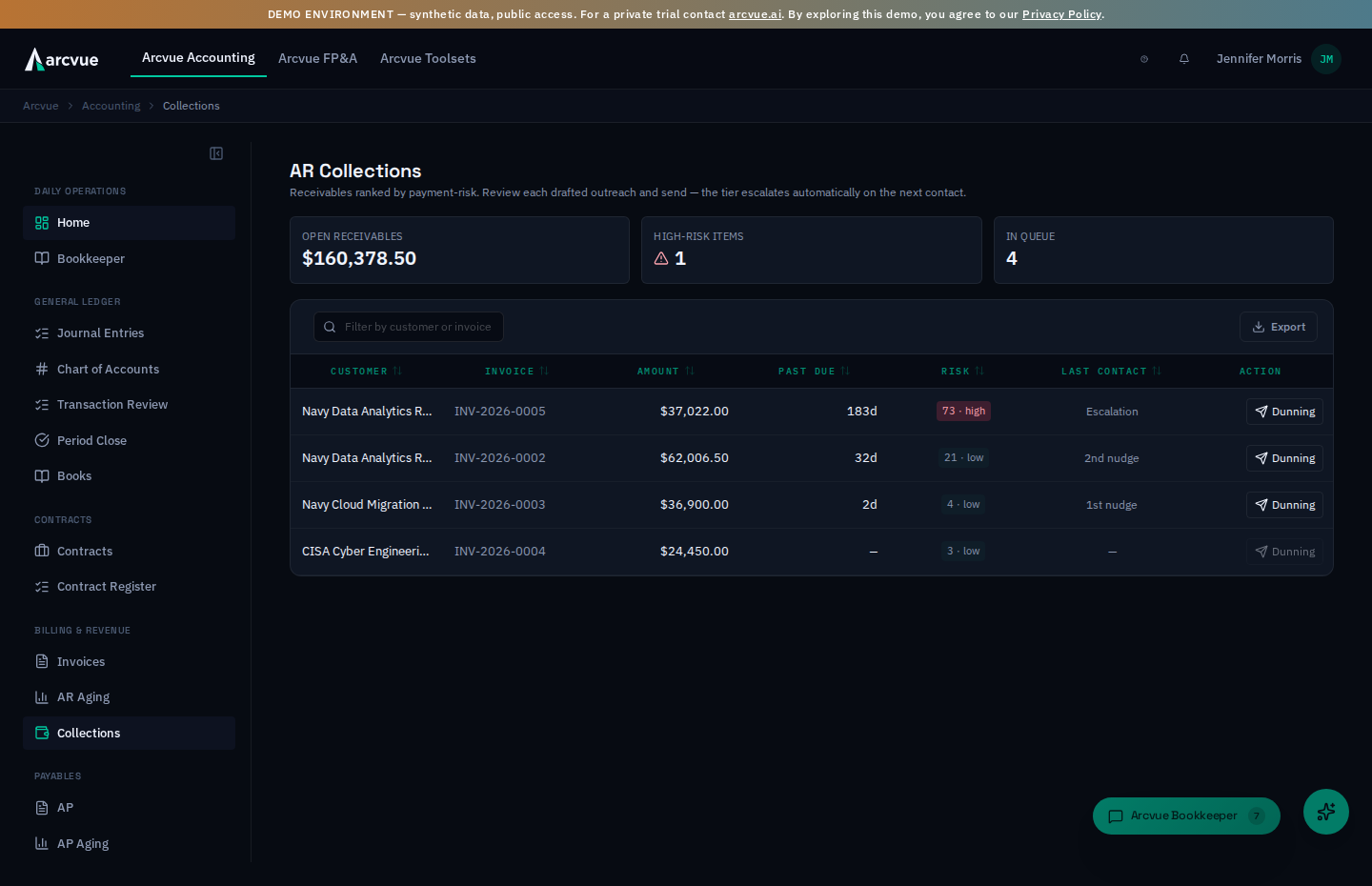
/accounting/collections). The header reads AR Collections. Three KPI cards summarize Open receivables (total dollars), High-risk items, and In queue (count). The table is ranked worst-first with Customer, Invoice, Amount, Past due, Risk, and Last contact. Use the Filter by customer or invoice… box to find one fast.
Work top-down: the highest-risk, oldest, largest items are at the top.
Step 7 — Send a dunning reminder when one's warranted
On the Collections page (/accounting/collections), click the Dunning
button on a row (disabled when no outreach is due). A Send dunning drawer
opens:
- Recipient email — the customer AP contact (required).
- Reply-to — your team's address, so replies come back to you (pre-filled if a default is configured).
- Subject and Message — pre-drafted for the current outreach tier; edit freely before sending.
- Review the draft, then click Review complete — send (green). Arcvue logs the send (tier, recipient, timestamp) to the contact history shown at the bottom of the same drawer, and the tier escalates automatically on the next contact (1st nudge → 2nd nudge → escalation).
The Invoices-page Draft outreach drawer only copies the drafted text — the actual logged, tier-escalating send lives on the Collections page's Dunning button. Use Collections when you want the send recorded.
Handling a disputed invoice
If a customer disputes an amount, click Open dispute — in the action bar on the invoice, or at the end of its row in the Invoices table — state what the customer disputes, and confirm; the control opens in place and says what it does, and nothing pops up a browser prompt. The invoice gets an In dispute badge everywhere it appears. To close it out, use Resolve as paid if they ultimately paid, or Write off if the amount is uncollectible, which asks you to confirm first. Every dispute action is audit-logged.
Withdrawing an invoice
Void sits at the end of the action bar on a draft, reviewed, approved, or
submitted invoice. Click it, give a reason of at least ten characters, and
confirm with Void invoice — the control says what will happen before you
do. A draft is simply withdrawn and the period can be generated again. An
invoice already submitted to the customer has moved the books, so voiding it
reverses its posting to receivables and it drops off aging and collections. A
paid invoice cannot be voided — the cash has been applied — and is corrected
with a credit memo instead.
Reading an invoice's lines
Opening an invoice shows its lines at the grain they were built from: Description, Employee, CLIN, hours and rate.
CLIN is the column a government customer will query. A line that cannot
name its CLIN is a line the customer cannot match to their obligation, whatever
the total says.
Issuing a credit memo
Credit memo reverses an invoice. It asks for two things:
- Credit memo reason — required, at least ten characters.
- Credit amount in dollars, blank for a full reversal — leave it blank to reverse the whole invoice, which is the usual case. A smaller figure credits part of it, and it cannot exceed what is still creditable, which is shown beside the field.
The credit memo is created as a draft, so issuing one is not the same as sending it.
Part 3 — When something looks wrong
"An invoice won't generate / the amount looks wrong"
The inputs are what to check, not the math. T&M needs hours in for the period and a billing rate on the contract; FFP needs its schedule; Cost-Plus needs incurred cost. A wrong amount almost always traces to missing hours, a missing contract rate, or a schedule gap. Open the invoice detail page and read the Generation notes and the Cost rollup — the zero or short line tells you which input is missing; verify it in the Contract Register / timekeeping.
"A paid invoice is still showing in aging"
Aging excludes paid invoices, so this means the payment hasn't been applied yet. During the parallel run, prior-system receipts apply automatically by remittance reference (or the oldest open invoice for the same amount). If one lingers, open the invoice and use Record payment (payment date + payment reference) and it drops off.
"AR Aging says 'No customer invoices in Arcvue Accounting yet'"
That amber banner means no invoices have been generated in Arcvue for this tenant yet — aging reads the invoices table. Generate one on the Invoices page (Step 1) and it will appear.
"A submitted invoice just isn't getting paid"
Check the DSO tint and the WAWF status on the detail page. If it was rejected or returned in the customer's system, it isn't actually in their pay queue — it will age silently until resubmitted. The amber/rose DSO is your early warning to go look.
"The collections order doesn't match my gut"
The score is deterministic and shows its factors — open the Draft outreach drawer (Invoices) or the Dunning drawer (Collections) and read Why this ranking. A government customer that pays on a predictable schedule scores lower risk even when overdue; a disputed or historically-slow account scores higher. If a factor looks wrong (e.g. a dispute that's actually resolved), fix the underlying record — resolve the dispute on the detail page — and the score re-ranks.
"The Dunning button is grayed out"
That row's outreach tier is none — no reminder is due yet (too recent, or not
past-due enough). It becomes clickable once the invoice crosses into an outreach
tier.
One-line summary
AR runs from invoice to cash: generate a draft on Invoices, review and Approve it, Prepare WAWF checklist → Submit to WAWF, then Record payment when cash lands; watch AR Aging by bucket, and work Collections worst-first — copy a draft from the Invoices Collections toggle, or send a logged, tier-escalating Dunning email from the Collections page.
Related
- Recognize the revenue behind these invoices → Revenue Recognition
- Where indirect loads on the invoice come from → Indirect Rates
- Seal the month these receivables belong to → Close a Month (Period Close)
- The customer/contract behind an invoice → Contract Register