Bank Reconciliation — Controller Guide
Bank reconciliation is proving that what your books say about a bank account matches what the bank says — every transaction accounted for, both sides agreeing to the penny. This guide assumes you run a business but aren't a career accountant: it explains what a reconciliation is and why the "difference" has to reach zero, then walks the exact clicks to run one in Arcvue each month.
For: controllers and bookkeepers · Time: ~15 minutes · You'll need: the Accounting module and a connected bank feed.
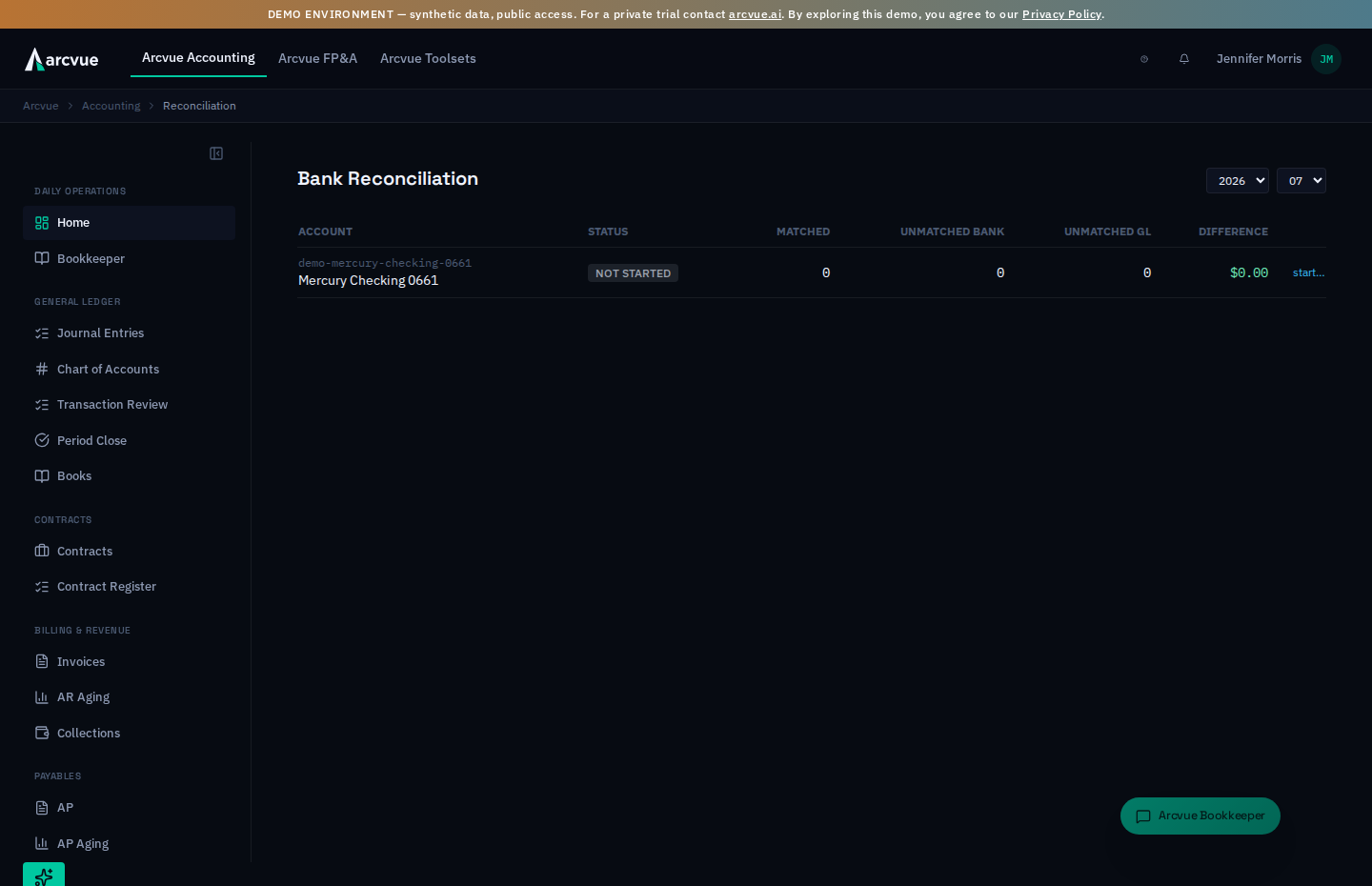
In the left nav, go to Accounting → Cash → Bank Reconciliation (/accounting/reconciliation). That summary page lists every bank account for the month; clicking an account opens its matchboard at /accounting/reconciliation/:id, where the actual matching happens.
Part 1 — The ideas you need first (read once)
What a reconciliation actually proves
Two records track the same cash account and should always agree:
- The bank's record — the statement: your real balance and every transaction the bank processed.
- Your books (the GL) — what you recorded in Arcvue for that same account.
They drift apart for ordinary reasons — a check you wrote hasn't cleared yet, a deposit is in transit, a bank fee you haven't booked. Reconciliation walks both lists, matches every item that is the same event on both sides, and explains whatever is left over. When the two adjusted balances agree, the account is reconciled: you've proven your cash is real and complete.
Matched, unmatched, and the "difference"
Arcvue pairs bank transactions with GL entries automatically, then lays them out in three columns:
- Matched — this bank line and this GL line are the same event. Each pair is tagged with its match type (
exact,fuzzy, ormanual) and, for auto-matches, a confidence percentage. - Unmatched bank — the bank has it; your books don't yet (e.g. a bank fee you haven't recorded).
- Unmatched GL — your books have it; the bank hasn't processed it yet (e.g. an outstanding check).
The Difference is your statement balance, adjusted for what's still outstanding on each side, versus your GL balance. A reconciliation is complete only when the Difference is $0 — every remaining item is either matched or explained.
The GL side has a starting point Arcvue can't know
Your ledger in Arcvue begins on the day you went live. The bank account has been running far longer, and the balance it carried into that first day is a fact only you can supply. Until you state it, the GL side of the reconciliation has no starting point — so the Difference includes history the ledger doesn't carry, and it cannot reach zero no matter how many items you match.
You state it once per bank account, with the date it applies to and the source you read it from. Step 0 below is how.
How Arcvue auto-matches (so you know what to trust)
Arcvue runs a match ladder, strongest first, so a strong match is never stolen by a weaker one:
- Exact — same amount, same date, near-identical name → matched with full confidence.
- Fuzzy (close) — same amount, within a couple of days, names that clearly refer to the same party → matched, but tagged
fuzzyso you can eyeball it. - Whatever it can't pair lands in Unmatched bank or Unmatched GL, for you to work.
It also looks back beyond the current month, so an outstanding check that finally clears is recognized against when you originally wrote it.
What Arcvue deliberately will not do
- It won't let you complete a reconciliation while the Difference is non-zero — the Complete reconciliation button stays disabled until the gap is closed.
- It won't auto-match on name alone, or across a different bank account — a bank line only matches GL activity for its account.
- Once a period is locked (after close), its reconciliation is frozen — a DCAA-defensible record that the month was reconciled and sealed. A completed reconciliation is likewise read-only until you reopen it.
Part 2 — How to run one (the monthly routine)
Reconciliation is part of month-end, and a clean bank rec feeds the Bank accounts reconciled check on Period Close.
Step 0 — State each account's GL opening balance (once per account, not monthly)
If any account still needs one, a banner sits at the top of the page reading "The GL side is missing its opening balances", listing each account concerned. This is one-time setup: once an account has its balance it never asks again, and the banner disappears when every account has one.
Each row in the banner takes three fields:
- date —
YYYY-MM-DD, the day before your ledger's first day. The balance is close of business on that date. - opening balance ($) — what the account held on that date, read from
that day's statement (e.g.
276,036.23). This is the account's starting balance for all of history — not this month's. The two fields share a label; see the note in Step 2. - source — where you read it from, usually that day's bank statement.
Click Save balance. Arcvue confirms with "Opening balance saved — re-start the reconciliation to apply it", and that second half matters: a reconciliation already in flight does not pick the new balance up on its own. Re-start the account (Step 2) so the GL side recomputes from the corrected starting point. Re-starting is safe — it keeps the manual matches you made.
Don't skip this and go hunting through the unmatched columns. Without the opening balance the Difference is measuring the account's whole history rather than this month's activity, and no amount of matching will bring it to $0.
Step 1 — Open the summary and pick the month
Go to Accounting → Cash → Bank Reconciliation (/accounting/reconciliation). The page header reads Bank Reconciliation. In the top-right corner, set the year and month using the two dropdowns (month shows as 01–12). The table below refreshes for that period, and the month you pick is carried in the page address (?y=2026&m=9), so a link to one month can be shared.
Each row is one bank account and shows: Account, Status, Matched, Unmatched bank, Unmatched GL, and Difference. Account leads with the GL account the feed reconciles to, with its number and the bank's own name for the feed beneath. The bank often gives several accounts the same product name (three can all read COMMERCIAL CHECKING), so the GL account is what tells the rows apart. A feed not yet tied to a GL account says Not mapped to a GL account yet. The Status badge is your at-a-glance state:
- NOT STARTED (gray) — no reconciliation exists yet for this account/month.
- OPEN / IN PROGRESS (amber / blue) — started, still being worked.
- COMPLETE (green) — reconciled to $0 and completed.
- LOCKED (green, faint) — sealed with the closed period.
A NOT STARTED row shows a dash in every count and in Difference: no reconciliation has run, so there is no figure to show, and a $0.00 there would read as a clean result.
The Difference cell is green when it's $0 and rose-red when it isn't. Not determined (amber) means a started reconciliation whose difference cannot be worked out: the ledger of record can't tie every bank line to an entry, so any figure would be invented rather than measured. The lines it can't place are listed on the reconciliation, and the figure becomes available once that period's ledger takes over. A dimmed Difference means something else again: that account's GL opening balance hasn't been entered, so the number isn't actionable yet. Hovering it reads "This difference includes GL history the ledger doesn't carry yet. It isn't actionable until the account's opening balance is entered above — then re-start the reconciliation." Fix that first, in Step 0.
Step 2 — Start the reconciliation (enter the statement balances)
Find the account you're reconciling. If its status is NOT STARTED, click the start… link at the end of the row. An inline strip drops open reading "Starting reconciliation for <account>" with three things to fill:
- Statement period — the calendar month you picked, by default. For a statement that does not follow the calendar month (a card, say), click Change and enter the first and last day the statement covers, as printed on it. Activity dated after the last day belongs to the next statement and is left out of this one.
- Balance at the start of the period — close of business the day before the period begins, which is the closing balance on the previous statement.
- Balance at the end of the period — the closing balance printed on this statement.
The one in Step 0 is stated once per account: what the account held the day before your ledger began. The one here (Balance at the start of the period) is entered every month, from this period's statement.
Swapping them fails quietly in both directions. This month's figure in Step 0 leaves the Difference permanently non-zero. A historical figure here makes the whole month's reconciliation wrong while still looking reconciled.
Type these in dollars exactly as your statement shows them (e.g. 12,345.67 — commas and a leading $ are fine; parentheses are read as negative). Click Start. Arcvue converts them to exact cents, pulls the bank transactions and the GL activity for the statement period, runs the auto-matcher, and drops you straight onto the matchboard. A period that ends before it begins is refused with "The statement period ends before it begins." (Made a mistake? Click Cancel to close the strip without starting.)
If the account is already started, the row shows an open link instead — click it to return to the matchboard.
If Start fails with a message about a missing GL account, the bank account isn't yet mapped to a chart-of-accounts cash account, so Arcvue can't compute a GL balance to reconcile against. That mapping is a one-time account-setup step (handled where your bank feeds are configured, not on this page) — set it once, then come back and start.
Step 3 — Read the reconciliation statement
The matchboard opens at /accounting/reconciliation/:id, headed with the account name, its id, the period, and the current status. The top panel, Reconciliation statement, shows the math in cells:
- Opening balance / Closing balance — what you entered from the statement.
- GL balance — what your books say for this account.
- Adjusted bank and Adjusted GL — each side after backing out what's still outstanding.
- Unmatched bank net and Unmatched GL net — the running totals of each unmatched column.
- Difference — the headline number, green at $0 and rose-red otherwise.
Read the Difference first. That single number is what you're driving to zero.
Beneath it, How this works explains the moves on the page, and If you cannot find a match says what to do when you are stuck. Leave the row and move on: nothing is lost, and a bank line with no ledger entry usually just has not been booked yet. Never force a pair to reach $0.00, because a wrong match is harder to find later than an open difference. If the two sides are plainly not the same account — the wrong entity, amounts that could not belong to this bank — stop and email support rather than reconciling around it. Nothing on this page posts or changes an entry, so matching is always safe to try and undo.
Step 4 — Review the matches (especially the fuzzy ones)
The middle column, Matched (N), lists every paired line. Each card shows its match type and — for auto-matches — a confidence percentage (e.g. fuzzy 92%), the amount, the counterparty/description, the dates, and the underlying bank and GL ids. Exact matches are safe to trust. Read the fuzzy ones — same amount and close date, but confirm the counterparty is genuinely the same event.
If a match is wrong, click Unmatch on that card. Both lines return to their unmatched columns and the Difference recomputes. (If the reconciliation was already completed, unmatching reopens it to in-progress so the correction is on the record.)
Step 5 — Work the unmatched columns
- Unmatched bank (N) on the left — the bank has something you haven't booked (fees, interest, a receipt you didn't record). Book it in the GL; once it exists on your books it can be matched.
- Unmatched GL (N) on the right — you recorded something the bank hasn't cleared (outstanding checks, deposits in transit). These are normal; they stay outstanding and carry to next month until they clear.
To pair two lines yourself: click one row in Unmatched bank (it highlights blue) and one row in Unmatched GL (it highlights purple). In the action bar at the bottom, optionally type a note in Match notes (optional) — useful when the auto-matcher missed an obvious pair and you want to document why. Then click Match selected. The pair moves into the Matched column tagged manual, and the Difference recomputes. (Selecting only one side, or neither, leaves Match selected disabled.)
Step 6 — Reach $0 and complete
As you book, match, and unmatch, the Difference shrinks. When it hits $0 it turns green and the Complete reconciliation button (bottom-right of the action bar) becomes clickable. Click it. Until then the button is grayed out with the tooltip "Difference must be zero before completing," so you can't close over an unexplained gap. Once completed, the reconciliation is read-only; at period close it locks with the month as a DCAA-defensible record.
If the Difference is dimmed rather than rose-red, stop matching: that account is missing its GL opening balance and $0 is unreachable until it's entered (Step 0).
Part 3 — When something looks wrong
| Symptom | What it means | Fix |
|---|---|---|
| The Difference is dimmed instead of red | That account's GL opening balance has never been stated, so the gap is its whole pre-go-live history. | Enter it in the "The GL side is missing its opening balances" banner (Step 0), then re-start the reconciliation so the GL side recomputes. Saving alone does not update a reconciliation already in flight. |
| The Difference says "Not determined" | The ledger of record can't tie every bank line to an entry for this period, so Arcvue will not invent a figure. | Read the lines the reconciliation lists as unplaced. The figure appears once that period's ledger takes over; it is not something matching can force. |
| The Difference won't go to zero | Either the account has no GL opening balance, or one side has something unexplained. | Check the banner and the dimmed Difference first (Step 0) — without that balance no amount of matching can close the gap. Otherwise, work the two unmatched columns. The gap equals genuinely outstanding items (fine — they carry) plus anything you still need to book. A stubborn odd-cents gap is usually a bank fee or interest line in Unmatched bank you haven't recorded. |
| A transaction is on the statement but not in Arcvue at all | The bank feed didn't ingest it. | Re-sync the feed (see the Bank Feeds guide) — reconciliation can only match transactions that were pulled in — then re-run Start on the account to pick it up. |
| Arcvue matched two lines that aren't the same transaction | A fuzzy (or manual) match is wrong. | Click Unmatch on that card. Both sides return to their unmatched columns, the Difference recomputes, and a completed reconciliation reopens so the fix is on the record. Don't complete over a match you don't believe. |
| Start fails with a "missing GL account" message | The bank account isn't mapped to a chart-of-accounts cash account. | Map it once in your bank-feed/account setup (not on this page), then return and click start…. |
| I need to redo a reconciliation I already started | You want the auto-matcher to run again. | Re-running Start is safe: it re-pairs the automatic matches and keeps the manual matches you made — it never deletes a manual row. A reconciliation in a locked period is sealed; reopen the period first if it genuinely must change. |
| The button says "Difference must be zero before completing" | The Difference is still non-zero. | Keep working — the button enables the instant the Difference reads $0. |
One-line summary
Bank reconciliation proves your recorded cash matches the bank: on Accounting → Cash → Bank Reconciliation, pick the month, state each account's GL opening balance once if the banner asks, click start… and enter the statement's opening and closing balances, let Arcvue auto-match (exact then fuzzy), then on the matchboard confirm the fuzzy matches, work the Unmatched bank and Unmatched GL columns with Match selected until the Difference is $0, and click Complete reconciliation — it locks with the period as a DCAA-defensible record.
Related
- Pull and re-sync bank transactions → Bank Feeds
- Where the bank-rec check gates the close → Close a Month (Period Close)
- What a GovCon close covers → Concepts: month-end close