Approval Routing — Controller Guide
Approval routing is the rulebook for who has to sign off on each employee's submitted timecard before those hours become billable or payable. It exists to enforce separation of duties — the person who submits time is never the only one who approves it — which is a long-standing expectation in government contracting. This guide explains how routing decides the approver, then walks the exact clicks to configure it. It assumes you run a business but aren't necessarily a career government accountant.
For: controllers and administrators · Time: ~10 minutes · You'll need: the Accounting module, and read access to the Approval Routing tab of the permission matrix to see the routing (write access to change it). Settings > People & security > Roles & permissions shows which roles hold each.
Part 1 — The ideas you need first (read once)
Why approvals exist (separation of duties). The core control in any
defensible timekeeping system is that no one approves their own time. Each
employee's submitted timecard routes to a supervisor, who reviews it before
those hours post to the general ledger and flow into billing. That second set of
eyes is standard practice in government contracting, not just good hygiene.
What Arcvue actually does about it: a database trigger
(trg_timecard_no_self_approval) rejects any timecard row whose supervisor is
the employee themselves, on insert and on update.
The two-layer supervisor model. Every employee has an effective approver, and Arcvue resolves it from two layers with a fixed precedence:
- Layer 1 — the HR supervisor (the default). This is the supervisor synced automatically from your HR/payroll provider's org chart. It covers the majority of staff with zero configuration — most people simply route to the person they report to in HR.
- Layer 2 — the Arcvue override (always wins when set). This is a per-employee override you set inside Arcvue. When present, it always takes precedence over the HR default. You reach for it in two cases: (a) the day-to-day timekeeping approver differs from the HR-org supervisor, and (b) the top of the org — someone with no supervisor above them in HR (e.g. the CEO). Someone still has to review that person's time, so the override names a reviewer (e.g. point the CEO at the COO).
The rule is simply: override if set, otherwise the HR default, otherwise unassigned. An override can never point at the employee themselves — self- supervision is not a valid approver, so Arcvue rejects it.
Two more seats beside the approver, and they are different things. An alternate approver is a standing second person you name on the employee's record, who decides when the approver is not available; the alternate sees that person's timecards on their own queue, labeled for the approver. Taking over is an administrator or finance lead stepping in for an approver on a particular timecard — a deliberate, one-at-a-time act, never the default. Whoever decides, the timecard keeps who it was routed to, who decided, in what capacity, and for whom.
Two jobs live in two places, and it is worth knowing which is which.
- Timecards to approve, on Labor → Approvals, holds the timecards awaiting your signature, as the signed-in supervisor. This is where you actually approve or return time.
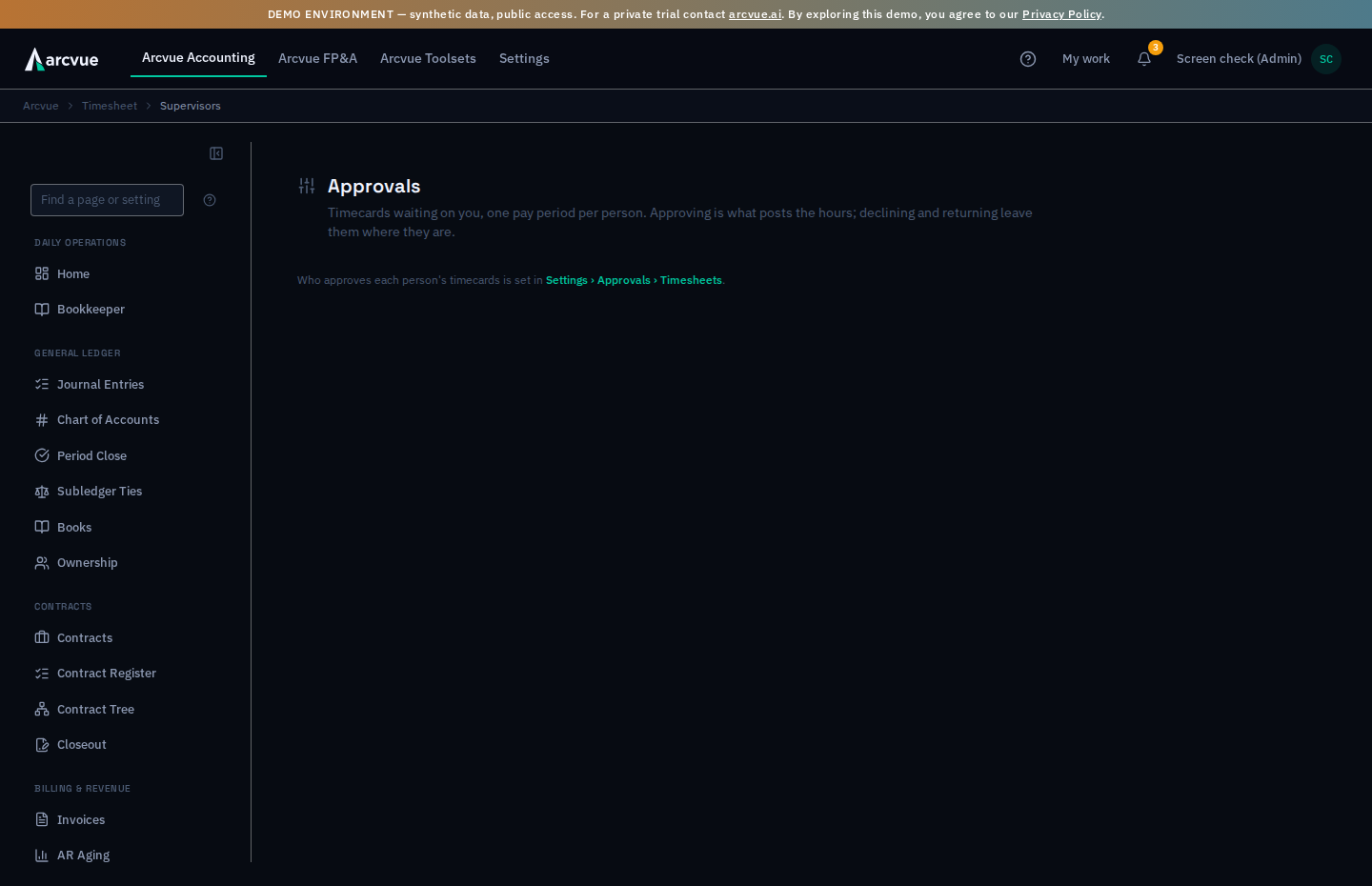
- The routing table, under Approval routing in Settings → Approvals → Timesheets, is the map of employee → approver. This is where you configure who time goes to, for everyone. The Approvals page links there with the line "Who approves each person's timecards is set in Settings › Approvals › Timesheets."
They are separate acts: changing a row in the table never approves anything, and approving an entry never changes the map.
The Timecards to approve panel is personal, not administrative. It shows only timecards routed to you, and it appears only if your login is linked to an employee record. An admin who is not an employee, or a supervisor with an empty queue, has nothing to approve there and configures the routing in Settings. That is expected, not a permissions problem.
What "re-route" means. When you set or clear an override, Arcvue immediately re-stamps that employee's pending (unapproved, unposted) timecards onto the newly resolved approver, so the change takes effect on the approval queues right away. Already-approved and already-posted timecards keep their original approver for the audit trail — history is never rewritten.
What Arcvue deliberately will not do.
- It won't let anyone approve their own timecard — self-approval is blocked at the database level, so it cannot happen even by mistake.
- It won't let you set an override that points an employee at themselves.
- It won't silently rewrite the approver on timecards that are already approved or posted — only pending items re-route.
- It won't let you return a timecard without saying why — the reason is required.
Part 2 — How to configure routing
Step 1 — Open Approval Routing
Open Settings → Approvals → Timesheets, or, from Labor → Approvals in the left nav, follow the link Settings › Approvals › Timesheets under your inbox. The routing table sits under Approval routing, with a line explaining that the payroll-synced HR supervisor is the default and you set an override only where the timekeeping approver differs — including the top of the org, where the override names the reviewer (self-approval is blocked).
What you see of the routing follows your role's Approval Routing permission. With read access the Approvals page carries the link and the routing table in Settings loads read-only, with the note "Read-only — your role can see the routing but not change it." With write access you can change overrides there. With neither, the link does not appear and the Approvals page is your approval inbox. (The Timecards to approve panel is unaffected by any of this — approving the time routed to you needs no routing permission.)
Your team
When people's timesheets route to you, Your team sits at the top of the page and lists each of them once: This pay period (their timesheet's status and hours), Leave balance (their PTO and sick leave) and Waiting on you (their leave requests and expense reports for you to decide, or Nothing). A status opens Timesheet Status on that person, and a count opens what is waiting. It lists only the people in your reporting tree, read from the same places their own screens use.
Search people narrows it by name.
Step 2 — Work your Timecards to approve queue
At the top of the page, Timecards to approve shows a count badge and one row per employee and pay period. That is the unit you sign off: a whole timecard for a whole period, not a day and not a single charge line. Approvals happen at the end of the timecard window, never daily.
A period only becomes approvable when all three of these are true:
- The pay period has closed. While it is still running the employee can add more time to it, so there is nothing settled to approve.
- The employee has certified every entry in it. They attest first; you approve what they attested to. Approving uncertified time inverts that order.
- Your organization has stated a payroll cycle covering those dates (Settings → Time, leave & payroll → Pay periods & workweek). Without one there is no period boundary Arcvue is entitled to record an approval against.
Each row carries the employee's name, the period dates, the number of entries, an amber "N late" chip if any were entered late, and the period's total hours on the right. Every timecard that is ready to sign arrives OPEN, so you start reading rather than clicking; click a name to shut one you have dealt with.
You can work the queue from the keyboard. j and k move between the timecards ready to sign, and a approves the one you are on — the same act as Approve period, with no further confirmation, so press it only on a period you have read. The keys do nothing while you are typing in a field, so a return reason with an a in it never approves anything. The hint beside Collapse all repeats them.
Reading a timecard
An open period shows the whole pay period as a grid — charge lines down the side, the days of the period across the top, the hours in the cells:
| Charge | Tue Sep 1 | Wed 2 | Thu 3 | Fri 4 | … | Total |
|---|---|---|---|---|---|---|
| Overhead | 6.00 | 6.00 | 6.00 | 6.00 | 54.00 | |
| B&P Labor | 1.00 | 2.00 | 1.00 | 12.00 | ||
| BD Labor | 1.00 | 1.00 | 1.00 | 10.00 | ||
| Day total | 8.00 | 9.00 | 7.00 | 7.00 | 81.00 |
This is the same shape the employee typed their time into, and it is deliberate: you should never be shown less about an hour, or shown it differently, than the person who entered it.
Four things to read off it, none of which needs arithmetic from you:
- The row totals. "54 hours of Overhead in a fortnight" is the figure worth questioning, and it is on the row.
- The day totals. A nine-hour Tuesday shows up as one number instead of three lines to add together.
- The blanks. A day nobody charged is a dot, not a zero — every calendar day of the period gets a column, including the ones with no hours, because an empty Thursday in a certified fortnight is the thing most worth noticing and a missing row is invisible.
- The corner figure is the period total, and it agrees with the total on the row header because both add up the same cells.
Weekend columns are shaded. A small amber dot on a cell means that entry was recorded late. Hours the employee has not certified are shown in gray italics — which is how a period sitting under Not ready yet tells you which day to chase, rather than just that somebody is behind.
Click any cell to open that day underneath the grid. The day lists each charge with its hours, the charge line, the work description if the employee wrote one, a "late Xh" chip where it applies, and a "not certified" chip where it applies. Close shuts it again. The charge line names what the person actually picked: the contract (with its CLIN where the contract tracks time by CLIN), the indirect account by name — B&P Labor, Overhead, G&A Recruiting Labor — or the kind of leave. It is resolved once on the server, so it reads the same here, on the phone, and on the employee's own timesheet.
A changed hour shows why it changed. When the person changed an hour after typing it, the day lists the reason they gave under that charge, a changed after certification badge when the change came after they had certified the day, and the number of changes when there was more than one. Read it before you approve: it is the person's own sentence for why the number moved.
Collapse all (top right) shuts them all if you would rather scan the list of names and chips first; it then reads Expand all, which reopens them and also opens the ones under Not ready yet.
Approving and returning
- Approve period — approves every entry in that timecard in one action. The GL accounts are resolved server-side; you do not pick them. A toast names the period and the entry count. If some entries cannot post (usually because posting accounts are not configured), the toast says how many succeeded and why the rest did not, rather than reporting a clean success.
- Return — on a single charge, inside the day you opened from a cell. It opens an inline "Reason for return (required)" field. Type why, then click Confirm return; the button stays disabled until you have written something. A toast confirms "Returned to employee."
- Return period — beside Approve period. It opens one box listing the timecard's lines by day, hours and charge: tick the lines to send back (the day you opened from a cell is ticked already; The whole period ticks every line), write What to fix, and press Return. Each ticked line goes back with your name and the reason; the rest stay as they are.
Returning is still per line, deliberately. A period that is right except for one miscoded line should have that one line sent back, not the whole timecard, so Return period asks which lines rather than returning everything. Approving is per period; returning is per line.
There is no approve-all button and there will not be one. Signing off twenty-five timecards with one click is the click-through pattern an auditor looks for, and it would make your approval mean nothing. The grid exists so that reading each one is quick; approving each one stays a separate decision.
Periods that are not ready yet
A pay period that must be submitted (every period from October 16, 2026) reaches the approver only when its person presses Submit; certifying days does not send it. While it runs, the approver sees only when those timesheets can arrive. From its last day, Not submitted yet names anyone who has not submitted, with no hours, until they do. Each name says which it is: every day certified, only Submit left or days still uncertified. Beside a certified name, Remind to submit sends that person the same phone reminder the nightly period reminder sends ("Submit your timesheet", naming the pay period), once a day: a second press, or a press after the nightly reminder, tells you they were already reminded today, and a person with no phone signed in to Arcvue is named so you reach them another way.
Below the approvable rows, Not ready yet lists every other period routed to you that you cannot sign off, each with the reason:
- "N of M entries not yet certified" — the period has closed but someone has not finished certifying. This is the one to chase, and you can open it and read the grid like any other: the uncertified hours are the gray italic cells, so you can name the day rather than the person.
- "Period runs through
" — still open; it will appear above on its own once it closes. - "No payroll cycle set for these dates" — your organization has not stated a cycle covering them.
These are listed rather than hidden on purpose. If they were dropped, a team that had quietly stopped certifying would look exactly like a clear queue.
If nothing is approvable the panel reads "Nothing to approve right now" and then says which case you are in — how many timecards are still open or awaiting certification, or, if none are routed to you at all, that none are and who can fix that.
Step 3 — Read the routing table
In Settings → Approvals → Timesheets, the routing map lists one row per active employee, with five columns:
| Column | What it shows |
|---|---|
| Employee | The person whose timecards this row routes. |
| HR supervisor (from payroll) | The Layer-1 default synced from your HR/payroll provider. A dash (—) means no HR supervisor is on file (e.g. the top of the org). |
| Override | The Layer-2 Arcvue override: an editable dropdown when your role has write access to Approval Routing, otherwise the current value (or — if none). |
| Effective approver | Who actually receives this employee's timecards — the resolved result — with a small badge showing which layer answered. |
| Alternate approver | The standing second person who decides this employee's timecards when the approver is not available. A dropdown with write access, otherwise the name (or — for none). |
The Effective approver badge tells you at a glance which layer is in force:
- override — the Layer-2 override is winning.
- HR default — no override; the Layer-1 HR supervisor is the approver.
- unassigned — neither layer yields a valid approver (no override, and no resolvable HR supervisor). These employees' timecards have nowhere to route until you set an override — fix these first.
When there is no effective approver the column reads unassigned in place of a name. A person whose record carries no name reads Unnamed employee; correct the name on their employee record rather than guessing who they are.
From My Work. Everyone on payroll who is unassigned is also an item in My Work for the leave setup owners, every day until it is fixed, because their time reaches no approval queue and so never posts. Opening the item lands on this table with that person's row marked and its Override dropdown ready: pick their approver and the item clears.
History. Every row ends with a History button. It opens the record of every change to that person's approver — who changed it, when, the seat (override or alternate), the old and new approver, where the change came from (this screen or the payroll sync) and how many pending entries were re-stamped — newest first. Nothing in it is ever edited or removed; it is the timekeeping control an auditor asks for. The same button reads Hide history while the record is open; press it to close the record.
Step 4 — Set an override
In the employee's Override column, open the dropdown. Its first option is "— (use HR default)", which means "no override — fall back to the Layer-1 HR supervisor." Below it is the list of every other active employee (the employee themselves is deliberately excluded, since no one can approve their own time).
Pick the person who should approve this employee's timecards. Arcvue saves the change immediately — there is no separate Save button. On success a toast appears reading, e.g., "Jane Smith → John Doe", and if any pending timecards were re-pointed it appends the count, e.g. "(3 pending re-routed)".
The top-of-org case. For someone with a — in the HR supervisor column (no HR supervisor above them), the effective approver will show unassigned until you act. Set their Override to a peer or superior who should review their time (e.g. CEO → COO). That gives the top of the org an independent reviewer too, which is the whole reason the override exists.
Step 5 — Clear an override (return to the HR default)
To undo an override and go back to the automatic HR supervisor, open the same Override dropdown and choose "— (use HR default)". The effective approver reverts to the Layer-1 default, its badge flips to HR default, and any pending timecards re-route to the HR supervisor.
Step 6 — Name an alternate approver
In the employee's Alternate approver column, open the dropdown. Its first option is "— (none)"; below it is every other active employee except the employee themselves and their current effective approver — the alternate is somebody else by definition. Pick the person. Arcvue saves immediately and a toast reads, e.g., "John Doe is the alternate approver for Jane Smith"; choosing "— (none)" clears it ("Jane Smith has no alternate approver").
Nothing re-routes. The approver stays the approver, and the alternate simply
starts seeing the employee's timecards on their own queue, each labeled
Alternate for
Taking over for an approver who is away
At the foot of the Timecards to approve panel, administrators and finance
leads see Take over for an approver who is away. Choose the approver in
the Approver to take over for dropdown (a person whose name is not on
file is listed as Name not on file); their timecards that are ready to
sign list underneath, each with a Take over for
This is deliberately separate from your own queue. Taking over is never the default: an administrator approving from their own queue a timecard routed to somebody else is refused, naming the approver. For a lasting absence, name an alternate approver instead of taking over period after period.
Keep the map current
Routing is only correct if the map reflects your real org. When people change supervisors, the HR-provider sync updates the HR supervisor column automatically. You only need to touch this page for the exceptions — the day-to-day split and the top-of-org reviewer.
Part 3 — When something looks wrong
"There is no Timecards to approve panel on my screen." The panel renders only when your login is linked to an employee record, because it shows the timecards routed to you specifically. An admin account that is not an employee will never see it. If you should have a queue, ask an administrator to link your login to your employee record.
"Confirm return is grayed out." A return requires a reason. Type one in the "Reason for return (required)" field and the button enables. This is deliberate — a timecard bounced back with no explanation costs the employee a guess and you a second round trip.
"An employee shows unassigned for their effective approver." Neither layer resolved a valid approver — there's no override and no HR supervisor on file (or the HR supervisor hasn't been synced as an employee yet). Their timecards have nowhere to route. Set an Override to name a reviewer, or confirm the HR supervisor is on file with your HR/payroll provider.
"An employee is routing to the wrong person." Check the Effective approver badge. If it reads override, a Layer-2 override is winning — open the Override dropdown and either repoint it or choose "— (use HR default)" to fall back to HR. If it reads HR default, the org data from your HR/payroll provider is what's routing; correct it there (or set an override to bypass it).
"I changed an override but the timecard still shows the old approver." Re-routing only moves pending (unapproved, unposted) timecards. A timecard that was already approved or posted keeps its original approver permanently for the audit trail — that's by design. Only new and still-pending entries follow the new map.
"Someone tried to approve their own timecard." That's blocked and cannot succeed — self-approval is rejected at the database level. If an employee appears to be their own effective approver, the override was pointed at them (Arcvue prevents saving that) or the HR supervisor resolved to the same person; set a distinct Override so their time escalates to a genuine second reviewer.
"The override dropdown is grayed out / I can't change anything." You're viewing read-only. The page shows "Read-only — your role can see the routing but not change it." Changing routing takes write access to the Approval Routing permission; ask someone who holds it (Settings > People & security > Roles & permissions shows which roles do) to make the change.
"Someone's timecard is on my queue labeled Alternate for another person." You are that employee's alternate approver. Decide it as you would your own; if that is wrong, ask whoever runs approval routing to clear the Alternate approver on that employee's row.
"I am an administrator and my approval was refused, naming the approver." The timecard is routed to somebody else and you approved from your own queue. Use Take over for an approver who is away instead — the refusal is the product keeping the take-over explicit.
"I don't see the employee I expect." The table lists only active employees (not terminated, not merged into another record). If the page shows "No employees found.", no active employees are on file for the tenant yet.
One-line summary
Approval routing enforces separation of duties on timecards through a two-layer supervisor model: Layer 1 is the HR/payroll-provider supervisor synced automatically (the default), and Layer 2 is an Arcvue Override that always wins when set — used for the day-to-day-split and top-of-org cases. Configure it under Settings → Approvals → Timesheets, in the Approval routing table, by picking an approver in each employee's Override column (or "— (use HR default)" to fall back); changes re-route pending timecards immediately and self-approval is always blocked. An Alternate approver on the same row is a standing second person who decides when the approver is away. On Labor → Approvals, Take over for an approver who is away lets an administrator step in for one timecard at a time, explicitly, and the same page carries your own Timecards to approve queue, one row per employee and pay period, where Approve period signs off a whole closed, fully certified timecard in one action — and Return sends a single charge back, always with a reason. Periods you cannot yet sign off appear under Not ready yet with the reason, rather than being hidden.
Related
- Enter and certify time → Timekeeping (Labor → Timesheets)
- Close a month (timecards must be approved) → Period Close (
/accounting/close)