Indirect Rates — Controller Guide
Indirect rates are how you spread the costs that aren't tied to one contract — fringe, overhead, G&A — across the work that benefits from them, so every contract carries its fair share. They drive what you bill and what you can recover, and they're the number DCAA scrutinizes most. This guide explains the rates, then walks the exact clicks in Arcvue to review them, defend them, and file them.
For: controllers · Time: ~15 minutes · You'll need: the Accounting module.
Part 1 — The ideas you need first (read once)
Direct vs. indirect, and why rates exist
- Direct costs are charged straight to a contract (the labor and materials for that job).
- Indirect costs benefit many contracts and can't be charged to one — payroll taxes and benefits (fringe), support of the work (overhead), running the company (G&A), and occupancy, which is its own pool: Facilities carries no rate of its own and allocates into overhead and G&A instead.
You recover indirect costs by allocating them across contracts as a rate: a pool of indirect cost divided by a base of activity it relates to. For example, fringe rate = fringe pool ÷ direct labor; apply that rate to a contract's direct labor and it picks up its share of fringe.
Pools, bases, and the step-down
Costs are grouped into pools (fringe, overhead, G&A, and sometimes more), each with its own allocation base. They allocate in an order — a step-down: fringe loads onto labor first, then overhead, then G&A spreads over the total. Arcvue models this as a configurable multi-pool sequence so the allocation is consistent and CAS-compliant, and it ties out to the penny.
Engine reality: under the hood Arcvue's allocation engine is a general N-pool directed graph — every pool is a self-describing node (its own numerator accounts, base, method, and outbound step-down edges) and the engine walks all active pools in allocation-sequence order, validating that the graph is acyclic before it posts anything. A firm with six overhead pools and two G&A pools is simply more rows in the same engine; the walk is unchanged. Its dry run — every pool's total, base, rate, and each debit/credit leg rendered human-readable — is the DCAA pre-posting review artifact.
The G&A base choice (this matters)
G&A can be spread over different bases. Arcvue supports Total Cost Input (TCI) (all direct costs — labor, subcontracts, materials, ODC, travel) and Value-Added (the same base but excluding subcontracts — materials are still included). The choice changes every contract's G&A load and your competitiveness on subcontract-heavy work: on a TCI base, subcontract dollars pull G&A; on a Value-Added base they don't. It's a deliberate accounting-policy decision, applied consistently.
Provisional vs. final rates
- Provisional (billing) rates are your best estimate for the year — what you bill at during the year.
- Final (actual) rates are what the year's real pools and bases produce. At year-end you true up the difference (the closeout adjustment), and you report final rates to the government on the Incurred Cost Submission (ICS), Schedule A.
The gap between provisional and actual is over- or under-billing you'll settle — so watching it during the year matters. FAR 42.704 contemplates revising your provisional billing rate once actuals diverge far enough, and Arcvue watches that gap for you (see Part 2).
What Arcvue deliberately will not do
- It won't mix unallowable costs into an allowable pool (see the Unallowable Cost guide) — that's what keeps the rate defensible.
- It won't silently change your base or pool structure — the allocation configuration is set deliberately and applied consistently, as CAS requires.
Part 2 — How to run it
Step 1 — Review the computed rates
In the left nav, go to Compliance → Indirect Rates (/accounting/rates).
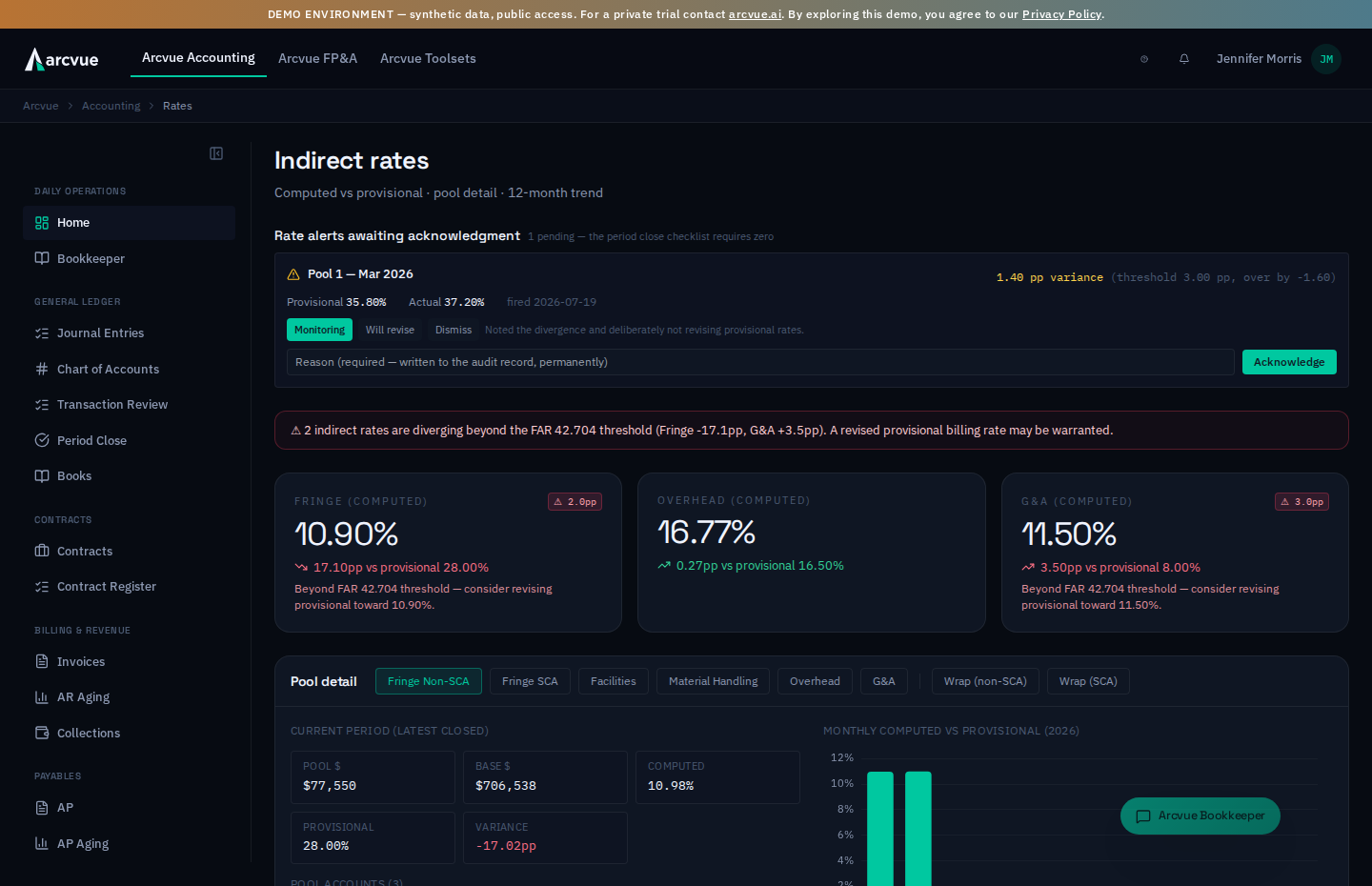
The page header reads Indirect rates — "Computed vs provisional · pool
detail · 12-month trend."
Across the top is a strip of three KPI cards — Fringe (computed), Overhead (computed), and G&A (computed) — each showing the current-year computed (actual) rate as its headline number. Under the number, each card reads "X.XXpp vs provisional X.XX%" with an up/down/flat arrow — that's how far the computed rate has drifted from the provisional you filed, in percentage points. When a rate drifts past its FAR 42.704 tolerance the card grows a small red badge ("⚠ X.Xpp") and a note: "Beyond FAR 42.704 threshold — consider revising provisional toward X.XX%."
Above the cards, a single banner summarizes all three at once:
- Green — "✓ All indirect rates within the FAR 42.704 provisional-divergence tolerance."
- Red — "⚠ N indirect rates are diverging beyond the FAR 42.704 threshold … A revised provisional billing rate may be warranted."
Read the banner first. Green means you can bill at provisional with a clear conscience; red is your cue to work Step 3.
The trend chart carries two y-axes on purpose. Pool rate is the left axis,
in percent. Wrap (×) is the right axis, because a wrap rate is a burden
multiplier — around 1.8 — and plotting it on the same percentage axis would
squash every pool rate into a flat line along the bottom.
Read the axis before reading the number. A value near 1.8 on this chart is a multiplier, not a 1.8% rate.
Step 2 — Confirm the pool/base structure & watch drift
Stay on the same page and scroll to the Pool detail section. Click a pool pill (fringe, overhead, G&A, and any others your structure defines) to load that pool. You'll see, for the latest closed month:
- Pool $ — the indirect cost accumulated in the pool.
- Base $ — the base it's divided by.
- Computed — the resulting actual rate.
- Provisional — the rate you're billing at.
- Variance — the gap between them, in percentage points (green when tight, amber, then rose as it widens).
Below that, a Pool accounts list shows every GL account rolled into the pool (account number + description) — this is what lets you prove the rate ties to the GL.
To the right, the "Monthly computed vs provisional" chart plots each closed month's actual rate as bars, with your filed provisional drawn as a dashed "Provisional" reference line across them — so drift is visible month by month, not just as a year-end surprise. At the bottom of the page, the Multi-year trend chart plots fringe, overhead, and G&A across years so you can see where this year's rates sit against history.
This page is read/monitor only. You review and reconcile rates here — you cannot edit the pool/base structure (which accounts belong to which pool, the step-down order, the G&A base choice) on this page. Structure lives on its own Cost Pools page (
/accounting/indirect-pools) and is changed deliberately there, because re-defining a pool is a disclosed accounting-practice change, not a monitoring action. That page asks for a Reason for change on every such edit and keeps a per-pool History of who changed what, when and why.Where to find it: the nav files Cost Pools under Payables, beside AP and Procurement — not beside Indirect Rates under Compliance. That is not where most controllers would look, so it is worth knowing before you go hunting.
The Facilities pool shows where it goes rather than a rate of its own: → OH
and → G&A are the two amounts it allocates out to. Facilities is an
intermediate pool — it is absorbed into the pools below it, which is why you
see a split instead of a percentage.
Step 2½ — Clear the rate alerts, because the close will not run with them open
When a pool's actual rate diverges from its provisional rate by more than the threshold, Arcvue raises an alert. They gather under Rate alerts awaiting acknowledgment on this page, and the panel tells you how many are pending.
The period-close checklist requires zero pending rate alerts. So this is not a notice you can leave for later — an open alert stops the close.
If you do not see the panel at all, you have none pending. It does not render an empty box; its absence is the answer.
Each alert names the pool and month, the variance in percentage points, the threshold it crossed and by how much, both rates side by side, and the date it fired.
What you are choosing between
Three buttons set the disposition, and two of them are a statement about what you are going to do next — not a way of filing the alert away:
| what it records | |
|---|---|
| Monitoring | You have noted the divergence and are deliberately not revising provisional rates. |
| Will revise | You are refiling revised provisional rates. |
| Dismiss | A one-time anomaly, not expected to persist. |
Choose the one that is true. If you pick Will revise, Step 3 below is what you have just committed to; if the divergence is real and you are not going to refile, Monitoring is the honest answer and it is a perfectly good one.
The reason is required, and the whole thing is permanent
A reason is required before the acknowledgment will submit — it is written to the audit record.
An acknowledgment cannot be changed or undone. The database refuses any later edit, and a second attempt on the same alert comes back as "Already acknowledged — acknowledgments cannot be changed." There is no undo button because there could not be an honest one: this is a DCAA audit record, and a control offering to reverse something it cannot reverse would be worse than no control.
So read the alert, decide, and write the reason before you press Acknowledge. It is one attempt, and what you type is what an auditor reads.
Step 3 — Adjust provisional when drift is real
When the divergence banner is red and you've confirmed the drift is real (not a
coding error), develop a revised provisional rate. Go to Compliance →
Provisional Rates (/accounting/rates/provisional). The header reads
Provisional Billing Rate Development — "DCAA-format provisional rate
computation from blended actuals + forecast."
- Set the Fiscal Year in the top-right selector.
- The sticky rate summary across the top shows the newly computed rates as cards — Fringe Non-SCA, Fringe SCA, Overhead, Material Handling, G&A, Wrap (non-SCA), and Wrap (SCA). (Your pool set may differ; the cards mirror your structure.) A pool with no allocation base in the year shows a dash rather than 0.00%, with the reason on hover, and so does Wrap (SCA) when the SCA fringe pool has no SCA labor base: the multiplier it would otherwise show is the non-SCA cascade, not an SCA wrap.
- Under Pool detail, expand a pool tile (click its title) to see its account-level make-up: Pool members and Base members tables with Account, Description, Prior Year, Current Year, % Change, Adjustment, and Justification columns.
- To plug a forward-looking change into a rate (a planned raise, new hires, a known cost shift), click + Add override. The Add line override form takes Pool, Account, Kind (Pool line or Base line), Computed $, Adjusted $, and a Justification — the justification is required and must be at least 10 characters, because it's your DCAA audit trail. Click Save override. Each override updates the live rate computation immediately and appears in the overrides table with a Delete action.
When the rates are where you want them, click Save as Draft to snapshot the computation as a submission. In the Submission history table, each row carries an Excel and a PDF export link (that's the DCAA-format package you file) and, for a draft, a Submit button to mark it filed.
The override dialog
Adjusting a provisional figure opens a dialog with the computed value shown
beside the field you type into — Adjusted to $ * on one path and
Adjusted $ * on the other, the same act from two entry points. Cancel
closes without recording.
A justification of at least ten characters is required, and it is a DCAA
audit-trail entry, not a note to yourself. The two dialogs word the same
rule differently — one reads
Justification * (10+ chars — DCAA audit trail) and the other
Justification * (min 10 chars — DCAA audit trail). Same requirement,
same minimum; there is no second, stricter rule hiding behind the second
wording.
The override history below records Delta — the computed figure against the
adjusted one — beside the justification and who made it. Delta is the column
an auditor reads first, because it is the size of the human intervention.
Step 4 — Produce Schedule A at year-end
At year-end you file the Incurred Cost Submission. Go to Compliance → ICS
(/accounting/ics/:fiscal_year). The header reads Incurred Cost Submission —
FY {year} — "DCAA-required annual ICS package: 15 schedules (A through O)
auto-built from GL, contracts, vendors, employees, and indirect rates." The
top-right shows a Completion percentage and an X/15 counter.
The page lists the 15 schedules, A through O. Find A. Indirect Rate Computation — that's Schedule A, your final indirect rates by pool. Click it to expand and review the auto-built final rates (computed from the settled pools and bases). Beside each pool's Base Total, Base Composition lists the parts that base is made of, with their dollars. An overhead base of fringed direct labor, for example, reads as direct labor plus the fringe on it, so a base larger than its name suggests reconciles on the page. When it's right, click Mark Complete; the schedule's chip flips from Pending to Complete and the X/15 counter and Completion % tick up. (Clicked in error? The button toggles to Mark Incomplete.)
Schedule A is the DCAA-facing deliverable and the basis for the closeout true-up on your cost contracts.
To produce the package you file, click Build new version on the same page. Each build is kept as its own version with its own checksum, and earlier builds stay listed under Earlier versions, so a package you have already filed is never overwritten (see Audit Support & ICS Submission).
The submissions table lists what has been filed, by Submission Date, with
a column per pool: Fringe, SCA, OH (overhead), MH (material
handling) and G&A, plus Created for when the submission was assembled.
Submission Date and Created are different dates and the gap between them
is normal — one is when it went out, the other when it was built.
A Legal Entity selector sits above the computation only on a tenant that
carries more than one entity. It scopes what you are looking at and defaults
to the primary. On a single-entity tenant it is deliberately absent rather than
shown-and-disabled: there is no choice to make, so the control would be
furniture.
Part 3 — When something looks wrong
"A rate looks too high"
Open the pool on Indirect Rates → Pool detail and read Pool $ against Base $ — the rate is pool ÷ base, so verify both. A pool inflated by costs that don't belong (most commonly unallowable costs that weren't segregated, or a direct cost miscoded into the pool) or a base that's too small both push the rate up. Use the Pool accounts list on that panel to see exactly which GL accounts are feeding the pool.
"G&A seems off on a subcontract-heavy contract"
That's the base choice showing. On a Total Cost Input base, subcontracts pull G&A; on a Value-Added base they don't. Confirm which base your accounting practice uses — the number isn't wrong, it's the policy expressing itself. (The base choice is part of your disclosed structure, changed on the Cost Pools page under Payables, not on the monitor page.)
"My final rates are way off my provisional rates"
The Indirect Rates page tells you immediately: the FAR 42.704 banner turns red and the offending KPI card shows the point-spread and a "consider revising provisional" note. Open the pool in Pool detail and read the Variance column plus the "Monthly computed vs provisional" chart to see which pool moved and when — a pool that grew or a base that shrank versus what you estimated. You'll owe a true-up (or be owed one); the sooner you see it, the sooner you can revise provisional in Provisional Rates to shrink next year's true-up.
"The rates don't tie to the GL"
They should tie exactly — the pools are GL balances. On Pool detail, the Pool accounts list (and, on Provisional Rates, the Pool members / Base members tables) is the account-level definition of each pool and base. A mismatch points at a cost in the wrong pool or a base computed off the wrong accounts; reconcile those account lists to your chart.
One-line summary
Indirect rates allocate the costs no single contract owns — fringe, overhead, G&A — as pool ÷ base in a consistent CAS step-down. Watch the drift on Compliance → Indirect Rates (computed vs provisional, with the FAR 42.704 banner), develop a revised billing rate on Provisional Rates when the gap is real, and file final rates as Schedule A on the year-end ICS — truing up the difference at closeout.
Related
- Segregate unallowable costs → Concepts: unallowable cost
- Where the pools themselves are kept, including each pool's labor account → Cost Pools
- Where the pool/base account structure is set → Accounting Settings (its rate-structure tabs)
- The forward pricing rate proposal built from these rates → Forward Pricing (FPRP)
- Building, versioning and filing the ICS package → Audit Support & ICS Submission
- What a GovCon close covers → Close a Month (Period Close)