Accounts Payable — Controller Guide
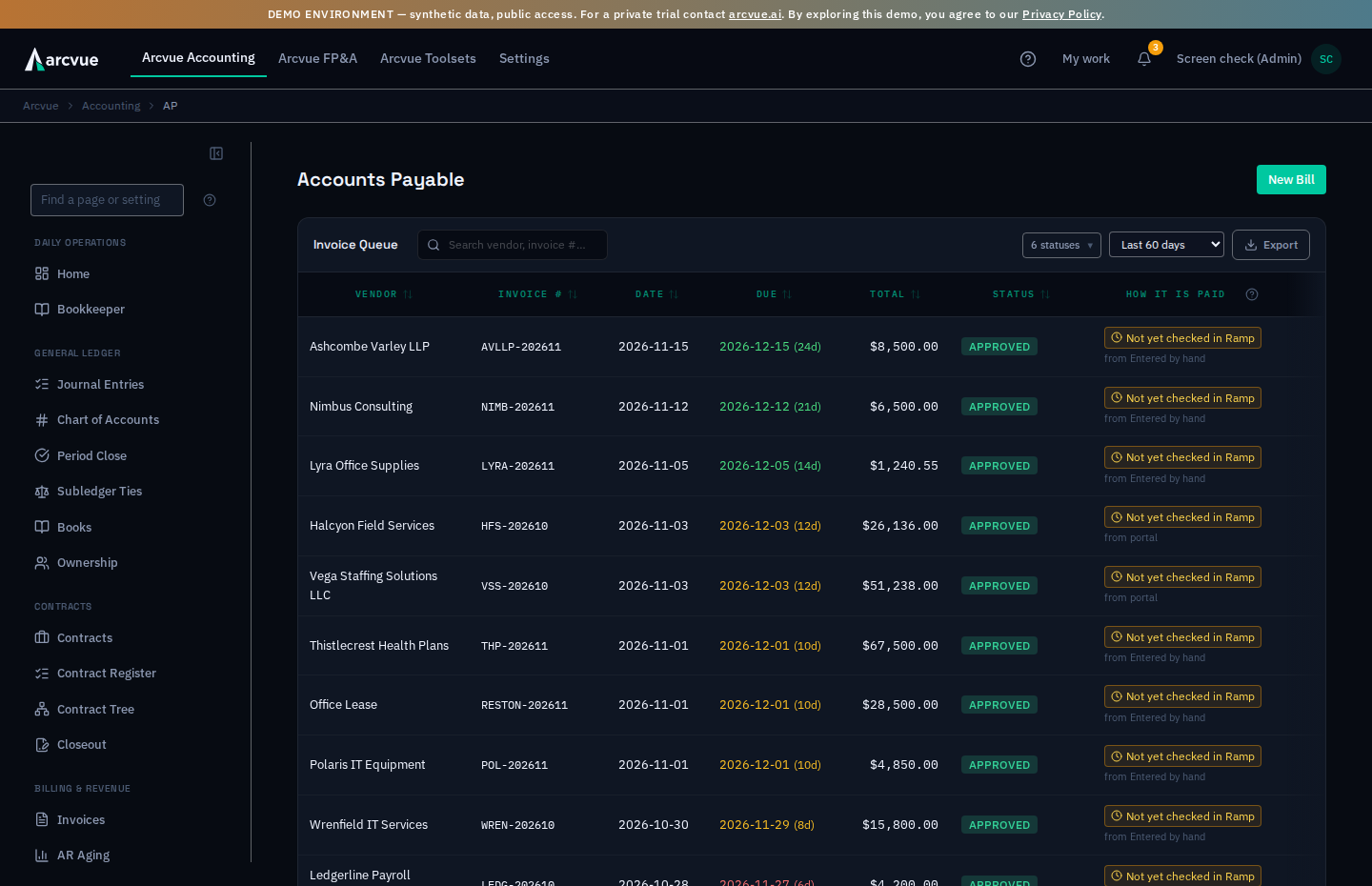
For controllers who run what the company owes: vendor bills and subcontractor invoices, from arrival to payment. Short version: confirm each draft, have someone other than its submitter approve it, then pay it (or record that it was paid). Arcvue closes most paid bills on its own from the bank feed.
Where it lives: Accounting → Payables → AP; the header reads Accounts Payable. A fuller AP Aging report is at Accounting → Payables → AP Aging, and purchase orders and receipts at Accounting → Payables → Procurement. Every action on a bill needs write access to AP; a read-only role sees the queue and the aging.
Part 1 — The ideas you need first
How bills get in
All three routes create a draft in the Invoice Queue; nothing is posted or paid on its own.
- Email — bills sent to your AP inbox are read and drafted.
- Your bill-pay service — bills sync in carrying the coding you gave them there, matched to your chart by account number, then by unique name. A bill whose account is not matched yet is proposed for your review.
- By hand — New Bill (Step 2).
The life of a bill
Draft → Pending approval → Approved → Pending payment → Paid. If your rule needs two approvers, the bill stays in Pending approval after the first approval until a second, different person approves. Two side states: Void (with a reason, from any state, even paid) and Disputed.
- Hold a bill from payment: on an Approved row click hold and give the reason. It reads On hold, leaves every payment list, and is held in Ramp too (or its bill.com payment canceled). release hold, with a reason, makes it payable again. A bill that should never be paid is voided instead.
- Bills from your bill-pay service sync in approved and turn Paid when the service pays them; the bank debit is then matched to the payable, not booked as a new expense.
A bill paid from the bank or on a company card closes itself. Each time the bank feed brings in transactions, Arcvue looks for the payment behind every approved bill (from a few days before the bill date to four months after) and marks the bill Paid, with a reference to the transaction, when:
- the bank line names the bill's invoice number (a shortened one counts);
- exactly one open bill and exactly one payment share the amount;
- one payment naming the vendor equals exactly one set of that vendor's open bills, to the cent; or
- the bill was paid on a company card, in which case the charge becomes the bill's payment so the cost is expensed once.
When two answers fit, Arcvue leaves the bill open and asks the Bookkeeper a question listing the candidates. An open bill stays visible in the aging; a wrongly closed one would disappear.
Three-way match
For purchased goods, the 3-Way Match column shows PO, Recv and a ✓, turning green as the purchase order and receipt link and agree with the bill. You build the match on Procurement; the markers here only report it. Gray means not linked, which is expected for a service with no PO.
How a bill is aged
The aging buckets are current, 1-30, 31-60, 61-90, 91-120 and 120+ days past due. The due date comes from, in order: the bill's own due date; the vendor's terms (a Net 45 vendor is due 45 days after the invoice); your Terms for a bill with no due date (Step 6b); and failing all three, the invoice date itself. A bill aged from its invoice date always looks later than it really is, so check a late bill's due date and vendor terms before chasing it.
Part 2 — How to run it
Step 0 — Tag new parties (when the panel appears)
Parties to tag appears above the queue when a vendor on an open bill has no billable setting. Press Billable (its costs pass through to a contract) or Non-billable (the company's own costs: rent, software, insurance). The answer routes every open and future bill from that vendor to the right payable, and the row disappears. It cannot be changed from the vendor screen, so choose carefully.
Step 1 — Read the queue
The Invoice Queue shows Vendor, Invoice #, Date, Due, Total, Status, How it is paid, 3-Way Match and actions. Clicking an action stays on the list; clicking elsewhere on the row opens the bill.
- Due is colored by urgency: purple past due (Nd past), red within a week, amber within two, green beyond.
- How it is paid says how the money will leave (Ramp, bill.com, the payee's portal, the bank) or Payment details needed when the payee is not set up.
- The queue opens on every status except Void over the Last 60 days. Search by vendor or invoice number in the box above the table, or Export the list.
- Statuses shown opens a checklist of statuses; inside it Select all ticks every one and Reset returns to the default set. Date window takes Last 30 days, Last 60 days, Last 90 days, Last 12 months or All time. all vendors, beside One vendor's bills, removes a vendor scope.
- Date window never hides a bill still owed. It hides finished bills older than the window, so widen to All time before deciding one is missing.
Work the Draft bills first: confirm vendor, amount and dates.
Step 2 — Enter a bill by hand
New Bill opens New AP Bill: Legal entity, Vendor name, Invoice #, Total ($), Invoice date (all required), Due date, GL account (optional) ("Leave blank and Bookkeeper suggests one") and Contract (optional). Set the contract when you know it; one left blank must be added later by reopening the bill. Click Create as draft (or Cancel).
When you edit a bill that states a due date and change or clear it, Why the due date moves asks for the reason, kept in the bill's history.
Step 3 — Confirm a draft
A Draft row offers edit, approve or send for approval, and void.
- edit opens Edit AP Bill (the Legal entity is locked). The Invoice # can be corrected; Arcvue refuses a number another live bill from the same vendor carries. Click Save changes.
- A bill that arrived by email or from a payment provider shows approve: Arcvue drafted it, so one click approves it under your name. A bill someone keyed by hand shows send for approval; someone else approves it.
- A wrong or duplicate draft gets void with a reason.
On the bill itself:
- Invoice document — Open the invoice downloads it. A bill with none shows Attach the invoice; once on file it is not replaced.
- Compare with another bill — in Choose a bill (same amount first), pick one; The two bills side by side marks invoice number, date and amount Same or Differs in the Same? column against The other bill, then shows due date, status, paid date, Lines and each invoice. A new number and date with the same amount is usually next month's bill, not a copy.
- Account — Choose the account (or Change), pick it in Books to, Save. A bill with no account cannot post.
- Posting date — when the vendor dated the bill after the month it covers, press Change, set Post on, give Why it posts on this date, and Save. Post on the bill date undoes it. A closed month cannot take a posting date. See Accruals.
Step 4 — Approve or reject
A Pending Approval row offers edit, approve and reject. On a bill you submitted, Waiting for another approver stands in place of approve.
- approve moves it to Approved. Check the 3-Way Match first for purchased goods.
- reject asks for a reason and returns the bill to Draft.
- A bill a bank payment or provider moved past approval with no approval here shows record approval: press it, say why, and your name goes on record. Not for a bill you submitted.
Changing the GL account, contract, entity, cost type or CLIN of an approved bill sends it back for approval. A bill released for payment cannot be recoded until it is paid or returned to the pay list.
Step 4b — Decide whether a different person must approve
In Settings → Approvals → AP bills, Someone other than the submitter approves reads Required, Not required or Not decided, with how many approved bills on record were approved by their own submitter.
- Require a different approver enforces it. A bill an integration submitted can be approved by anyone.
- To record that it is not required, write the Compensating control first (for example, the owner reviews every payment run), then press Record: not required or, if the rule is on, Switch this requirement off. Arcvue refuses a blank control, because an auditor will ask what stands in for the second person.
Every change is logged with who made it.
Step 5 — Pay, or mark paid
An Approved row offers one of two buttons:
- Pay (Pays this bill through the payment platform that holds it) when Pay bills from Arcvue through Ramp is on and Ramp holds the bill. In Pay this bill, set Pay on, add a note if you like, and press Request payment. The row reads Awaiting approval; someone else presses Approve (or Return), and only then is the bill sent to Ramp.
- Mark as Paid (Records a payment already made some other way) on every other bill: Paid on, How it was paid and an optional Reference. It moves no money.
A bill is in one payment request at most, here or in Weekly Cash. A bill Ramp is paying shows Ramp pays and the date, and closes when the payment arrives.
Correcting an approved bill: edit on an Approved row keeps the approval for a total or vendor change only if your company lets you correct approved bills (Settings › Approvals › AP bills, Correcting an approved bill) and you did not enter the bill. Otherwise it returns to Pending Approval.
Step 6 — Read the aging
AP Aging at the bottom shows the bucket totals and a per-vendor table. The AP Aging report adds DPO.
Step 6b — Terms for a bill with no due date
Terms for a bill with no due date (set in Settings → Spend → Pay runs, shown here as Net 30 or whatever is set) applies when neither the bill nor its vendor states terms. While it reads Not stated, such bills are aged from the invoice date and marked as an assumption. Vendor terms, including Net 30 after quarter end for GSA schedule fees, are set on the vendor.
Part 3 — When something looks wrong
"A bill I know was emailed isn't here." Check Failed invoice emails on the Accounting Home page. If nothing failed, resend it to the inbox or enter it with New Bill.
"The 3-Way Match is gray." The PO or receipt is not linked. Link them on Procurement; gray is expected for a service with no PO.
"The match flagged a real mismatch." Investigate on Procurement. If the PO or receipt is stale (an approved change order not recorded), fix that record rather than approving over it.
"I approved a bill and it never got paid." Approval makes it payable. Use Pay or Mark as Paid (Step 5), or Weekly Cash where your company pays from Arcvue.
"A bill was entered twice." Look for the same vendor, Invoice #, amount and date, and void the duplicate before it is paid.
"Void, reject or record approval asks for a reason." Write it and press Void the bill, Reject the bill or Record approval. A refusal is shown in the same dialog with your reason kept.
"Void says Ramp (or bill.com) still holds the bill." If another open bill here is the same invoice, pick it and press Void and hand over so that one is paid once. Otherwise Keep this bill. For a bill in Ramp, Hold in Ramp and void holds it there and voids it here in one step; a bill in bill.com is removed there first.
"The wrong copy was voided." On the voided row press restore, say why this is the bill, and press Restore and void the copy.
"A bill from the previous system was retired against another month's payment." On its voided row press restore, say why the bill is owed, and in The payment that paid it pick the bank line that paid it (only unclaimed lines of the bill's exact amount are offered) or Leave it open for now. Press Restore and record this payment (or Restore the bill).
"A bill shows Paid against the wrong payment." On the Paid row press correct payment. The dialog Correct the payment on invoice … shows what is recorded. Write Why the recorded payment is wrong, and in The payment that did pay it pick the bank line that did (only unclaimed lines of the bill's amount are offered) or Leave it open for now. If the bill was closed to a card charge that carried no account of its own, the dialog also asks for Account the card charge was for. Press Correct and record this payment (or Correct the payment when you leave it open). The bill returns to Approved with the old payment kept on its history, a card charge goes back to its account, and the line you picked, if any, then pays it. A payment Ramp or bill.com recorded is corrected there, and a bill in a closed month is corrected with a journal entry.
"I marked a bill paid by mistake." void the paid row with a reason, then record the right payment.
One-line summary
Confirm the draft, let someone else approve it, then pay it or mark it paid; Arcvue closes bank- and card-paid bills itself and never guesses which payment paid which bill.
Related
- Procurement — purchase orders, receipts, the three-way match
- AP Aging report — by vendor, with DPO
- Vendors — default coding, terms and allowability per party
- Subcontractors and 1099 Reporting
- AP Invoice Detail — everything on a single bill