Mileage Audit — Controller Guide
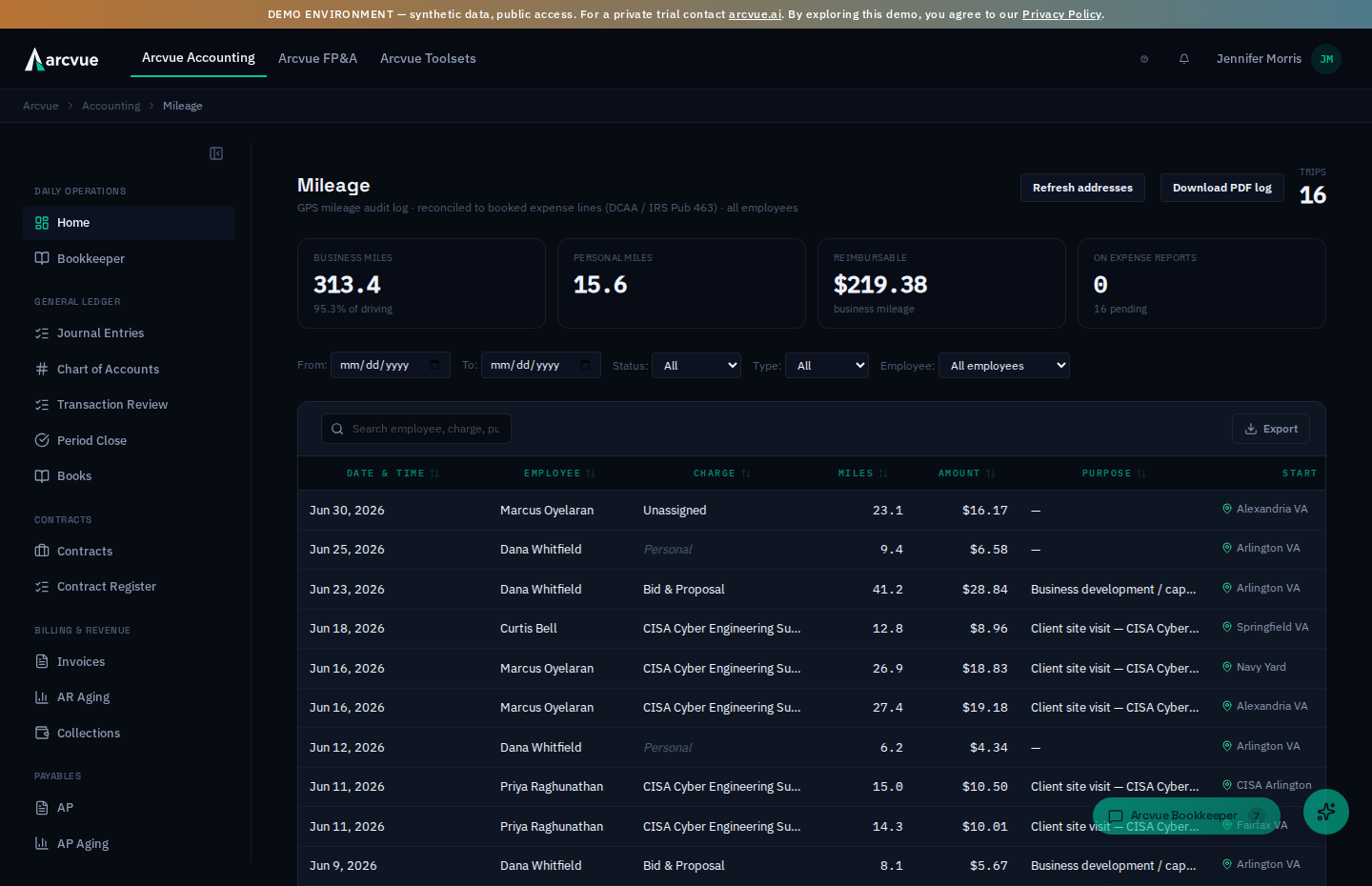
Your team captures drives on their phones. This screen is where you check that what they captured will survive an audit — that every business trip has the four things the IRS asks for, and that the miles you reimbursed match the expense lines actually booked to the general ledger. It assumes you run a business but aren't a career government accountant.
Why this screen exists
An employee's mileage is captured on the Arcvue mobile app — the phone has the GPS, so that is where a drive gets measured. The employee's own view is covered in the employee Mileage guide.
This is the other side of that. IRS Publication 463 wants four things on a mileage record: the date, the miles, the place, and the business purpose. A tracked drive gives you the first two for free and the third as raw GPS coordinates. The business purpose is the one a phone cannot infer — and when a trip is captured by auto-detect rather than by the traveler starting the tracker, it arrives with no purpose at all.
So the gap is structural, not carelessness: the more convenient the capture, the more likely the purpose is blank. This screen is where you close it.
Business purpose is not optional paperwork. It is one of the five substantiation requirements an expense line is scored against (see the Expense Reports guide), and a line missing it reads Not substantiated — FAR Part 31.205-46. A posted report can still be unsubstantiated.
Where it lives
Accounting → Mileage. The subtitle tells you which view you are in: all employees if you have the privileged role, your trips if you do not.
Three things are privileged, and if you cannot see them you are in the employee view: the employee filter, the Refresh addresses button, and the ability to edit a business purpose.
Reading the board
Across the top: the Trips count, then Business miles, Personal miles, Reimbursable, and On expense reports.
Read the last two together. Reimbursable is what the business miles are worth at your organization's per-mile rate; On expense reports is how much of that has actually rolled up onto a report. A gap between them is not an error — it is mileage captured but not yet claimed. It becomes interesting when it stops closing.
An em dash in the Amount column is not a missing value — it is a
personal trip, and it is logged on purpose. Personal miles are not
reimbursed, so there is nothing to claim; the trip is still recorded because
IRS Pub 463 asks for total miles driven, business and personal both, and a log
that omits personal driving cannot show what share of the vehicle was business
use. If the drive really was business travel, the fix is not on this
screen — change its charge on the expense report and the reimbursement appears
here.
Date & time shows the trip as a range, start to finish, rather than a bare
date. The underlying value is still the raw trip date, so sorting stays
chronological and searching an ISO date still matches the row.
Filtering
- Status —
Recorded(captured, not yet on a report),On Report(rolled up),Void. - Type —
BusinessorPersonal(the trip's classification). Personal trips show in italics as Personal; they are tracked but never reimbursed. - From / To — the date range of trips shown, by the day the trip was driven. Leave both blank for everything.
- Employee —
All employees, or one person. Privileged view only.
The fastest audit pass is Status = Recorded with Classification = Business: that is everything reimbursable that has not yet been claimed, which is the population you can still fix cheaply.
How each trip was recorded
The Capture column says who recorded the drive.
- Auto — the phone detected the drive and recorded it without being asked.
- Traveler — the traveler started and stopped the tracker.
Both are contemporaneous GPS records, so neither is the stronger evidence and neither needs defending over the other.
A blank cell means the trip predates capture tracking, so how it was recorded was never stored. Read it as unknown provenance — not as either kind of record, and not as proof of one. It is the state you may have to explain, and the trip's own start and end coordinates are the evidence to reach for.
What the traveler pressed, in their words
When somebody asks you how a trip got into this state, these are the controls they used on the phone. Knowing the names saves a round trip:
| They tapped | What it did |
|---|---|
| Start tracking / Stop tracking | Began and ended the drive. A trip recorded this way shows as Traveler. |
| Miles driven | The measured distance, which they are allowed to correct. A corrected figure is the traveler exercising judgment, not tampering — they are the one who knows the signal dropped. |
| Save trip / Discard trip | Kept it or threw it away at the review screen. A discarded trip never reaches this board. |
| Resume tracking / Discard unfinished trip | What they were offered if the app closed mid-drive. A resumed trip is one continuous trip, not two. |
| Close mileage tracker | Left the screen. It is disabled while a drive is running, so nobody dismisses a live trip by accident. |
| Continue | Agreed, on Arcvue's explanation of what location is used for, to be asked; the phone's own location prompt follows. Where the phone can no longer ask, the button reads Open Settings instead. |
| Not now | Declined the location permission. A person who tapped this records no GPS trips at all — if somebody's drives are missing entirely rather than merely unpurposed, this is the first thing to ask about. |
What Capture does not tell you
It says who recorded the drive. It does not say whether the distance was changed.
A traveler may adjust the mileage Arcvue measured for them. On the phone, the tracker finishes a drive by showing GPS measured 12.4 mi — adjust if needed over an editable figure, and the traveler can correct it before saving. That is deliberate and it is the right behavior: the person who drove the route is the one who knows the tracker dropped signal in a tunnel.
The consequence for you is that an adjusted trip and an untouched one carry the same Capture value. Capture cannot separate them. The Measured column can. It shows the distance the tracker measured, beside the miles claimed; hover it and it says whether the claim matches what was measured or was adjusted from it. A blank Measured means no tracker measured the drive — usually a trip that predates capture recording — so there is nothing to compare the claim against.
So read the miles as the traveler's claim, and Measured as the instrument reading. Where a figure has to be defended — an unusually long trip, a suspiciously round number, a month that jumps — compare the two, and the route drawn on the map in the trip drawer shows where the vehicle actually went.
Opening a trip
Click a row. The drawer shows the route on a map, then Start and End.
Each end shows a street address once it has been resolved, and falls back to
raw latitude, longitude when it has not. Coordinates are not a "place" in the
IRS sense — a reviewer should not have to paste numbers into a map to learn
where someone went.
That is what Refresh addresses is for: it reverse-geocodes stored start and end coordinates into street addresses. Run it when you see coordinate pairs rather than addresses. It reads Geocoding… while it works, and it only fills in what is missing — it does not overwrite a trip's recorded position.
Setting a business purpose
On a business trip the Business purpose panel labels itself · required for IRS whenever it is empty. Type what the drive was for — client meeting, site visit, contract kickoff — and click Save. Save stays disabled until the text actually differs from what is stored, so you cannot re-save a purpose unchanged. On a personal trip the panel reads Purpose and says · not required on a personal trip: a personal drive is not deductible, so an empty purpose there is a complete record, not a gap.
If a save is refused, the message gives the reason — for example a permission refusal, or a trip in a period that is now locked — rather than a generic failure, because each has a different next step.
Two things make this a genuinely privileged action rather than ordinary editing, and both are deliberate:
- It works across employees, so you can complete a record without going back to the person who drove.
- It works on a trip that has no charge assigned yet, so a purpose can be set before the trip is classified rather than after.
It sets the purpose and nothing else. It does not touch the miles, the classification, or the charge, and every edit is written to the trip's change history — so the audit trail shows who supplied the purpose and when, which is exactly what an auditor asks when a field was completed by someone other than the traveler.
Exporting the log
Download PDF log produces the DCAA / IRS Pub 463 mileage log, reconciled to the expense lines actually booked. It reads Preparing… while it builds.
The reconciliation is the part worth understanding. A mileage log on its own says what was driven; this one ties each trip to the expense line that reimbursed it, so the question an auditor actually asks — does the money you paid match the trips you recorded? — is answered on the page rather than by cross-referencing two reports.
Export after you have cleared purposes and addresses, not before. The log faithfully reproduces gaps.
A sensible monthly pass
- Filter to Recorded + Business.
- Refresh addresses if any trip shows coordinates instead of a street.
- Open anything whose purpose reads required for IRS and fill it in.
- Download PDF log and check the reconciliation before the period closes.
Where to go next
- Reimbursement lifecycle, receipts, and the five substantiation checks → Expense Reports
- How a drive is captured on the phone, and the per-mile rate → Employee Mileage