Subcontractors & 1099 — Controller Guide
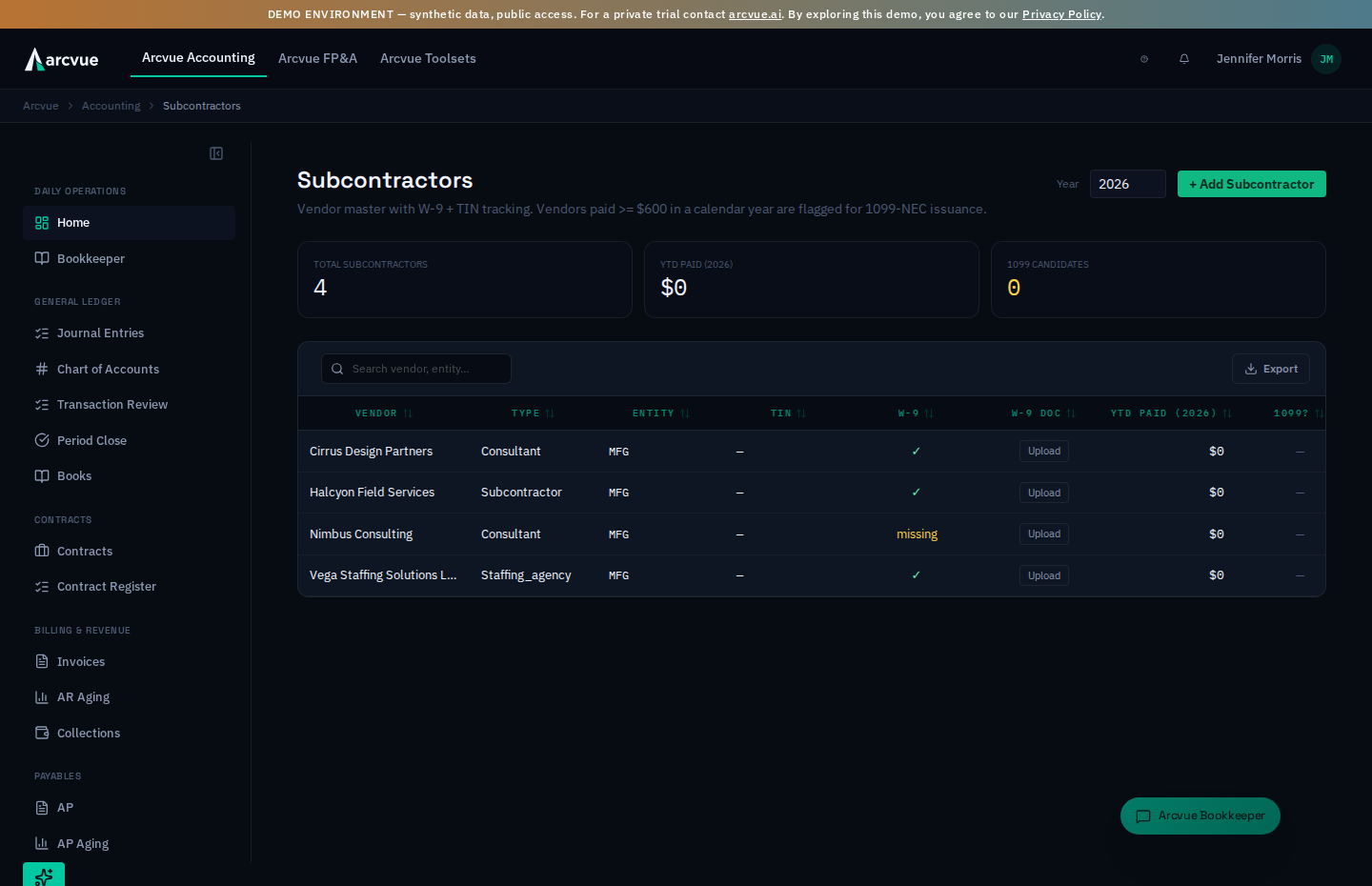
A subcontractor record is the file you keep on every vendor you pay as a contractor — their legal name, taxpayer ID (TIN), whether their W-9 is on file, and how much you've paid them this year. 1099 reporting is the year-end filing that falls straight out of that file: any vendor you paid $600 or more gets a 1099-NEC. This guide covers keeping the 1099 vendor master clean so that, at year-end, generating and filing 1099s is a review step instead of a scramble.
For: controllers and bookkeepers · Time: ~15 minutes to learn, minutes per vendor after · You'll need: the Accounting module and each vendor's W-9 (legal name, TIN, address).
Part 1 — The ideas you need first (read once)
What the subcontractor record holds
For each vendor you track, in one row:
- Legal name (
Vendor name) — the payee name that prints on the 1099. It has to match the W-9 exactly, because the IRS matches the name to the TIN. - TIN — the taxpayer ID (an EIN for a business, an SSN for an
individual). You enter it once; Arcvue encrypts it at rest and from then on
only ever shows a masked form (
XX-XXX1234, the last four digits). The full number is never displayed again and never returned to the browser. - W-9 on file — a yes/no. It drives the W-9 check on the vendor master and the W-9 status column on the 1099 page. You can set it by hand, and usually should not need to — see the next two.
- The W-9 document itself. Upload stores the signed W-9 against the vendor, and uploading it sets W-9 on file and stamps the received date for you. The vendor master carries a W-9 Doc column reading Upload or Replace depending on whether one is held; the 1099 page has the same action as Upload W-9. Ticking the box without the document leaves you asserting a W-9 you cannot produce.
- Request W-9 — on the 1099 page, for a vendor still missing one. Arcvue records who asked and when, so the control then reads Re-request and a vendor you have chased is distinguishable from one you have not.
- Address / contact email — where the 1099 gets addressed, and where a W-9 request or a recipient copy gets emailed.
- Tax class (W-9 3a) — on the 1099 page, the payee's tax classification as
their W-9 states it in box 3a. A model reads it off the uploaded document, so
until a person confirms it the cell carries an
unconfirmedmarker and hovering says nobody has confirmed it yet; once confirmed, hovering names who did. A payee with no classification on file shows a dash, never a plausible-looking default — no classification is a question nobody has asked, not a payee who is somehow unclassified. An unconfirmed reading is confirmed or corrected in the bucket below the table, not in the grid — deliberately, so the call is made with the W-9 in front of you rather than from a dropdown in a row of sixty. Once a classification is confirmed the cell offers a Correct button, because confirming used to be final: a confirmed row leaves that bucket, and until this control existed there was nowhere left to change it. Correcting records you as the confirmer. The button only appears on a confirmed value — an unconfirmed one already has its editor in the bucket, and two controls for one field is how the same fact gets recorded two ways. Save stays disabled until you pick a different classification, so opening the dialog and closing it cannot re-stamp a reading you never changed. The export carries the confirmation state, not just the value. A spreadsheet leaving Arcvue for your accountant never shows a machine reading as though it were a confirmed record.
There is also a vendor type — Subcontractor, Consultant,
Staffing Agency, or Other. It's descriptive; it doesn't change the tax math.
How a subcontractor's invoice finds its contract
A subcontractor's bill arrives with a vendor name and, usually, no contract on it. Arcvue gives it one as it comes in, and it does so from the same place the cost accrual prices the company's hours: the purchase-order lines and subcontract agreements on the company's record, each of which names the prime contract it serves.
- If a line quotes a CLIN or a purchase-order number that matches one of the company's purchase orders, that line takes that order's prime contract — the explicit reference wins.
- Otherwise, if every active purchase order and agreement for the company points at one prime contract, the invoice and its lines take that contract.
- If the company serves several prime contracts and a line does not say which, Arcvue does not guess. That line is flagged needs review and you pick the contract on the invoice. A contract a person has set is never overwritten.
- A company with no agreements or purchase orders on file gets nothing attributed and nothing flagged: the fix is the company's record (Step 2b), not the invoice.
Every attribution Arcvue writes is logged on the line with the reason it chose, so a reviewer can see why a line carries the contract it does.
Who gets a 1099 — the money, then the determination
Two things decide it, and only the first is automatic.
The money is computed. Any vendor whose year-to-date posted payments reach
$600 becomes a 1099-NEC candidate. The 1099? column and the "1099
candidates" tile both come from that rule, so you change the amount by paying
(or not paying) — never by editing a total.
Whether that candidate is actually a recipient is a judgment you record. A corporation, an employee already paid through payroll, and a payee you have a documented reason to exclude can all clear $600, and none of them should get a form.
But "incorporated" is not the end of the question for two kinds of PAYEE. Attorney fees and medical and health care payments are reportable even when the payee is a corporation — they are the two boxes the form carries for exactly that reason (box 10 and box 6 in the table further down this guide). So a law firm and a medical practice are the payees most likely to be excluded for a reason that does not apply to them. The 1099 page repeats this warning at the point of exclusion; read the next section for where.
Each payee on the 1099 page carries one of three states:
- Recipient — you recorded that they are. A form is drafted when they cross $600.
- Not a recipient — you recorded that they are not, with the reason. They stop coming back every year.
- Not decided — nobody has recorded anything. This is not an exemption. It is an unanswered question, and it is exactly why a correctly-exempt payee reappears every January.
Record it with Yes — a 1099 recipient or No — not a 1099 recipient, put the basis in Why?, then Record. The reason is required unless you are clearing a payee back to not decided, and that is deliberate: a determination with no basis reads as unexplained rather than settled, and that note is what answers an auditor a year later.
A foreign payee is refused before any of this. A 1099-NEC is the wrong return for them, and which return replaces it — a 1042-S where the income is US-source, or no US information return at all where the work was performed abroad — turns on facts Arcvue does not hold. Arcvue files neither. The payee is listed with that reason rather than dropped silently, and you handle it outside the product.
Everyone you excluded is still on the page, and that is the point. The Not receiving a 1099 section at the bottom of the 1099 page lists every payee recorded as not a recipient, with the count and the total you paid them — so an exclusion is a visible decision rather than a disappearance. Each row shows the basis somebody recorded, or says plainly that no basis was recorded and the exclusion should be treated as unexplained rather than settled.
put back returns that payee to the filing list. Use it the moment an exclusion looks wrong — and check this list for a law firm or a medical practice specifically, because those are reportable incorporated and are the two kinds most often excluded for being a corporation. The section carries that warning above the rows for the same reason.
The paid total is read from the general ledger — it sums the vendor's posted payments for the year. A payment posted in a different year, or a voided one, is exactly why a total can differ from what you think you paid.
What a 1099-NEC carries
The form Arcvue produces is a 1099-NEC (Nonemployee Compensation) with two money boxes:
- Box 1 — Nonemployee compensation: the reportable total. It defaults to the vendor's YTD paid amount and is what you'll verify.
- Box 4 — Federal income tax withheld: backup withholding, usually $0.
The recipient's copy Arcvue generates is Copy B (For Recipient). Copy A — the one the IRS actually files — goes to the IRS electronically (IRIS/FIRE) and is not the PDF you hand the vendor. Keep that distinction in mind: the PDF you download or email is the recipient's copy and your working copy, not the filed government form.
And a 1099-MISC, when the payment isn't for services
Most of what a services business pays a vendor is nonemployee compensation and belongs on a 1099-NEC. Some things don't, and those go on a 1099-MISC. Arcvue files five of its boxes:
| Box | What it reports |
|---|---|
| 1 | Rents — office, equipment, land |
| 2 | Royalties |
| 3 | Other income |
| 6 | Medical and health care payments |
| 10 | Gross proceeds paid to an attorney |
plus Box 4 (federal income tax withheld), which is the same box on both forms.
Box 1 means different things on the two forms — nonemployee compensation on a NEC, rents on a MISC. That is why the forms list shows a single Reported column rather than a box number, and why a MISC row shows its total with the individual boxes on hover.
A 1099-MISC is created deliberately, not generated. Arcvue derives NEC amounts from what you actually paid, but nothing in the ledger can tell rent from a royalty from money that passed through an attorney — those are calls you make about a payment, not facts the data carries. So Arcvue asks rather than guesses.
The boxes above are the only ones Arcvue files. Fishing boat proceeds, crop insurance, substitute payments, cash tips, section 409A deferrals and the rest of the form are not implemented, and Arcvue refuses them by name rather than accepting a number it would then never send. If you need one of them for a real payment, raise it — do not park the amount in "Other income" to make it fit.
New 1099-MISC opens the MISC form directly, for rents, royalties, other income, medical payments or attorney gross proceeds — the payments that are not compensation for services and therefore do not belong on a NEC.
The payer block — the identity you are filing under
The payer block is assumed until somebody confirms it, and the button is what tells you which state you are in.
| The button reads | What that means |
|---|---|
| Confirm filing identity as shown | You have changed nothing, and these values are still assumed from your tenant record. Pressing it records them as stated by you. |
| Save filing identity | You have edited something, and pressing it saves your edit. |
So a button offering to confirm is telling you nobody has yet. The values on screen may be perfectly correct and still unconfirmed — the two are different facts, and only one of them is a statement you have made to the IRS.
Before any form is correct, the payer has to be. This block is who the IRS sees as the filer:
| Field | Notes |
|---|---|
Payer name | Required. |
Payer EIN | Required. Must match the IRS's records for this EIN — a mismatch rejects the whole submission, not just one form. |
Address line 1, Address line 2, City, State, ZIP | Line 2 is optional. |
Payer phone | Optional. |
Filing contact and Contact phone | Who the IRS reaches about this filing. |
Signer name | The person attesting to the return under penalties of perjury. |
Signer title | Their title. |
An EIN typo does not fail one form, it fails the batch. Check it against the IRS notice rather than against memory — this is the single field most likely to reject an otherwise perfect filing.
Discard changes appears while the block has unsaved edits and reverts them.
The three views on the 1099 page
The 1099 page has three tabs:
- Forms — the year-end production view: generate, review, and file the actual 1099-NEC forms for the vendors over $600.
- Year-Round Tracker — an early-warning view: every vendor with a color band showing how close they are to the $600 threshold and whether their W-9 is in. This is how you avoid a December scramble chasing missing W-9s.
- Filing Identity — your own filing details, not a vendor's: the entity you file as. It lists exactly what is still missing, and an amber dot on the tab means this entity cannot file yet. Check it before Step 4 — every vendor W-9 can be perfect and a transmission will still be refused if your own filing identity is incomplete.
What Arcvue deliberately will not do
- It won't show a full TIN — it's encrypted at rest and masked on screen
(
XX-XXX1234). - It won't invent a reportable total — Box 1 comes from posted payments, so if the GL is wrong the form is wrong. Fix the books, not the form.
- The recipient PDF is explicitly labeled a Copy B / working copy — it is not a substitute for the IRS-filed Copy A.
Part 2 — How to run it
You'll work two pages, both in the left nav under Labor: Labor → Subcontractors (the 1099 vendor master) and Labor → 1099 (year-end forms + the tracker). Keep the two record sets separate: this screen is specifically your 1099/W-9 record set — TIN, W-9, and payments live here. The general list of everyone you buy from — with each vendor's default GL account and FAR allowability that feed coding suggestions — lives in Admin → Accounting → Vendors (see the Accounting Settings admin guide).
Step 1 — Open the vendor master
In the left nav, under Labor, click Subcontractors. The page header reads Subcontractors — "Vendor master with W-9 + TIN tracking. Vendors paid >= $600 in a calendar year are flagged for 1099-NEC issuance."
Across the top are three tiles: Total subcontractors, YTD paid (for the selected year), and 1099 candidates (the count over $600). A Year field in the header controls which calendar year the paid totals and candidate count reflect.
The table below has these columns:
| Column | What it shows |
|---|---|
| Vendor | Legal name (prints on the 1099) |
| Type | Subcontractor / Consultant / Staffing Agency / Other |
| Entity | The legal entity the vendor is filed under |
| TIN | Masked TIN (XX-XXX1234), or — if none entered |
| W-9 | A green ✓ if on file, or amber missing |
| YTD Paid (year) | Posted payments for the selected year |
| 1099? | An amber issue chip when the vendor is at/over $600, else — |
| Portal | How many of the company's people can sign in to the Subcontractor Portal, and Manage to add or remove a login |
| People | The company's people on file and, in amber, any staffing that needs a billing category and has none (2 people, 1 not billable); Manage opens the staffing panel (Step 2b) |
When the vendor master cannot give you an amount
A recipient row can show a note instead of a total. The three notes are three different problems with three different fixes — read which one it is before acting:
| Note | What it means | What to do |
|---|---|---|
no payments linked | Nothing connects this recipient to a payment this year. That is not the same as being paid nothing — an invoice may exist under a name this record does not match. | Look for the payment under another spelling and link it. |
more than one match | More than one record matches this payee, so no single total can be attributed. | Resolve the duplicate records first; the figure is untrustworthy until you do. |
paid under another entity | The payee was paid this year, but every invoice is tagged to a different legal entity than this record carries. | Correct the entity on the invoices — or on this record, if the record is the one that is wrong. |
paid under another entity withholds the amount rather than guessing,
and that is correct: the payer is who files. Summing across entities would
produce a number no single filer can stand behind.
Paid, but no recipient record to file it on
A bill from a vendor whose name matches a recipient record links to that record the moment it arrives, whichever way it came in. Only a name the register does not carry lands here.
Above the tracker table a banner lists payment group(s) with no recipient record — money one of your entities paid this year to a name that has no recipient row under that payer. These never appear in the table, because the table lists recipients and these have none. Each line carries the amount, the payer and one of two notes: never seen - needs a determination, or on file under another payer, which means the payee exists but not under the entity that owes the form. Payments to people your vendor master classifies as employees never appear here: an expense reimbursement is a W-2 matter, not a 1099 one.
Every line has the two answers a person can give:
- create record opens the recipient form with the name and the payer filled in. Creating the record is how you say yes — it puts the payee in the tracker, where its W-9 can be chased and its amount counted.
- not a recipient is how you say no, once. It opens Not a 1099 recipient?, which asks Why is this not a 1099 recipient? (ten characters or more) and offers Foreign person for a payee who is not a US person. Record: not a recipient creates the recipient record already marked not reportable, with your name and reason in its History, so the name leaves this banner and no W-9 is requested. Cancel records nothing.
Not every line needs a form. Your own consolidated entity, a contract vehicle sitting in the vendor name, an incorporated supplier and a payee whose work was performed abroad all belong under not a recipient — but each one needs a person to say so, because the answer suppresses a return. A name that is only a different spelling of a payee already on file is neither: register it as an alias of that payee rather than answering here.
The two Manage controls on a subcontractor row are not part of filing at
all. The one under Portal opens who from that company can sign in to the
Subcontractor Portal, to add or remove a login. The one under People opens
the company's people and where each is staffed (Step 2b).
Step 2 — Add or update a vendor
Nothing on the detail panel saves as you type. Save changes writes it and reads Saving… while it works.
Click + Add Subcontractor (top right). A dialog titled Add subcontractor opens. Fill in:
- Vendor name * (required) — the legal name from the W-9.
- Vendor type — Subcontractor / Consultant / Staffing Agency / Other.
- TIN (encrypted at rest) — the raw TIN (placeholder
XX-XXXXXXX). Entered once, then masked forever after. - TIN type — EIN or SSN.
- Address line 1, City, State, ZIP — the mailing address for the 1099.
- Contact email — where a W-9 request or a recipient copy is emailed.
- W-9 on file — check this once you've received and filed their W-9.
Click Save. Saving is an upsert keyed on legal entity + vendor name: enter a vendor that already exists (same entity, same name) and you update that record rather than creating a duplicate. A toast confirms "Subcontractor saved." To back out without saving, click Cancel or the ×.
W-9 first. Set W-9 on file only when you actually hold the signed W-9 — that's the record the recipient name and TIN on the eventual 1099 are trusted from. A vendor with money flowing but no W-9 is the row you want to catch on the tracker (Step 3) long before year-end.
The add and update form marks its one hard requirement plainly: Vendor name *.
Everything else can be filled in later; without a name there is no record to
attach a W-9 or a payment to.
Step 2b — Their people, and where they are staffed
The staffing picker refuses in an order, and the message says which step you are missing. It reads Choose a contract first while no contract is selected, and Not yet once one is. The first is a prerequisite you can satisfy; the second means the contract is chosen and the rest is not ready.
A subcontractor is a company. The work is done by its people, and those people record their own time and expenses in the Subcontractor Portal — but only against the contracts you have staffed them on, and their approved hours reach your customer invoice only under a billing category you have bound. Both of those are set here, from the People column.
- People (column) — how many of the company's people are on file, and whether any staffing that needs a billing category is missing one. nobody yet is the normal starting state. 2 people, 1 not billable, in amber, means one open staffing has no billing category: every approved hour recorded under it is absent from the customer invoice until you bind one, and the draft invoice names those hours as not billed. Click Manage to open the panel.
The panel, People and staffing, lists each active person with their staffings beneath. Its one loud line is the amber one: No billing category, so hours recorded here will not invoice. Everything else is quiet. A staffing on a fixed-price or manually invoiced contract reads No billing category needed: this contract is not invoiced from hours. That is correct as it stands: the contract's invoice is written from milestones or fixed amounts, never from hours, and it is not counted as not billable.
- Full name — the person as the subcontractor knows them, and as they will print on the invoice beside the labor category. They are the subcontractor's employee, not yours: nothing entered here reaches your roster, payroll or timekeeping.
- Email — optional, used only to tell two people of the same name apart. Nothing is sent to it. Giving somebody a portal login is a separate step on the Portal control and uses their Arcvue username — Step 2c below.
- Add person — adds them. Nothing can be recorded for them until they are staffed. Only your own staff can do this. A subcontractor signed in to the Portal cannot add their people, rename them, or end a staffing — the Portal offers no way to try, and the server refuses it if they reach for it another way. What they can do there is record time and expenses against the people you staffed.
- Staff on a contract — opens the staffing form under that person:
- Contract — the prime contract they will work on; staffing them is the authorization, and the Portal offers a person only the contracts they are staffed on for the date being recorded.
- Starts — the first day they may record time. It may be in the future.
- Ends — optional; leave it open for an ongoing staffing.
- Billing category — which of that contract's labor categories their approved hours are invoiced under, at that category's rate from the executed contract. Only categories on the chosen contract are offered (an order that owns no rate card is offered its vehicle's, marked from the vehicle). Choose Not yet when the rate card has not been extracted: the staffing still lets them record time, and you bind later.
- Lines <name> may charge — shown only when the contract charges time by line. Leave every line unchecked and the person may charge any line open for time on that contract, including one you open later. Check some, and only those lines are offered in their picker and accepted when they save; an hour on another line is refused and names the lines they may use. Narrow it when a person works one task area and a wrong line would mis-state cost against that line's funding.
- Staff <name> — saves the staffing.
- Bind one / Change — on a staffing row, opens the Billing category picker for that staffing alone. Save category writes it; choosing Not yet clears it. Setting the category is an internal controller's action; the subcontractor's own login is refused.
- Change lines — on a staffing row of a contract that charges time by line, what the person may charge today: any open line, or only the lines named. Save lines replaces the whole set; clearing every box returns them to any open line. It applies to hours saved from then on — hours already saved on another line stay as they are and show in the review queue. The row says nothing on a contract that charges whole.
- Subcontract rate — the second line under a staffing, and the one that
says what this person costs you: which of this company's agreement labor
categories their hours are paid at. Bind a rate / Change rate opens
the picker, where each option reads as the category, its rate per hour and
the subcontract it came from. Save rate writes it and Not yet clears
it. Unbound, the row is amber — No subcontract rate, so hours recorded here
will not accrue what you owe this company. Bound, it states the rate, the
category and the agreement.
- If the company has no agreement rates yet the picker says so and tells you where to go: add the subcontract's labor categories and their rates under Subcontractors, then come back and bind.
- A rate superseded after you bound it turns the row amber and asks you to rebind before the next accrual, and this is the one to act on promptly. The accrual refuses those hours and names the staffing, so the row is telling you now what would otherwise reach you as a month-end skip note.
- Cost line — the third line, and the exception rather than the rule:
which line of a subcontract purchase order their approved hours are costed
at. Bind a cost line / Change cost line opens the picker; only lines
on purchase orders raised under an agreement with this company are offered,
each with its rate and PO number. Save cost line writes it; Not yet
clears it. A line on a canceled or closed purchase order is shown in amber
and should be rebound.
- An empty cost line is normally correct, and the row says so quietly: No purchase order line, which is expected: the subcontract rate above is what this person costs. Bind one anyway is there for the cases that need it. Do not read that line as something to fix — a purchase order is not how subcontractors are costed here, and raising one to clear it would be raising a document the business does not cut.
- It goes amber — No cost line, so hours recorded here will not accrue what you owe this company — only when neither binding is set. That is the real gap, because then nothing says what the hour costs.
- If both are bound and they state different amounts, the row says so in amber and the accrual refuses that hour rather than pricing it from either, naming both candidates. There is no right answer to pick between them, so correct one — they are shown together on the row for exactly that reason. Both are internal controller's actions; the subcontractor's own login is refused.
- Approved by — the fourth line, and the only one on the row that is
not about money: which of your people signs off on this person's hours
and expenses. It starts at A controller: anyone holding the controller
role approves. Name someone opens the picker on an unnamed staffing
and Change approver reopens it; Save approver writes it, and the row
then names them. Only your own employees who are still here are offered.
- Leaving it as "A controller" is a working state, not a gap, and the row is deliberately quiet about it — Approved by a controller. Any approval still goes through; it simply is not routed to a particular person. That is why this line is not amber the way the two cost lines above are: there, amber means an hour cannot be priced and money is genuinely at stake. Here nothing is lost by leaving it unset.
- Name someone when a specific manager watches the work. The point is to put the approval in front of the person who can actually tell whether the hours are right, instead of leaving every subcontractor's time to whoever happens to hold the controller role.
- The subcontractor can never set this, by design. A company choosing who signs off on its own hours is precisely the separation of duties the approval rail exists to create, so their login is refused here even though they can see their own people.
- If the person you named later leaves, the row turns amber and says so — who has since left, so approvals fall back to a controller until you name someone else. Nothing breaks and no hour is stranded: approval simply returns to a controller. Reopen the picker and name a replacement, or clear it back to A controller deliberately.
- End staffing — closes a staffing on the End on date. The row is kept, never deleted, so every hour recorded inside its window keeps explaining itself. Ending is also how you resolve two open staffings on one contract that name different categories: the invoice engine refuses to price an hour covered by both, and names both staffings on the draft until one ends.
- Deactivate / Reactivate — a person who has left. Their hours stay on the record.
Two rates, never one — and the cost side has two possible sources. The billing category is the government's rate for the work, extracted from your contract. What you pay comes from the subcontract: normally the subcontract rate off the company's agreement, and for the cases that need it a purchase-order line instead. On T&M the billing and the cost sides are independent by design, the difference is your margin, and neither is ever derived from the other. Bind one cost source, not both — two that disagree is the single state the accrual will not price.
Step 2c — Giving their people a portal login
This is the step that lets somebody at the subcontractor sign in and enter their own hours. Until it is done, nobody can record that company's time: your own staff can read and review the portal, but never enter time on a subcontractor's behalf.
Open Labor → Subcontractors. The Portal column carries a count, not a yes or no — the question is never whether the company has access, it is how many of their people do. Click the count to open Portal access; the company's name sits under the heading so you can see whose list you are holding.
If nobody has access yet the panel says so in those terms — "Nobody from <company> can sign in yet. Add their Arcvue login below and they will see the Subcontractor Portal — and nothing else." That last clause is the part worth knowing before you grant anything: the grant opens one surface. It is not a general Arcvue login, and it does not widen as you add contracts.
Adding somebody
Under Add a login, type their Arcvue username and press Add (Enter does the same thing). The field says their Arcvue username rather than "username" for a reason, and the note under it repeats it: their username, not their email address. A username and an email address are different values, so an email address is the most likely wrong thing to be typed here, and the refusal it produces does not explain itself.
The login has to exist before you can grant it. This panel connects an existing Arcvue user to this company; it does not create an account. If they have never had one, that is the admin step in the Users, Permissions and Access guide, and it happens first.
One login belongs to one company. A person who genuinely works for two of your subcontractors needs two logins, because every row they touch is scoped by the company their login is attached to — that scoping is what keeps one subcontractor from seeing another's hours, so it is not a limit worth working around.
Each active row shows the username, and Added by whom and when. That line is the audit trail for the grant, which is why it is on the row rather than in a log you would have to go and find.
Access and staffing are two different things, and a person needs both
Granting access does not staff anybody, and staffing somebody does not grant them access. A person who is staffed but has no login cannot sign in. A person who has a login but is not staffed signs in and finds nothing to record against — no contract, no category, an empty picker. If somebody reports either symptom, check the other step rather than this one.
Taking access away
Remove on their row stops that username signing in. Their hours and expenses stay on the record — removing access is not a way to reverse an entry, and it never changes an amount. Use it when a person leaves the subcontractor, or when the engagement ends.
Removing somebody is recorded — who removed them and when — the same way the grant is. That history is not readable on this panel today: it lists who can sign in now, not who used to. So use Remove confident that it leaves a record, and do not go looking on this screen for who lost access last month.
Done closes the panel. Nothing here is held as a draft — Add and Remove take effect when you click them, and the count on the register moves straight away.
When something looks wrong
"That login could not be given portal access." The username does not resolve to an Arcvue user, or it is already attached to another company. Check the spelling against the user list first — an email address typed into this field produces exactly this message.
"Could not load who has access." The panel could not read the list. Close and reopen it; the counts on the register are read separately and are still good.
They signed in and cannot see the Subcontractor tab. The grant did not happen, or it happened for a different login than the one they are using. Their username on this list is the one that works — compare it to what they typed, not to their email. Their own guide tells them to ask you rather than us, so this is the list to check when they do.
Somebody had access before and needs it again. Add the same username again — a username that was removed can be granted a second time, and the earlier removal stays on the record rather than being overwritten.
Step 2d — Reviewing what they hand in
Their time and expenses arrive a week at a time. A period runs Monday through Sunday and also ends on the last day of each month, so a week that crosses a month end is two periods and every period belongs to one month. Only approved hours accrue as cost and reach the customer invoice, so approving promptly is what puts a week's subcontractor labor in your books — not the subcontractor's own invoice, which arrives later and reconciles against it.
On the web, open Labor → Subcontractor Portal. Before you choose a company it opens on Awaiting review: every entry any company has submitted that nobody has approved or returned yet, with the day's total wherever one person recorded more than once for a date, and who is set to approve it — the staffing's Approved by, or No approver named — routes to the controller. Where you are that approver, the line carries Approve and Return; otherwise it carries Open, which reads that company's portal in full. Inside a company's portal, Approve N submitted entries approves the period on screen; a single entry is returned with its own reason, and Return N submitted entries… hands back the whole period with one reason, for when the same thing is wrong across the week. A return always carries a reason, and the subcontractor reads it beside the entry. The Subcontractor Portal guide walks the same screen from their side.
On the phone, the person set to approve sees the submission under Subcontractor hours on the Approvals tab, with Approve all, Send all back, and Send this entry back on a single entry. The Approving Your Team's Time guide walks it.
What comes back to you. A subcontractor corrects a returned entry and sends it again — it returns marked as corrected after a return, beside the reason you gave — or withdraws it if it should not exist, and who returned it, why and who withdrew it stay on record. A company holding saved days it never sent gets one email a day once the period is past due, until the days are sent; you do not need to chase them. And when a month closes with subcontractor hours still waiting for approval, the month-end close says so rather than leaving the period quietly short of that cost.
Step 3 — Chase missing W-9s during the year (don't wait for December)
Open Labor → 1099 and click the Year-Round Tracker tab. The header text switches to "Year-round visibility into every vendor's payments. See who is approaching the $600 threshold and which W-9s are still missing — before year-end scramble."
Band tiles summarize where every vendor sits against the $600 line. The first four are measurements — we know what the vendor was paid:
- < 50% of $600 (green)
- 50% — 90% (amber)
- > 90% (under $600) (red)
- ≥ $600 (1099 required) (purple)
The last two are not measurements — they mean we could not attribute the money, and they are deliberately separate so a $0.00 can never be mistaken for "paid nothing":
- no payment source linked (slate) — nothing connects this vendor to any payment record, so the $0.00 beside them is an absence, not a total. Chase the vendor link, not the vendor.
- paid by a different entity (orange) — this vendor was paid this year, but only under a different legal entity than their record says. The entity is the payer, and the payer is who files, so Arcvue will not guess which EIN owes the form. Someone has to decide which entity actually paid them.
Why these two exist, and why it matters at year-end: before they did, a vendor nobody could measure showed up in the reassuring green "< 50% of $600" tile. The screen said "nobody is near needing a 1099" when the truth was "we cannot measure anyone" — and a missing 1099 draws a penalty per form. An amber or orange chip you have to resolve is worth far more than a green one you can't trust.
The table shows each vendor's YTD Paid, % of $600, its Band chip, and a W-9 status column that reads one of:
- ✓ on file (with the received date, if recorded),
- requested
<date>(with who requested it), or - not requested (amber).
For any vendor whose W-9 isn't on file, the Actions column shows a Request W-9 button (it becomes Re-request once you've asked before). The button tooltip shows the vendor's contact email, or warns "No contact email on file."
Once a W-9 is on file, that column shows Replace W-9 instead. Use it when the wrong document was stored — a blank form, last year's, or another vendor's. Uploading the correct one supersedes what is held; the previously stored document is not what the payee's record points at any more. Before this control existed the Actions column went empty as soon as a W-9 landed, so a mis-upload spotted on this page had to be fixed from the vendor master instead.
What "Request W-9" actually does today: it records that you asked — timestamp and your username — so the tracker can show "requested 3 days ago" instead of "never asked." It does not send the email for you; you still email the vendor from your own inbox. Recording it is what keeps the audit trail honest and stops the same vendor from being chased twice.
What happens when you upload the form
Upload W-9 opens a small dialog. It takes a PDF, PNG or JPEG up to 15 MB — a photograph of a signed form is fine. Cancel backs out; Upload sends it.
Arcvue stores the document and reads it. What it reads is shown to you for checking — it is not filled into the record.
Legal name · Business name · TIN (always masked) · Address
Name, TIN and address are read for review only. Nothing is written AUTOMATICALLY. Confirm them on the subcontractor record yourself. A TIN is a string of digits with no way to check itself, and a single misread digit files a 1099 against the wrong taxpayer — so Arcvue will show you what it saw and will not act on it.
If the read fails the document is still stored. The dialog says the automatic read was unavailable and asks you to enter the details on the record. That is not a failed upload — the W-9 is on file either way, and the vendor stops appearing as missing one.
The one field you do record here: line 3a
Underneath the review panel is Federal tax classification · W-9 line 3a, with the classifications from the form itself.
This is the single extracted field recorded from inside this dialog, and the difference from the TIN above is deliberate: line 3a is a ticked box from a fixed list, and you can change it afterwards. A wrong pick is a correction; a wrong TIN is a mis-filed return.
- If Arcvue read the box, the picker is already set to it — check it against the document and change it if they disagree.
- If it could not read the box, the picker is EMPTY. That is deliberate. Arcvue will not offer a guess that looks like it came off the form. Pick it from the document you just uploaded.
Record classification saves it, and it then shows in the Tax class column on the 1099 tracker. Done closes the dialog.
Recording the classification is not a determination that the vendor is REPORTABLE. It records what their form says, which is why nothing here asks you to write a reason — the document is the reason. Deciding whether somebody gets a 1099 is the separate determination described earlier in this guide, and it still asks for a basis.
Step 3b — Check the TINs against IRS records before you file
A name/TIN pair that does not match IRS records draws a CP2100 / B-notice, and that in turn starts a 24% backup-withholding obligation on future payments. Far cheaper to catch in November than in February, so this runs before generation, not after a rejection.
This is a file exchange, not an automatic lookup — the IRS Bulk TIN Matching service takes an uploaded file:
- Download the request file. Arcvue builds it in the IRS's Publication 2108-A bulk format from your current recipient set. It includes only vendors with a usable 9-digit TIN, and tells you how many it left out — a short file is not a complete one, so check that number.
- Upload it to IRS e-Services (Bulk TIN Matching) and wait for the result file. This uses your e-Services account; it is separate from 1099 e-filing.
- Upload the IRS result back to Arcvue to read the verdict per vendor: matched, no match, TIN not issued, invalid, or duplicate. Vendors that were never submitted come back as not sent — that is Arcvue telling you it never asked, not the IRS saying anything.
Keep the result with the request it answers. The IRS response has no vendor id in it — the file format has an optional account-number field, but the IRS documents that it "will not read this information", so verdicts come back in the same order they were sent and nothing else ties them to a vendor. Arcvue stamps each request file with a fingerprint and refuses a result whose recipient set has changed since, because adding or renaming one vendor would shift every later verdict onto the wrong person. If you get that refusal, re-download the request file and re-submit it — do not try to reconcile by hand.
The verdict is kept, and it gates generation. Each vendor's result is recorded against their record and shows as a TIN (IRS) column on both the forms list and the year-round tracker:
| What you see | What it means |
|---|---|
| matched | The IRS holds this name and TIN together. |
| no match / not issued / invalid | The IRS says it is wrong. Generation refuses this vendor until it is fixed. |
| stale | It matched once, but the name or TIN has changed since — so the old verdict no longer describes what would be filed. Re-run the match. |
| unchecked | Never submitted. Not a problem, and not a clean bill of health. |
Two of those deserve emphasis. stale exists because a verdict is about a specific name-and-TIN pair; if Arcvue kept showing "matched" after you corrected a TIN it would be reassuring you about a number the IRS never saw. And unchecked does not block generation — bulk matching needs an e-Services account, and a check that stopped every 1099 until you had one would simply get turned off. It is reported instead, by name, so a clean-looking run can never be read as "and all of them were checked".
Fixing a TIN means going back to the vendor's W-9 — never guessing.
Step 4 — Generate the year's 1099s
Generation reports three things it did not silently do, and all three are worth reading before you move on:
- Vendors the IRS says do not match — refused, and named. Filing one draws the CP2100/B-notice Step 3b exists to avoid. You can override deliberately if you have independently resolved it; the override does not make the TIN right, and the vendor is still listed.
- Vendors with no usable TIN verdict — created, and named. See the table in Step 3b.
- Vendors also on the W-2 payroll, and vendors whose payments Arcvue could not attribute to this legal entity. Both are covered below.
A run that created nothing is not the same as a run with nothing to do, which is why every one of these comes back by name rather than as a count.
At year-end, go to Labor → 1099, Forms tab. Set the Year field to the
tax year (the page defaults to last year), and pick the legal entity in the
selector to its left. The header reads Form 1099-NEC — Tax Year <year>.
Three tiles show the batch at a glance: Forms in scope, Total Box 1 (NEC), and Total Box 4 (Fed W/H).
Click Generate 1099s. Arcvue creates a draft 1099-NEC for every active vendor over $600 for that year+entity, defaulting Box 1 to their paid total. A toast reports "Created N draft 1099s (M already existed)" — re-running is safe; it skips vendors that already have a form.
Box 1 is a cash figure. It counts what the vendor was actually paid during the calendar year — bills that are approved but unpaid, and bills that were voided, are correctly excluded. So a vendor with a large open balance can still sit below $600 here, and that is right.
Two things generation deliberately refuses to do, and it names them rather than skipping quietly:
- A vendor whose payer it cannot establish is reported under
unresolved_amountsand gets no draft. Drafting one would file it under the wrong EIN; skipping it silently would lose a real 1099. Neither is Arcvue's call to make, so it tells you and stops. - A vendor who is also on the W-2 payroll this year is reported under
employee_conflictsand gets no draft unless you explicitly opt in. The IRS reads 1099 + W-2 for the same person as worker misclassification, and a mid-year contractor-to-employee conversion legitimately needs both forms — that is a judgment, not a threshold.
So
Created 0never means "nobody needed a 1099." Read the two lists in the response before concluding the batch is empty.
The Forms table now lists each form with:
| Column | What it shows |
|---|---|
| Vendor | Recipient legal name |
| W-9 | ✓ on file, or amber missing |
| YTD Paid | Posted payments for the year |
| Reported | Box 1 — nonemployee compensation on a NEC, rents on a MISC. Deliberately not headed "Box 1 (NEC)", because the box does not mean the same thing on the two forms |
| Box 4 (Fed W/H) | Federal tax withheld |
| Status | The status chip (see below) |
| Actions | PDF + status-advance buttons |
Status chips walk left to right through the lifecycle:
- needs generation (slate) — a vendor over $600 with no form yet.
- draft (amber) — generated, not yet checked.
- reviewed (sky blue) — you've verified it.
- filed (green) — submitted / accepted.
- corrected (rose) — a correction after filing.
The run summary carries a Dismiss link. Dismissing resolves nothing — it only hides the summary, and running Generate again brings it back. Treat it as clearing your view, never as clearing the finding.
Step 5 — Review each form against the W-9
For each draft row, click PDF (opens the recipient Copy B in a new tab) and check two things: the recipient name and TIN against the W-9, and Box 1 against what you know you paid. The PDF is labeled "Copy B — For Recipient" and carries a footer stating it's an Arcvue working copy, not the IRS-stamped form.
When a form is right, click Mark reviewed on that row — the chip turns sky-blue reviewed.
A name or TIN is wrong? Don't edit the form — fix it at the source on the Subcontractors page (Step 2), because the 1099 pulls identity straight from the vendor record. Correct the vendor, then regenerate.
Two columns decide whether the transmission can go at all. Read them before Step 7, not after it fails.
- Ready to file — reads
ready, or names what is missing. The IRS requires a TIN and a complete address on every record in the transmission, and one incomplete recipient blocks the whole submission — not just their own row. So a single unresolved address is the difference between filing and not filing, and the page banners the count for that reason. - Payroll check — reads
also on payrollwhen a recipient was also paid through W-2 payroll this year. That is the pattern the IRS treats as worker misclassification. It is not automatically wrong: a contractor who became an employee mid-year legitimately needs both forms, each covering its own period. Because it is a judgment and not an error, Generate skips these and names them rather than deciding for you — work the column before you override.
Two controls live on each row of the review list. View W-9 opens that recipient's stored W-9 in a new tab, so you are comparing the form against the document rather than against memory. Correct the tax classification opens a small dialog to fix the classification when the form and the W-9 disagree.
Step 6 — Deliver recipient copies
With forms reviewed, click Email all recipients (top right of the Forms tab).
Confirm the prompt — "Email every <year> recipient their Copy B link?" — and
Arcvue renders each Copy B, stores it, and emails each vendor a link that expires
in 7 days. Every attempt is logged.
Emailing a copy is not the same as furnishing it, and this is the step where that distinction costs money. The IRS lets you deliver a recipient copy electronically only to a recipient who affirmatively consented to receive it that way. Without that consent the paper copy is still owed, and the deadline on it is the same one you were trying to meet.
The Delivery column on the Forms tab is where that consent is recorded, and it reads one of three ways:
| Delivery | What it means |
|---|---|
| ✓ e-delivery | Consent on file. The email furnishes the copy. |
| no consent — paper | Nobody has consented. Emailing does not furnish it — mail a paper copy. |
| withdrawn — paper | The recipient consented and then withdrew. A paper copy is owed and you must not re-send electronically. |
So Email all recipients skips a row for three different reasons, and they need
three different responses:
- No contact email — an address problem. Fix it on the vendor record (Step 2), or use the row's PDF button and send it yourself.
- No electronic-delivery consent — not an address problem. The address may be perfect. Mail a paper copy.
- A superseded original — a form replaced by a correction. Nothing is owed; the correction that replaced it is furnished as its own row.
Read the Delivery column, not just the toast. The summary that appears after a send reports how many were emailed, how many failed, and how many were skipped for a missing address — it does not break out the consent skips, so the number on screen understates who is still waiting on you. The column is the authoritative list of who is owed paper, and it is worth working before you consider delivery done.
Step 7 — File with the IRS
Filing is not instant and the page does not poll on its own. Check IRS status asks the service where the submission stands and reads Checking… while it waits. Press it again later rather than expecting the page to update itself.
Click E-file (IRS) (top right). Confirm the prompt — "Submit all
unfiled <year> forms for IRS e-filing?" — and Arcvue submits the
year's reviewed (and any remaining draft) forms to the configured IRS filing
backend. On success a toast reports how many forms were submitted and the
submission id; the rows advance toward filed as the IRS accepts them.
If e-filing returns "not provisioned yet": IRS e-filing depends on a filing backend that has to be enrolled with the IRS before it can transmit. Until that enrollment is complete, the button will report that the backend isn't provisioned. That is expected, not a failure on your part — the forms stay reviewed and ready. In the meantime you can still deliver recipient copies (Step 6) and file Copy A through the IRS's own portal, then mark the rows filed.
Step 7b — Check what the states still want
Filing federally is not the end of the obligation, and this is the step people skip. Combined Federal/State Filing (CF/SF) covers 32 states: elect it and the IRS forwards the record to the state, and nothing further is owed. For every other state the filing obligation is yours. Nothing in the federal e-file tells you which of your recipients fall on the wrong side of that line.
Open the State Filing panel on the 1099 page. It answers the question as a population rather than one row at a time — which matters, because a per-row badge cannot show you that you have two dozen recipients in a single state whose requirements nobody has established.
The panel counts every verdict along the top, then groups the three that need a person — in urgency order, not alphabetically. The labels below are the ones you will actually see on screen:
| On screen | What it means | Whose problem it is |
|---|---|---|
IRS forwards / CF/SF accepted | Combined Federal/State Filing carries it. Nothing further owed. | Nobody — this is the good outcome |
none owed | That state does not want a 1099 at all. | Nobody |
file with state | A known obligation. You owe this state a return, and the reason below carries the threshold, the method and the due date. | Whoever files |
undetermined | A gap in our knowledge of the law — the state is outside CF/SF and no cited requirement is on file for it | Whoever owns compliance research |
no state | A gap in the vendor record — there is no state on the address, so the question cannot be asked at all | Whoever maintains the vendor master |
The first three are counts only. The last three get their own grouped sections,
and file with state comes first because it is the only one whose clock is already
running — the other two are questions, this one is an obligation. The two below it
look similar and go to completely different people, which is the whole reason they
are not flattened into one list.
undetermined and no state both render amber rather than gray, and the contrast
with gray is deliberate. An unchecked TIN is a "we have not got to it yet". An
undetermined state requirement is an open obligation with a deadline attached. Amber
reads as a clock; gray reads as a to-do list.
An inactive vendor is marked, never hidden. Someone you paid earlier in the year
and have since deactivated still owes a filing, so they stay in their state's group
carrying an (inactive) tag instead of quietly dropping out of the population.
The reason is shown whole, never truncated. Each state's requirement text sits behind a disclosure you expand, at full length, because the load-bearing sentence is often not the first one. One state's text runs to well over a thousand characters and its actual obligation is in the second sentence — a short preview would show you the reassuring half and hide the part that costs money. The reason is a fact about the state, not the vendor, so it renders once per state while every affected vendor is still named beneath it.
There is no "mark as not needed" button, and that is on purpose. Every row in the state requirements table carries a statute reference and an as-of date. A button that cleared an undetermined would write exactly the uncited compliance assertion that table exists to prevent — and these rules change by legislative session. A test asserts the control does not exist, so nobody adds it back as a convenience.
To clear an undetermined, someone has to establish what the state requires and record it with its citation. That is the only route, by design.
Two "nothing to do" messages exist and they are opposites — read which one you got. "No recipient needs a state filing of our own right now … this is a cited nothing, not an unexamined one" means the check ran and every verdict behind it is backed by a citation and an as-of date. "State filing obligations could not be loaded. Nothing is implied by this — the question has not been asked, not answered" means the check did not run. Only the first is a clean bill of health; the second is silence wearing the same clothes, and an empty panel asserting that nothing is owed is the one answer that must never appear by accident.
Step 8 — (Manual close-out) mark filed
A reviewed row shows a Mark filed button. Once the IRS has your forms — whether e-file accepted them or you filed Copy A yourself — click it to move the chip to green filed. (When e-filing is fully wired, acceptance flips this for you.)
Step 9 — The 1096 transmittal
A 1096 is the one-page annual summary that accompanies a 1099 batch — form count, total Box 1, total Box 4 — for the year and legal entity. Arcvue generates a working-copy 1096 as a verification aid; like the recipient PDFs, it is not the IRS-stamped form you file.
One 1096 per form type. A 1096 transmits one kind of form, so if you filed both NEC and MISC you produce two — and because Box 1 is compensation on one and rents on the other, a single sheet totaling both would show a number that belongs to neither. Use it to eyeball the batch totals before you file, then transmit the real Copy A / 1096 through the IRS.
Correcting a payee, and why it saves in three pieces
Two controls bracket a correction and they are a step apart. Open correction starts one, and it will not enable until you type a reason — the reason is part of the record, not a courtesy. It reads Opening… while it works. Save correction then commits the corrected classification, reading Saving… while it writes.
Opening a business in the register opens a panel with three regions, in the order a 1099 reads them. They do not save together, and that is deliberate.
Recipient details is the identity that prints in the recipient box — Contact, the EIN or SSN, the address. Ordinary fields, saved together.
Filing entity is which of your own entities files the form, and the control is Change filing entity…. It has its own confirm step because it decides which EIN signs a federal return. It asks for a reason and records who decided. It is kept out of the same Save as a phone number on purpose: those two changes do not deserve the same amount of care. The button stays inert while the entity you have picked is the one the record already files under — there is no change to confirm, so nothing is asked of you.
Standing is W-9 on file and whether the payee is Active — facts about the relationship rather than about the payee. While a W-9 is held, Remove W-9 sits under the box. It opens Remove the W-9 on file?, which asks Why is it being removed? — ten characters or more — then clears the W-9 and its received date and writes the removal to the History with your name and your reason. The document itself stays on record for an auditor. A classification that was read from that document and never confirmed goes with it; one a person confirmed stays.
Close business details closes the panel; Cancel abandons an edit in progress.
The refusals are the useful part of this screen
Three changes can be declined, and each one is declined for a reason worth reading rather than working around:
- A rename after a form has been filed. The filed form carries the old name; changing it now would make the record disagree with what the IRS holds.
- A move to a filing entity that would collide with a payee already there.
- A deactivation that would drop a required return.
- Unticking W-9 on file while a document is attached. A stored document outranks a box. Use Remove W-9 instead — the refusal names it — so the removal carries a reason and a name.
Arcvue surfaces the server's own sentence, naming the obstacle and the remedy. That sentence is the part you can act on — read it rather than retrying the same save.
Correcting a spelling is now an edit, not a new payee. The register was once written only by importers, through a path keyed on the exact name, so a corrected spelling created a second record beside the first. If you still see two records for one business, that is the shape to look for.
What changed on a payee, and who did it
Every saved change to a business's record is written to its History, the last section of the detail panel, newest first: the legal name, the TIN (as a fingerprint, never the number), the classification and who confirmed it, the filing entity, a W-9 attached, replaced or removed, active or merged, and the reason you typed wherever one was required. Each entry names the person at your company who made the change, or reads Arcvue (LLM automated) for a change Arcvue made on its own. Nothing on it can be edited or deleted; it is the record an auditor reads when they ask who changed a recipient's name before the form was filed. A record whose History is empty has not been changed since it was added.
Possible duplicate businesses, and why two records is often right
The register shows a Possible duplicate businesses band when one business appears more than once.
Do not read it as a list of mistakes. A payee record belongs to a payer — the entity whose EIN files the form. If two of your entities paid the same business, each owes its own 1099, so two records is the correct shape. Merging them would drop one entity's return.
So the band does not flag; it states a verdict per group, in four kinds:
| Verdict | What it means | What to do |
|---|---|---|
| Not a duplicate | Both entities paid this business and each owes its own form | Leave both. Merging would drop one entity's return |
| Two records, one payer | Both records file under the same entity, so the business would get two forms from one payer — the IRS reads the second as additional income | Merge, keeping the record that carries the TIN and the AP link |
| Payments are not being reported | The payments belong to one entity but the record holding the AP link names a different one | Merge into the record whose entity actually paid — shown as the suggested keeper |
| Duplicate with no payments | Two records, neither paid this year; nothing is misreported | Merge to keep the register tidy |
"Payments are not being reported" is the one to open first. When the AP link sits on the record whose entity did not pay, the amount resolves to $0.00 — deliberately, because the payer is who files and Arcvue will not guess which one. No form reports that money, and no totals screen anywhere can show you it is missing, because nothing is wrong with any total. This band is the only place it is visible.
The control is Merge…, and picking the keeper comes first. It stays gray until you have chosen which record survives, because a merge with no keeper has no meaning — the group tells you which one it suggests and why. The confirm then names the records being retired and what moves: their payments and any draft forms go across, and the keeper's blank TIN, address and ERP link fill in from them. Nothing is deleted — the retired record is kept, marked, and hidden from the register.
Merging asks why. Why are these the same business? takes at least ten characters and is recorded against the retired record, so the register keeps the reason someone decided two rows were one business. Records are merged one at a time, and the confirmation tells you the payments moved with them. If the server refuses a merge it says why in its own words — read that sentence rather than retrying. Cancel leaves the group alone, and Try again re-runs a load that failed.
Part 3 — When something looks wrong
"A vendor I paid isn't on the 1099 forms list"
The Forms tab only lists vendors at or over $600 for that year+entity. Check, in order: (1) is the Year set to the right tax year? (2) is the legal entity selector on the entity that vendor is filed under? (3) did the year's posted payments actually reach $600 — confirm on the Subcontractors page's YTD Paid column or on the Year-Round Tracker. Also note Generate 1099s only creates forms for active vendors.
"The 1099 amount (Box 1) doesn't match what I think I paid"
Box 1 defaults to the vendor's posted GL payments for the year — not invoices, not accruals. A payment posted in a different year, or a voided payment, explains most gaps. Reconcile Box 1 to the actual payment history; if the GL is right and the form is stale, regenerate.
"A recipient's name or TIN is wrong on the form"
Before it is filed: fix it on the Subcontractors record (the 1099 reads identity from there), then regenerate the form. Don't hand-edit the PDF — the source is the vendor record.
After the IRS has accepted it: you cannot edit a filed return. Use Correct on the row, which is offered only once the IRS has accepted that record. It creates a new draft that points at the original and leaves the original alone; the next e-file sends it as a correction, and the original is marked superseded when the IRS accepts the correction.
Two things about corrections are worth understanding, because both are cases where doing the obvious thing files a second return by accident:
- Arcvue captures the recipient's name and TIN as filed at the moment you open the correction. The IRS matches a correction to the original by the old values, so it needs them even after you fix the vendor record. Open the correction first, then correct the vendor.
- A record the IRS rejected is not corrected — it is re-filed. A rejected record was never filed at all, so a correction for it would be a brand-new return wearing a correction flag. Arcvue refuses that, and says so.
The correction itself asks for two things. Why is it being corrected? is required — it is the audit record for a corrected federal filing, and the person who has to explain it a year from now is usually not the person filing it. Corrected Box 1 (nonemployee compensation) is the replacement amount that supersedes the figure the IRS accepted. Nothing is transmitted until you press E-file.
"The W-9 column says 'missing' but I have their W-9"
The W-9 flag is a manual yes/no. Open the vendor via + Add Subcontractor with the same legal entity and vendor name (that upserts the existing row), check W-9 on file, and Save. The green ✓ follows on both pages.
"Request W-9 didn't send anything"
By design. Request W-9 records that you asked (date + your username) so the tracker stops showing "not requested" — it does not send the email itself. Email the vendor from your own inbox; the record is just the audit trail.
"E-file says the backend isn't provisioned"
IRS e-filing requires the filing backend to be enrolled with the IRS first. Until then the submit call reports the backend isn't provisioned yet — expected, not an error. Deliver recipient copies (Step 6), file Copy A through the IRS portal, and mark the rows filed manually.
"The PDF isn't the official IRS form"
Correct — it's Copy B (For Recipient) / your working copy, clearly footered as such. Copy A (the government-filed form) transmits electronically to the IRS separately; the downloadable PDF is what you furnish the vendor and keep on file.
One-line summary
Keep the 1099 vendor master clean on Labor → Subcontractors (legal name, TIN, W-9 on file, address) → watch the Year-Round Tracker and chase missing W-9s before year-end → at year-end Generate 1099s for everyone over $600, PDF-review each against its W-9 and Mark reviewed, Email all recipients their Copy B, then E-file (or file Copy A yourself and Mark filed), using the working-copy 1096 to tie out the batch totals first.
Related
- Add/approve vendor bills → AP (
/accounting/ap) - Record vendor payments that feed the $600 total → Feeds (
/accounting/feeds)