Journal Entries — Controller Guide
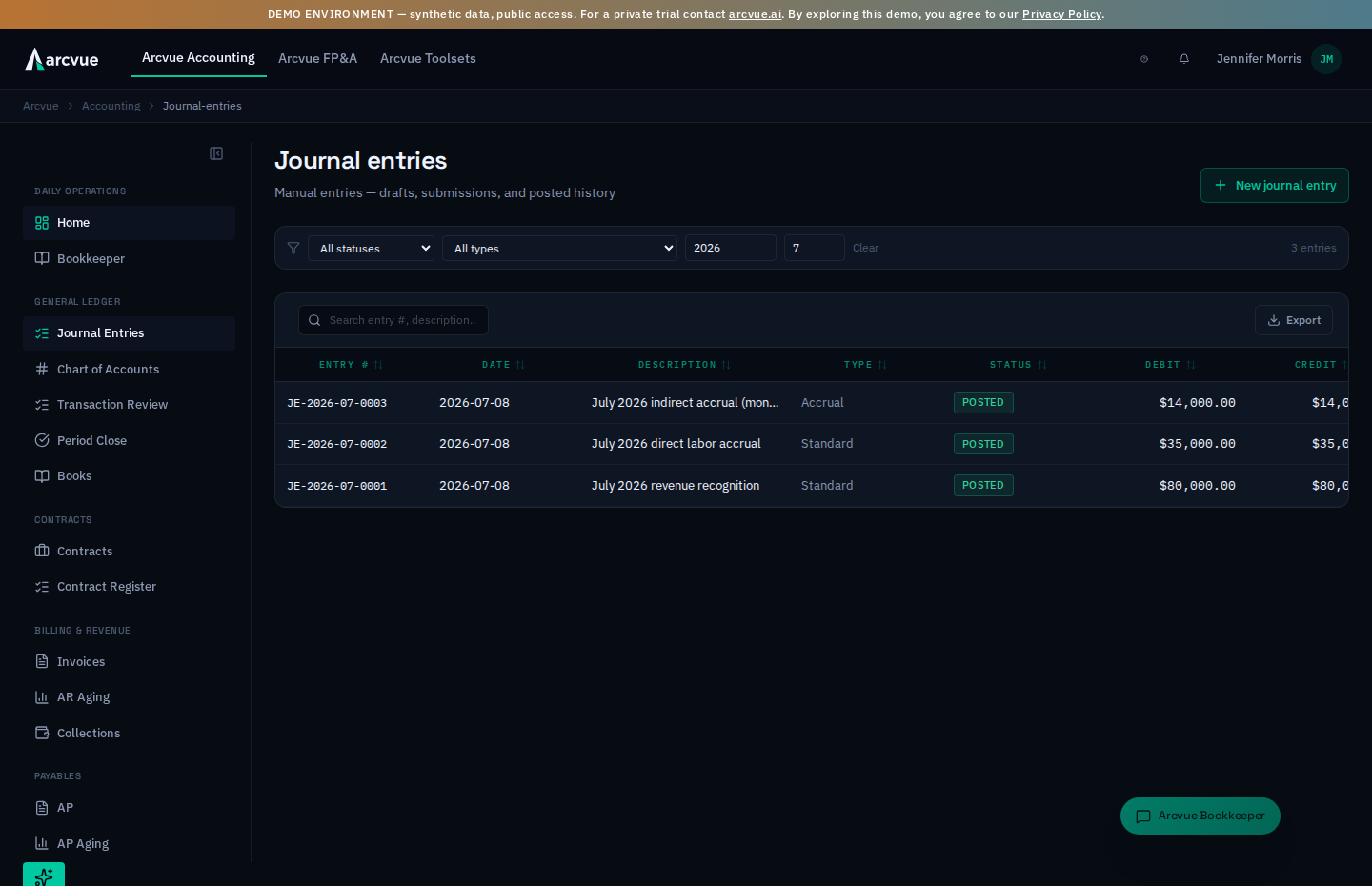
A journal entry is a balanced movement of money between accounts where total debits equal total credits — always. Most of your entries are produced automatically, from bills, invoices, payroll and the bank feed. This page is only for the manual ones: the things that are not transactions — accruals, reclassifications, corrections, adjustments.
Two rules govern everything here: it must balance to post, and posted history is permanent — you reverse it, you never edit it.
For: controllers, CFOs and administrators · Time: ~12 minutes · You'll need: the Accounting module, an open period, and the accounts you intend to hit already active in your chart of accounts.
How to access
Accounting → General Ledger → Journal Entries, or
/accounting/journal-entries. The header is subtitled "Manual entries — drafts,
submissions, and posted history."
What you can do depends on your role. Anyone with write access can save a draft or Submit for approval. Only a posting role — controller, admin or CFO — sees Post directly and Reverse entry. Everyone else routes through an approver, which is the separation of duties working, not a permission fault.
If your tenant has two-person approval switched on (a tenant configuration your administrator sets, not a screen setting), two more things are enforced at the moment of posting: a draft cannot go straight to posted — it must be submitted for approval first — and the person who submitted an entry cannot be the one who posts it. Each refusal says which of the two it is (submit it for approval before posting versus cannot post their own submission), because the remedies differ: one is a step you skipped, the other is a colleague you need. Entries produced by the system are untouched by this; only a person drafting and then posting is in scope.
Part 1 — Before you start, and why each prerequisite bites
| Requirement | What happens if it is not met |
|---|---|
| The period must be open | You cannot post into a closed month. The attempt is refused server-side and the toast says why. |
| The accounts must be active | An inactive account does not appear in the line dropdown at all. It looks missing rather than disabled. |
| Every line needs a description | The entry will not post without one on each line, even when it balances. |
That second one is the most common false alarm: an account you know exists but cannot find in the picker is almost certainly deactivated in the chart of accounts, not deleted.
Part 2 — The register
The header carries two ways out of the register besides New journal entry: Recurring opens the entries that book themselves every period (Part 5), and Check the ledger opens the ledger check — every entry since the last close, read in full by the checks and by a reviewer, with each finding cited to its rows for you to answer. It has its own guide: Ledger Check — Controller Guide.
The table lists existing entries with Entry #, Date, Description, Type, Status, Debit and Credit, plus a colored status chip per row. Click any row to open it.
| Filter | Options |
|---|---|
| Status | All statuses / Draft / Pending Approval / Posted |
| Type | All types / Standard / Adjusting (Accrual/Reclass/Correcting) / Reversing / Opening / Closing |
| Year | Four-digit period year |
| Mo | Period month, 1–12 |
| Clear | Resets every filter at once |
There is a free-text Search entry #, description… box, and the register exports to Excel.
The source filter
Above the register sits a source selector: All sources, Arcvue only, or the legacy system's mirror only.
Reach for Arcvue only when the register looks fuller than your own
work. During a parallel run the mirror posts its own entries alongside
yours, and they are not yours to act on — they are a copy of what the other
system did. Filtering to Arcvue's own entries is how you see the work you are
actually responsible for.
The filter changes what you are looking at, not what exists. An entry hidden by it is still in the register.
Part 3 — Creating an entry
Step 1 — Start it
New journal entry (top right).
Step 2 — The header
Set the Date — this determines which accounting period the entry posts into, so it is not cosmetic — and write a Description.
Step 3 — Build the lines
Each row takes an Account (from the Search accounts… dropdown, by number and name), a line Description, and a Debit or Credit amount.
Three behaviors worth knowing before they surprise you:
- Typing in one amount column clears the other on that line. A line is a debit or a credit, never both.
- The form will not go below two lines. A single-sided entry is not a journal entry.
- The balance banner is live. Green Balanced when debits equal credits; amber Out of balance by $X otherwise, with the amount named so you can see what is missing rather than hunting it.
Step 4 — Label an accrual, if it is one
Show advanced (under the Description) reveals Entry type: Standard, Accrual, Reclassification, or Correcting.
Choosing Accrual surfaces an Auto-reverse date, and this is the feature worth using. The daily job reverses the entry on or after that date, so you never have to remember to back it out. An accrual you forget to reverse is a misstatement that compounds quietly every month — setting the date at creation is how you stop that being possible.
Step 5 — Save, submit, or post
| Button | Requires | Does |
|---|---|---|
| Save draft / Update draft | A description and at least one non-empty line — balance is NOT required | Parks work in progress |
| Submit for approval | Balanced, at least two complete lines, each with an account, an amount on exactly one side, and a line description | Routes to an approver |
| Post directly (posting role only) | Same validation as Submit | Commits to the books immediately |
A draft does not have to balance. That is deliberate — you can park a half-built entry and come back. Balance is enforced at the point it would touch the books, not while you are thinking.
A toast confirms the result, including the new entry number. If the period is closed or the server rejects it, the toast gives the reason.
The actions on an entry, and when each appears
| Control | When it shows |
|---|---|
| Post directly | On an entry you have not submitted. |
| Approve and post | On a submitted entry — and on your own once submitted, the same button simply renames itself. |
| Return to submitter | On a submitted entry, to send it back rather than approve it. |
| Delete draft | On a draft only. |
| Cancel | Closes a dialog without recording. |
Post directly and Approve and post are the same control wearing two
labels — which is worth knowing, because the label is the only thing
telling you whether what you are about to post has been through submission.
Both are disabled until the rationale is ready. If the button will not respond, that is usually why — not a permission problem.
A banner headed An auditor will look at this entry appears when the entry
trips risk factors, and it names them. It is not a refusal — it is a
warning that this specific entry is the kind an auditor pulls. Read the
factors it lists before you post, because the rationale you write is what an
auditor will read next to it.
Step 6 — Attach the support
Open the entry and, under Supporting documents, click Attach document and pick the invoice, contract or calculation the entry is based on. PDFs, images, CSVs and Excel workbooks are accepted, up to 10 MB each.
Attach as many as the entry actually needs. An accrual backed by three invoices gets three documents — you are not asked to choose which one it is "really" based on.
You can attach after the entry is posted, and often you will. Support usually turns up when someone asks for it — an auditor wants the workbook behind an accrual that closed last month. Attaching does not alter the entry or its lines; it adds a document beside them. Each attached document has a download control and a Detach; detaching removes the link, not the file, because the same document can support more than one entry.
Entries created by the system — the labor bridge, the mirror import — do not carry one; this is for the entries a person makes.
Part 4 — Correcting something already posted
You never edit a posted entry. Posted history is permanent, and that is the property that makes the ledger worth anything.
To correct one, a posting role uses Reverse entry, which creates an opposing entry: in the dialog, set the Reversal date (target open period) and confirm. The original stays visible, the reversal stays visible, and anyone reading the account later can see both what happened and what was done about it — which is the point. An in-place edit would leave no trace that a correction ever occurred.
Where the entry detail page asks for a Reason for this entry, write what makes the entry correct — the reason is recorded with the entry, and the reason is what an auditor reads.
Reverse journal entry is how a posted entry is corrected.
There is no delete for a posted entry, and that is deliberate.
Delete draft exists only while the entry is a draft; once it is posted the
ledger is append-only and the correction is a new, opposing entry rather than
the removal of the old one. Both stay visible, which is what makes the
correction auditable — a deletion would leave a book that cannot explain itself.
Part 5 — Entries that repeat every month
Some entries are the same every period: the rent accrual, a standing reclassification, a fixed monthly charge. Typing one twelve times a year is twelve chances to forget it, and a month you forget looks like a month with nothing in it — there is no gap to notice. State it once instead, on Journal entries → Recurring, and Arcvue books it every period.
Recurring (top right of the register, beside New journal entry) opens Recurring entries, the register of what repeats.
What a recurring entry is, and what it is not
The amount is what you state. Arcvue never works it out from history, because a cost whose amount moves each month is a question to answer each month — that is what the bill and the accrual review are for. Rent that is $4,250.00 every month is a recurring entry. A utility bill that lands somewhere between $800 and $1,400 is not.
Stating one
New recurring entry opens the form.
- What it is — the description every posted entry will carry. Write it so you recognize it on the register a year from now.
- First period and Last period, both
YYYY-MM. Leave Last period empty and it runs until someone retires it, which is right for rent. Fill it in when you already know the end — a twelve-month policy, the final period of a lease — and it stops on its own. - Books on — the day of the month the entry is dated. The last day is the usual choice for an accrual, because an accrual states what the month owed. A month shorter than the day you pick books on its own last day, so choosing the 31st never skips February.
- Kind — Standard, Accrual, Reclassification or Correcting, exactly as on a manual entry. An accrual booked here behaves like any other accrual.
- Each period — Post it means the entry lands on the books with nobody involved. Draft it means it is prepared each period and waits in the register for a person to post it. Pick Draft when you want to look before it lands.
- The lines are the same editor as a manual entry: Choose an account…, Debit or Credit, the amount, Add a leg, and the bin to remove one. Only active accounts you can post to are offered. Keep this recurring entry stays disabled until the legs balance and the entry has a description; the running Debits / Credits line under the legs tells you where you are.
Reading the register
Each row shows the legs, the amount, the kind, the day and posting mode, the window, and — the line to read first — Last booked, with the number of periods it has booked in all. That is the only field that tells you the rail actually ran. A template stated in May reading Not booked yet in September is the thing to look at.
Running a period yourself
The rail runs daily on its own, so you rarely need this. Use it when you have just stated an entry whose first period has already begun, or when a month was closed on the day the rail tried and has since reopened.
Set Period to run, then Show what would post — which reads the period and changes nothing. Only then does Book them turn on. The result lists what posted, what was drafted for review, what was already booked, what was not due this period, and anything skipped with its reason. A skip marked (needs a person) is a template whose account has gone inactive; a skip on a closed period is normal and clears when the period reopens.
Running twice books nothing twice. One entry per template per period, so a second run over the same month is safe.
Stopping one
Retire on the row, then Retire it to confirm. It asks why it is stopping and tells you how many entries the template has already booked — those stay on the books. Retiring is not deleting: the entries already posted need the statement behind them to still exist, and the record of who stopped it and why is part of the trail.
Show retired brings stopped templates back into view so you can read one. You cannot restart a retired template — state the entry again, which keeps the old one's history intact and separate from the new one.
Stating one in the Bookkeeper instead
Anything on this screen can be said to the Bookkeeper in words: "every month, accrue $4,250.00 of office rent to 6210 against 2130, dated the last day." It proposes the entry with its legs shown, you confirm it, and it appears here carrying the conversation it came from. "Stop the recurring facilities reclass" retires one the same way. Both always ask you to confirm first, whatever else the Bookkeeper is set to do without asking.
Part 6 — When something looks wrong
"The account I need isn't in the dropdown." It is inactive. Check Chart of Accounts with Show inactive accounts ticked, and reactivate it if you need it live.
"Post directly isn't there." You do not hold a posting role. Use Submit for approval; an approver posts it.
"It says Balanced but Post is still disabled." Balance is not the only requirement — every line needs an account, an amount on exactly one side, and a line description. A missing line description is the usual culprit.
"It won't post into last month." That period is closed. Either post into an open period or have the period reopened.
"I posted the wrong amount." Reverse it and post a correct entry. Do not look for an edit button; there deliberately is not one.
"My accrual is still on the books two months later." It was posted as Standard, or as an Accrual with no Auto-reverse date. Reverse it now, and set the date next time.
"It refused to post: requires two-person approval." Your tenant enforces two people on a manual entry. If the message says submit it for approval before posting, you tried to post a draft directly — use Submit for approval. If it says cannot post their own submission, you submitted this entry yourself — a different approver has to post it.
"Where do I put the invoice or spreadsheet this entry came from?" On the entry itself, under Supporting documents (Step 6). That is what an auditor asks for later, and it is the difference between an entry you can explain and one you have to reconstruct.
One-line summary
This page is for manual entries only — accruals, reclasses, corrections — and everything else posts itself. An entry must balance to post (drafts need not), every line needs an account, one amount and a description, and the Date picks the period. Label accruals as accruals and give them an Auto-reverse date so they cannot be forgotten. Posted entries are never edited — they are reversed, leaving both the original and the correction visible.
Related
- The accounts these entries move money between → Chart of Accounts
- The reversing entries this page is often used for → Accruals
- What an accrued payable anticipated and whether the bill came → the What this accrual anticipated card on the entry, and Close a Month Step 3
- Entries that repeat every month → Part 5 above, and Journal entries → Recurring
- Why a period being closed blocks a post → Month-End Close
- Where posted entries surface → Financial Statements