Government Property (FAR Part 45) — Controller Guide
Property management is tracking the physical things involved in your contracts — equipment the government gave you to use, equipment you bought under a contract, and your own equipment — with the records and depreciation the FAR expects. This guide explains the property types and why the distinction matters, then walks the exact clicks in Arcvue to add an asset and record what happens to it over its life. It assumes you run a business but aren't necessarily a career government accountant.
For: controllers · Time: ~10 minutes · You'll need: the Accounting module.
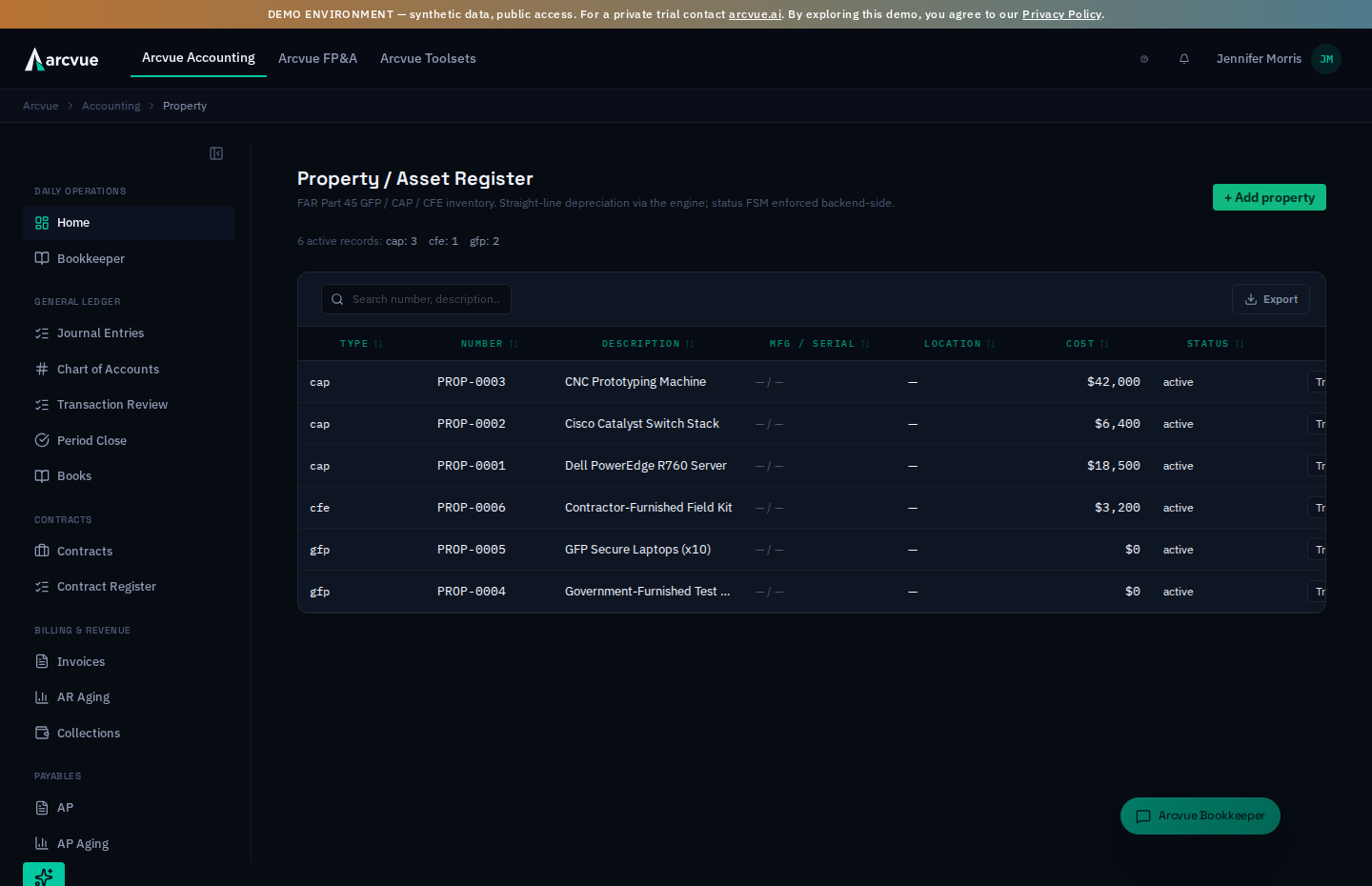
In the left nav, open Accounting → Assets → Government Property (/accounting/property). The page header reads Property / Asset Register. You can also jump there from the command palette (search "Property").
The nav item next to this one, Assets & Depreciation (/accounting/assets), is the register of the assets your company owns and capitalizes — fixed assets, intangibles, goodwill — with what each has amortized to date, read from the ledger. This page is FAR Part 45 government property: GFP, and the CAP / CFE you hold on a contract. If you are answering "what is our accumulated depreciation" or "do we amortize intangibles", you want Assets & Depreciation, not this page.
Part 1 — The ideas you need first (read once)
Three kinds of property (the distinction is the point)
Under FAR Part 45, whose property it is changes how you account for it. Arcvue tags every record with one of three types:
- GFP — Government-Furnished Property. The government owns it and lets you use it on the contract. You don't own it and don't depreciate it — you're accountable for it (track, safeguard, report), but it never hits your books as an asset.
- CAP — Contractor-Acquired Property. You bought it under a contract (often reimbursed). Title may pass to the government, but while you hold it you track it and depreciate it on the books.
- CFE — Contractor-Furnished Equipment. Your own equipment you bring to the work. Your asset, your depreciation.
Getting the type right is what keeps you from depreciating something you don't own, or from failing to account for something the government is watching.
Depreciation (for the property you do own)
Owned property (CAP/CFE) loses value over its useful life, and Arcvue computes that depreciation from the cost and the useful life in years you record on the asset. The method is a firm-wide policy rather than a per-asset choice — straight-line unless your tenant is configured otherwise, with declining-balance, sum-of-years-digits and units-of-production also supported. The figure is computed per asset and returned by the property API — an annual amount and an accumulated-to-date amount — so the number exists and is auditable.
Property you depreciate is depreciated in Assets & Depreciation, not here. Once a CAP or CFE record is active and carries what depreciation needs — an in-service date, a cost, a useful life, and both GL accounts (depreciation-expense and accumulated-depreciation) — Arcvue mirrors it into the Assets & Depreciation register as one linked row. The same scheduled monthly run that depreciates everything else your company owns posts it there. The property record never posts on its own, so there is one register, one posting run and one accumulated figure in the books.
The record's exit settles the asset. Recording returned, disposed, lost or stolen disposes the linked asset and keeps its history. Removing the GL accounts from a record whose asset has already posted is refused — dispose the property instead, so the entries already posted keep their register row.
So do not write your own depreciation entry. Doing that on top of the scheduled one double-books the expense, and depreciation feeds the indirect-rate base, so the error will not stay in one account. What this page owes you is data quality: right type, right cost, right useful life, and the two GL accounts each asset needs (depreciation-expense and accumulated-depreciation). There is no depreciation button here, and there does not need to be.
Three details of the arithmetic, because the guide used to round them off and the difference shows up in an audit:
- Salvage value is subtracted first. The depreciable basis is cost minus salvage, not cost. (There is no salvage field on the Add property form today, so in practice it is zero unless it was set another way.)
- Accrual is monthly, not annual. Accumulated depreciation is the basis pro-rated over elapsed months against total life in months, capped at the basis — not an annual figure divided by twelve. It never exceeds the depreciable basis.
- An asset that arrives mid-life is continued, not restated. The engine can carry an opening accumulated-depreciation figure and a handover date, so a register imported from a prior book keeps that book's history instead of Arcvue recomputing it from the acquisition date. (Like the GL accounts above, these are not settable from a screen yet.)
Two rules the FAR makes load-bearing: the method is a book method (a tax method like MACRS is deliberately not offered — under FAR 31.205-11(c) the depreciation you can charge the government can't exceed your own book depreciation), and it's applied consistently across all assets and all business — government and commercial alike.
The status lifecycle (a one-way finite-state machine)
An asset starts active. From there Arcvue lets you record exactly one of four exits — returned, disposed, lost, or stolen — and the transition is enforced backend-side, so you can't set a nonsensical state. This is the accountability trail: what left, and how. Once an active asset is transitioned, its row shows the new status and the transition control disappears (the move is final from this page).
Why the FAR cares
A contractor holding government property is expected to run a property management system: accurate records, physical accountability, and reporting. A clean register — every item typed correctly, with its serial number, location, cost, and current status — is both a compliance requirement and how you avoid surprises in a property audit.
What Arcvue deliberately will not do
- It won't depreciate GFP — you don't own it, so it never hits your depreciation expense.
- It won't invent a useful life or method — depreciation follows the cost and useful life you record.
- It won't post depreciation to a guessed account. An asset without both GL accounts set is skipped and counted, never posted somewhere plausible — which is correct, and is also why nothing posts today.
- It won't open a closed period to post into. A depreciation entry is only ever proposed into an open period; opening one is a books decision the engine refuses to make.
- It won't offer a tax method (MACRS) as a cost-accounting choice — book method only, per FAR 31.205-11(c).
Part 2 — How to run it
Step 1 — Open the register
In the left nav, go to Accounting → Assets → Government Property (/accounting/property). The header reads Property / Asset Register, with the subtitle "FAR Part 45 GFP / CAP / CFE inventory. Straight-line depreciation via the engine; status FSM enforced backend-side."
Directly under the header is a one-line count summary: "N active records:" followed by a breakdown by type (e.g. GFP: 4 CAP: 11 CFE: 2). Below that is the register table itself, one row per active asset, with columns Type, Number, Description, Mfg / Serial, Location, Cost, and Status. Read this table to see what you're accountable for at a glance; the type breakdown up top is your fast sanity check that nothing is miscategorized.
Step 2 — Add an asset
Click the green + Add property button in the top-right. An inline form opens above the table with these fields:
- Type — a dropdown; choose GFP, CAP, or CFE (defaults to CAP). This is the most consequential field — it decides whether the asset depreciates.
- Number — your property control number (free text; monospaced).
- Acq date — a date picker; defaults to today. Set it to the real acquisition date.
- Description — a one-line description of the item. Required — the Create button stays disabled until this is filled.
- Manufacturer — optional.
- Serial # — optional but strongly recommended; a missing serial is exactly the kind of gap a property audit flags.
- Location — optional; where the item physically sits.
- Acq cost ($) — the acquisition cost in dollars. Required — the Create button stays disabled until this is filled. Arcvue stores it to the cent.
- Useful life (yrs) — the depreciable life in whole years. Leave it blank for GFP (you don't depreciate it); fill it for CAP/CFE so the engine can compute straight-line depreciation.
Click Create to save (the button reads Saving… while it writes). A toast confirms "Property record created", the form closes, and the new row appears in the table with the correct type breakdown. Click Cancel to abandon the form without saving.
Set Useful life (yrs) whenever you pick CAP or CFE. It's the single fact the depreciation engine needs, and there's no separate screen to add it later — so getting it in at creation keeps the schedule right from day one.
Step 3 — Record when an asset leaves (status transition)
When a piece of property goes off the books, don't delete it — record how it left, so the register stays a faithful history. In the asset's row (only rows currently active show this control), open the Transition… dropdown on the far right and choose the outcome:
- Returned — handed back (typically GFP returned to the government).
- Disposed — sold, scrapped, donated, or otherwise removed.
- Lost
- Stolen
Selecting an option immediately posts the transition; a toast confirms "Status updated" and the row's Status cell updates. The transition is enforced backend-side (a finite-state machine), so only valid moves from active are offered, and once transitioned the row no longer shows the dropdown — the change is final from this page.
This page offers exactly these four exits — Returned, Disposed, Lost, Stolen. There is no free-text "disposal method," no condition field, and no edit-in-place for cost or useful life on this screen. If an active asset's cost or life was entered wrong, correct it through your accounting workflow (pending prior-system confirmation of your correction path) rather than expecting an inline edit here.
Step 4 — Keep the register accurate; the posting is already handled
There's nothing to click for depreciation on this page — read the caution above if you skipped it — because a scheduled run posts it for you. For every CAP/CFE asset with a cost and a useful life, Arcvue computes the straight-line figure and reports it per asset; GFP is skipped automatically.
Your job on this page is data quality: right type, right cost, right useful life, so the computed number is right when the run posts it.
Review the drafted entry rather than writing one. It appears with your other journal entries — see Journal Entries — and reconcile it against what the register computes. Writing a second entry by hand double-books the expense.
Part 3 — When something looks wrong
| Symptom | What it means → fix |
|---|---|
| Something is depreciating that shouldn't be. | Check its Type. GFP should never depreciate — if a government-furnished item was added as CAP or CFE, the type is wrong. (This page has no inline type edit; correct it via your accounting workflow, pending prior-system confirmation.) |
| Depreciation for an asset looks off. | Straight-line accrues (cost − salvage) monthly across the useful life, so a wrong amount traces to a wrong Cost or a wrong Useful life on the record. Verify both — an asset with a blank useful life doesn't depreciate at all. |
| No depreciation expense is showing up in the GL. | This is worth investigating — it is not expected. A scheduled run posts depreciation and heals recent open months, so an empty period usually means the asset lacks its two GL accounts (depreciation-expense and accumulated-depreciation), the period is closed or locked, or a drafted entry was never posted. Check for an unposted draft first. Do not paper over it with a hand-written entry — see the caution in Part 1. |
| The government is asking about property I don't see in the register. | That's the accountability gap the register exists to prevent. GFP especially must be recorded even though it isn't your asset — click + Add property, choose type GFP, and enter it so it's tracked and reportable. |
| The Create button won't click. | Description and Acq cost ($) are both required — the button stays disabled (grayed) until both are filled. Complete them and it enables. |
| An asset's row has no Transition dropdown. | Only active assets can transition. A row already returned / disposed / lost / stolen shows its final status and no control — that's by design; the move is one-way. |
| A serial number or location is blank. | Those are optional at entry but are exactly what a property audit checks. Recording them isn't editable inline here today — capture them at + Add property time so the record is audit-clean from the start. |
One-line summary
Property tracks contract assets by FAR Part 45 type on Accounting → Assets → Government Property: GFP is government-owned — tracked but never depreciated; CAP and CFE are yours to hold — tracked and straight-line depreciated over the useful life you record. Add each item with + Add property, record its exit with the Transition… dropdown, and keep the register accurate so depreciation and audit reporting run cleanly off it. Depreciation is computed here and posted by a scheduled run — it reaches the ledger as a draft entry for you to review, so do not write one yourself.
Related
- The register of what you own — fixed assets, intangibles, goodwill — with accumulated depreciation → Assets & Depreciation
- The close row that checks depreciation and amortization actually posted → Close a Month (Period Close)
- Reviewing the drafted entry → Journal Entries
- The other Assets registers → Prepaid (
/accounting/prepaid) · Leases (/accounting/leases) - Where depreciation policy sits against your rates → Indirect Rates