Timekeeping & Billing — Controller Guide
This is the workflow that turns the hours your people work into the invoices your customers pay. If you run this well, cash comes in on time and every dollar you billed can be defended to an auditor. This guide assumes you know how to run a business — not that you're a government-contract accountant. It teaches the accounting you need as you go.
Where this lives: Accounting → Labor → Timesheets (for the hours) and Accounting → Billing & Revenue → Invoices (to bill them).
Part 1 — The ideas you need first (read once)
You can skip this after your first month, but read it once. Five ideas make everything else obvious.
1. Every hour does two jobs
When someone logs an hour to a contract, that hour becomes two different things:
- A cost — you pay the person, so the hour is money going out. It gets recorded in your books ("posted") against the work it was for.
- Revenue — for most contracts you get to bill the customer for that hour, so it's also money coming in.
Arcvue handles the cost side for you automatically: the cost posts once the hours are approved. Your job is the revenue side: produce the invoice, sanity-check it, and send it.
2. The price you bill is not the wage you pay
This trips up everyone new to government contracting. You might pay an engineer $50/hour, but you bill the government $130/hour for that same hour. The difference isn't profit — it covers the real costs of employing them (benefits, your office, management, etc.) plus a modest fee. The $130 is the billing rate; the $50 is the pay rate. They come from completely different places and you must never mix them up:
- Billing rate comes only from the signed contract document. It's what the customer agreed to pay.
- Pay rate comes only from payroll. It's what the employee earns.
Arcvue enforces this separation. You will essentially never type a billing rate by hand — and that's the point (see idea #5).
3. Contracts bill in one of three ways
How an invoice is built depends entirely on the type of contract. You don't choose the method — Arcvue reads the contract type and uses the right one — but you should recognize them:
| Type | Plain English | How it bills |
|---|---|---|
| T&M (Time & Materials) | "We'll pay you for the hours you work, at agreed hourly rates." | Hours worked times the billing rate for each labor category (job role). |
| FFP (Firm-Fixed-Price) | "We'll pay you $X for the job, period." | A fixed amount per milestone or per month — hours don't change the bill. |
| Cost-plus (CPFF / CPAF) | "We'll reimburse your costs, plus a fee." | Your actual labor cost (at estimated "provisional" rates) plus the negotiated fee. |
FFP bills two different shapes, and they use different windows
"A fixed amount per milestone or per month" is really two kinds of row on the billing schedule, and the difference decides which periods land on a draft:
- A deliverable milestone is a thing you hand over. It has no lower bound: one completed in May and not billed until July belongs on July's invoice. That is arrears working correctly, and a deliverable legitimately appearing months after its own date is not an error.
- A periodic milestone is a dated schedule line for one month. It bills only inside the period you are invoicing.
So the two review questions are opposite, and asking only one of them misses half the problem:
- Draft looks too large? Look for periodic rows from months you have already billed. A periodic row swept in from an earlier period is a double bill — and if those months were invoiced through a prior system and paid, you would be billing a government customer twice for settled work.
- Draft looks right but something is absent? Check for a deliverable accepted late. Bounding deliverables the way periodics are bounded would drop those silently, which is the harder failure to catch: a too-small invoice raises no question at all.
Either way the fix is on the billing schedule, not the invoice. When a draft and the schedule disagree, it is almost always the window that is wrong rather than the amounts — check whether the period's own milestone matches what you expected to bill before assuming the schedule is bad.
A labor category (often "LCAT") is just a job role with a price — e.g. "Senior Analyst — $145/hr." The contract lists them; an employee is mapped to one.
A provisional rate (cost-plus only) is an estimate of your indirect costs used to bill during the year, trued-up later. For now: it's a placeholder rate the government pre-approved you to bill at.
4. Unapproved time reaches a T&M invoice — the draft names it
You cannot bill the government for hours nobody approved; an auditor would reject it, and rightly. Know exactly where Arcvue helps you and where it does not.
On T&M and hybrid work, approval is not a gate. The query that builds those invoices reads the period's timecard hours and does not test supervisor approval, so unapproved hours can reach a draft. What Arcvue does is name them: when a draft carries LCAT hours with no supervisor approval, it carries a note saying so. That note is the control. Read it before you approve the draft, and chase the approvals — not the invoice.
On cost-reimbursement work it is a gate. CPFF bills from posted timecard entries, and the posting path refuses an entry with no supervisor approval, so approval is enforced on the way through.
The same hours can therefore be accepted toward an invoice and refused toward the general ledger. If billed labor and posted labor disagree for a period, that gap is the first thing to check.
5. Everything traces to a signed document — on purpose
A government auditor's core question is always: "Show me why you billed this." Arcvue is built so the answer is always a signed document. That's why billing rates come only from the contract, why you don't hand-edit invoices, and why corrections happen at the source. Following the workflow below keeps you audit-ready by default — you don't have to think about it.
Part 2 — What runs for you automatically
You don't operate this, but you must understand it to read your numbers.
Hours reach billing one of two ways, depending on where your people keep time:
- In Arcvue — the web timesheet and the phone. Each person records and certifies their own days; at the end of the pay period their supervisor approves the period, and approval posts the labor cost to your books. Subcontractor staff record hours in the Subcontractor Portal, where their reviewer approves them.
- From a previous timekeeping system, while your business still keeps time there. Every night Arcvue pulls its timesheets, matches each line to the right contract, posts the cost of the approved ones and holds the rest until they are approved there.
Keep time in one place at a time: while a previous system is still your timekeeping system, people enter and approve time there and do not re-enter it in Arcvue.
The consequence you'll feel: an invoice can only carry hours that have been entered. Cost-reimbursement invoices go further and carry only approved hours, while a T&M draft carries unapproved hours and names them (idea #4). Time entered late appears on its own once it is in.
Part 3 — How to bill (the monthly routine)
Step 1 — Confirm the time is actually in before you bill
Billing before the month's time has finished posting means under-billing. So first:
- Go to Accounting → Cash → Feeds and open the Timesheets tab.
- Look at the top summary — Total postings, Total hours, and Labor cost — and at the per-Period table below it.
- Find the row for the period you're about to bill. Confirm it's there and that its Status reads Posted (not Pending or Suspense). A posted row means that period's approved time has flowed all the way through.
- If the period is missing or still Pending, the time hasn't all arrived. For time kept in Arcvue, approval is what posts it, so look for pay periods still waiting on a supervisor in Labor → Approvals. For time from a previous system, wait for the next nightly run, or ask your admin to check the ingestion job (Admin guide → When ingestion stalls).
The Timesheets tab is a read-only view of what has posted — you don't act on it here. Its job is to answer one question before you bill: "has this period's time landed yet?"
Step 2 — Start from the worklist, not from a blank form
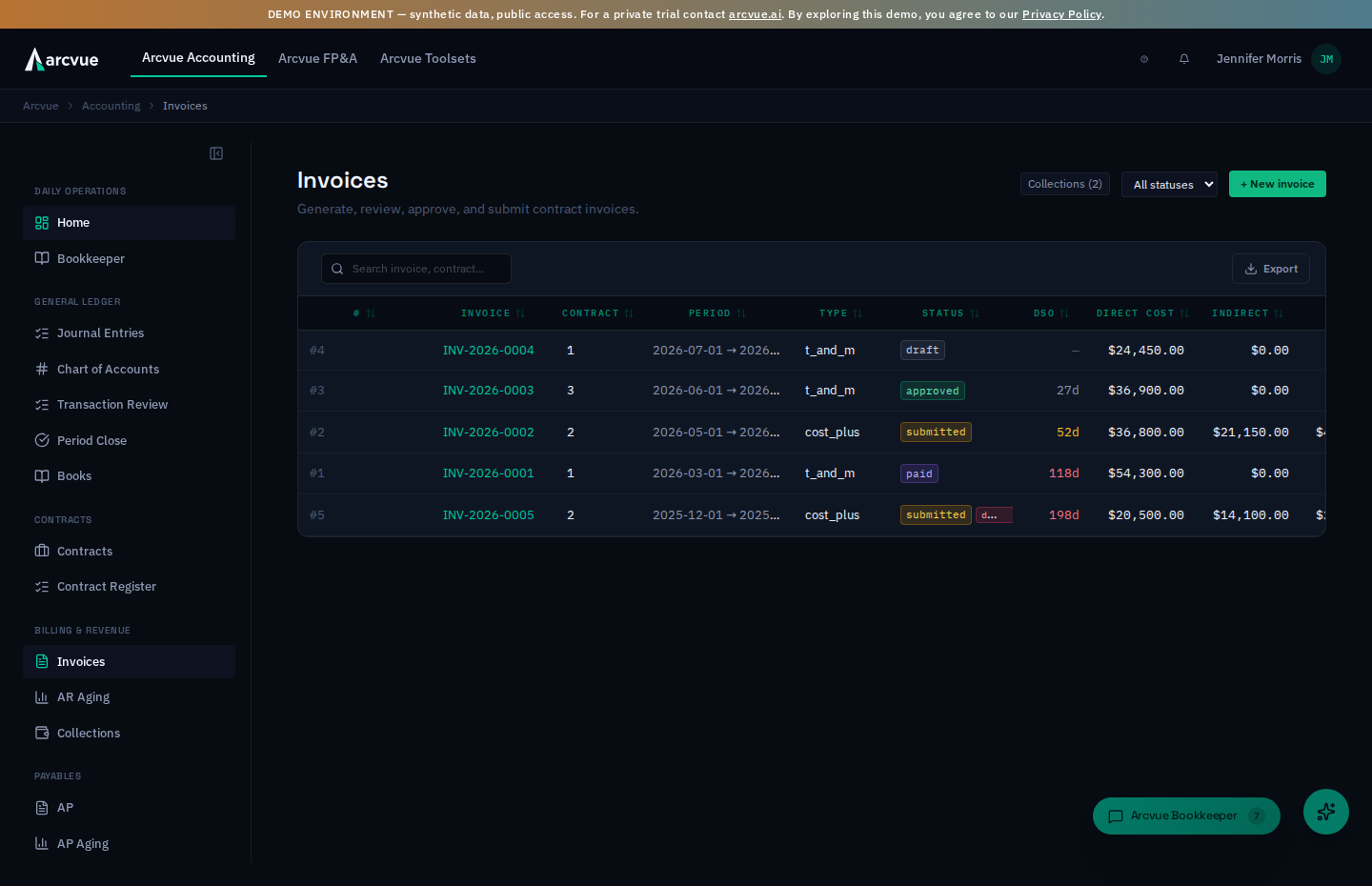
Go to Accounting → Billing & Revenue → Invoices. The worklist opens on the last completed month; change its From and To dates to bill a different period.
The worklist asks whether there is billable work — not whether an invoice exists. That distinction is the whole value of it. A dormant contract has no invoice for the period and never will, so a list built on "no invoice yet" fills with contracts that need nothing and stops being read. Worse, charged hours that nothing can price look exactly like a dormant contract on such a list — so the one contract actually losing you money is the one you cannot see. The worklist shows amounts, so you can work it in order rather than guessing.
Pick a row and the invoice form opens prefilled with that contract and period. That is the intended path: you do not retype the period once per contract, thirty-two times, and you cannot pick the wrong contract by typing.
If you do need to start from scratch, + New invoice opens the same form — search the contract by number, name or agency, then set Period start and Period end yourself (the worklist fills both for you when you pick a row). You never type an internal id, and you should be suspicious of any instruction that tells you to: a mistyped id usually belongs to a different customer, generation succeeds, and nothing on screen tells you.
Leave Type on the contract's actual billing type — Cost-Plus, T&M, FFP, Hybrid, or Quick Closeout — then click Generate draft. This builds a draft only: nothing is sent and nothing is submitted. Its number follows the contract's own numbering, read from the contract's earlier invoices.
A contract and period get one invoice. If one already covers the period — a draft included — Arcvue does not make a second. An amber note names it (… already covers this period), with Open … to go to it, Generate as a supplemental for a genuine second bill (late hours, or a correction the customer asked for as a separate invoice), and Dismiss. To rebuild a draft from scratch, void it, then generate again.
Arcvue builds the lines from the contract's type automatically (idea #3): T&M → hours times billing rate per labor category; FFP → the period's fixed amount; cost-plus → provisional-rate labor cost + fee.
Step 3 — Review the draft before approving (do not skip)
Open the draft from the Invoices list (click its number) and check, in this order:
-
Total Billed — does it match what you expect for the period? For T&M, the quick gut-check is expected hours times rate. The invoice's own page breaks the total down — Direct cost total, Indirect total and Fee — so you can see where the number comes from.
-
Lines / labor categories — every role that worked the period should have a line. A missing one almost always means missing approved time or a missing rate (Part 4).
-
Rates — they come from the signed contract. If one looks wrong, the fix is to the contract record, never the invoice (idea #5).
-
Period — confirm the date range is the one you mean to bill.
-
The draft's notes — read these first, not last. The billing engine reports what it did and did not bill. These are the findings a correct total cannot show you — and the engine adds notes as it learns to detect more, so read what is on the draft rather than checking off a list:
-
Withheld billing exclusions — amounts deliberately held back. The draft shows them rather than silently omitting them, so you can say why.
-
Hours with no labor-category assignment — these hours are absent from every line above, so the invoice does not bill them. The total looks right; the money is missing. Usually an LCAT assignment that expired with an option year.
-
Hours billed without supervisor approval — billed, but not approved. Worth knowing before it reaches a customer.
-
Subcontractor hours that produced no priced line. On a time-and-materials or hybrid contract, a subcontractor's approved hours bill the way your own people's do: under the contract labor category the person's staffing names, at that category's rate from the signed contract. Hours that cannot be priced are listed under NOT BILLED -- SUBCONTRACTOR HOURS, grouped by why, with the people and the fix for each:
- not yet approved;
- recorded under a staffing that names no contract labor category;
- covered by more than one staffing naming different categories;
- bound to a category that is retired or no longer on the contract;
- bound to a monthly-basis category, which the Portal cannot price.
The fixes are made on the Subcontractor Portal or the Subcontractors page, then you re-draft. The invoice, the revenue you recognize and your unbilled AR are each short by exactly these hours — and all three still balance. Nothing about the totals looks wrong, which is why the engine says it out loud. Rejected hours are left out — somebody has already decided that work is not billable, and chasing them would be chasing a decision.
A clean total is not a clean invoice. The subcontractor case is the sharpest version of that sentence: a contract staffed entirely by a subcontractor used to report zero billable hours and draw the same message as a dormant contract, so a month somebody worked produced a well-formed, correctly totaled, approvable draft carrying no labor at all. The billable check now counts both your people and theirs, and the billable worklist and a contract's line preview price subcontractor hours the same way the invoice does, so a preview matches the invoice it previews. All three of these produce a draft whose arithmetic is correct and whose content is wrong, which is exactly why the engine says them out loud.
-
Step 4 — Approve, then submit
Invoices move through a status you can see in the Status column of the Invoices list: draft → reviewed → approved → submitted → paid.
- Approve posts the invoice — now it hits your books and accounts receivable ("AR," the money customers owe you). Its status moves to approved.
- Submit sends it to the customer and moves the status to submitted. For federal customers this usually means WAWF (Wide Area Workflow — the government's invoice-intake portal); the WAWF document number then shows in the invoice's WAWF column.
Once a submitted invoice sits unpaid too long it surfaces under the Collections toggle at the top of the Invoices list (and in Accounting → Billing & Revenue → Collections), ranked by payment risk with reviewed outreach drafts you can send. Arcvue never auto-sends.
Recording time for somebody else
A controller (any role with read/write on Labor & Time) can type hours on another person's timesheet: a leaver's last days, or someone who cannot reach Arcvue this week.
- Open Labor → Timesheets. Next to the pay-period controls, the Enter time for picker lists everyone in the company. It is shown only to roles allowed to record for others; everyone else sees their own timesheet and no picker.
- Pick the person. The grid, the weekly schedule and the pay-period total switch to them, and a banner names whose timesheet you are on.
- Enter the hours as you would your own. Every row you add records that you typed it, so a floor check can tell your entry from the employee's.
The employee still certifies their own pay period. While you are on somebody else's timesheet the certify button is withheld unless your role may attest for others. Choosing yourself in the picker returns you to your own timesheet.
Part 4 — When something looks wrong
The whole point of the audit behind this guide is that breakage is usually quiet. Here's how to read the symptoms you'll actually see.
"A contract's hours are lower than I know they should be"
Most common, and usually not an Arcvue problem.
- Why: time that is not in yet. On a T&M or hybrid draft that usually means hours nobody has entered, because unapproved hours do reach those drafts and are named there (idea #4). On a cost-reimbursement invoice it can also mean hours entered but not yet approved, since that invoice carries approved hours only. Where a previous timekeeping system still feeds Arcvue, it can mean the hours have not come across from it yet.
- Do: check Labor → Approvals for pay periods still waiting on a supervisor, and ask the people on the contract whether their time is entered. Where a previous system still keeps your time, check its queue for unsubmitted or unapproved timesheets on that contract instead; the hours arrive with the next nightly run.
"A whole contract is billing $0 or has no lines"
- T&M, no lines: usually no billing rate card is loaded on the contract, or the people who worked it aren't mapped to a labor category on it. This is a setup gap on the contract record — flag it to your admin; it's fixed on the contract, not the invoice. An order placed under a BPA or IDIQ can bill at the rates on the vehicle above it — when the order has no rate card of its own, or when the vehicle is set to price its orders — so for an order, check the vehicle's rate card too.
- FFP, no lines: the period's fixed amount (milestone) may not be set up for that period. Flag it to your admin. If a deliverable you expected is missing, check its acceptance date rather than the period — a deliverable bills whenever it was accepted, so one accepted after the cutoff simply lands on the next invoice.
"Travel or other direct costs are missing from an invoice"
Costs that bill at cost do so in four families — travel, other direct costs, subcontract and consultant — and each family bills the expense accounts its account prefixes reach. The What bills at cost panel on the Invoices page shows each family, the prefixes in force and where they came from, and the accounts they reach with a year of activity on each.
When your ledger carries cost charged to a contract on an expense account no family reaches, the panel opens itself and lists that account in amber, because that cost would never reach an invoice. Use Assign to… to put it in a family and Save; the next draft bills it. Two families may not reach the same account, and an unallowable account inside a family is shown as excluded rather than billed.
"A rate on the invoice is wrong"
Never edit the rate on the invoice. Billing rates live on the contract record and come from the signed contract. Correct the contract record (or have your admin re-load the rate from the contract PDF), then void the draft and generate it again. This is what keeps every invoice traceable to a signed document — exactly what an auditor asks for (idea #5).
"Time stopped updating / a period is stuck Pending"
Where a previous system still keeps your time, the nightly ingestion job may have stalled. On the Feeds → Timesheets tab you'll see the latest period missing or stuck on Pending rather than Posted. This is an admin check — see Admin guide → When ingestion stalls. On the Admin screens, the health strip above the sections also shows a Timecard ingest (daily) warning once the job has gone more than 25 hours without a successful run.
One-line summary
Confirm the time is in (Feeds → Timesheets, period shows Posted) → generate the draft (Invoices → + New invoice → Generate draft) → check total, lines, rates, period → approve → submit. Fix problems at the source (the contract or the timesheet), never on the invoice — and you stay audit-ready without thinking about it.