The Bookkeeper — Controller Guide
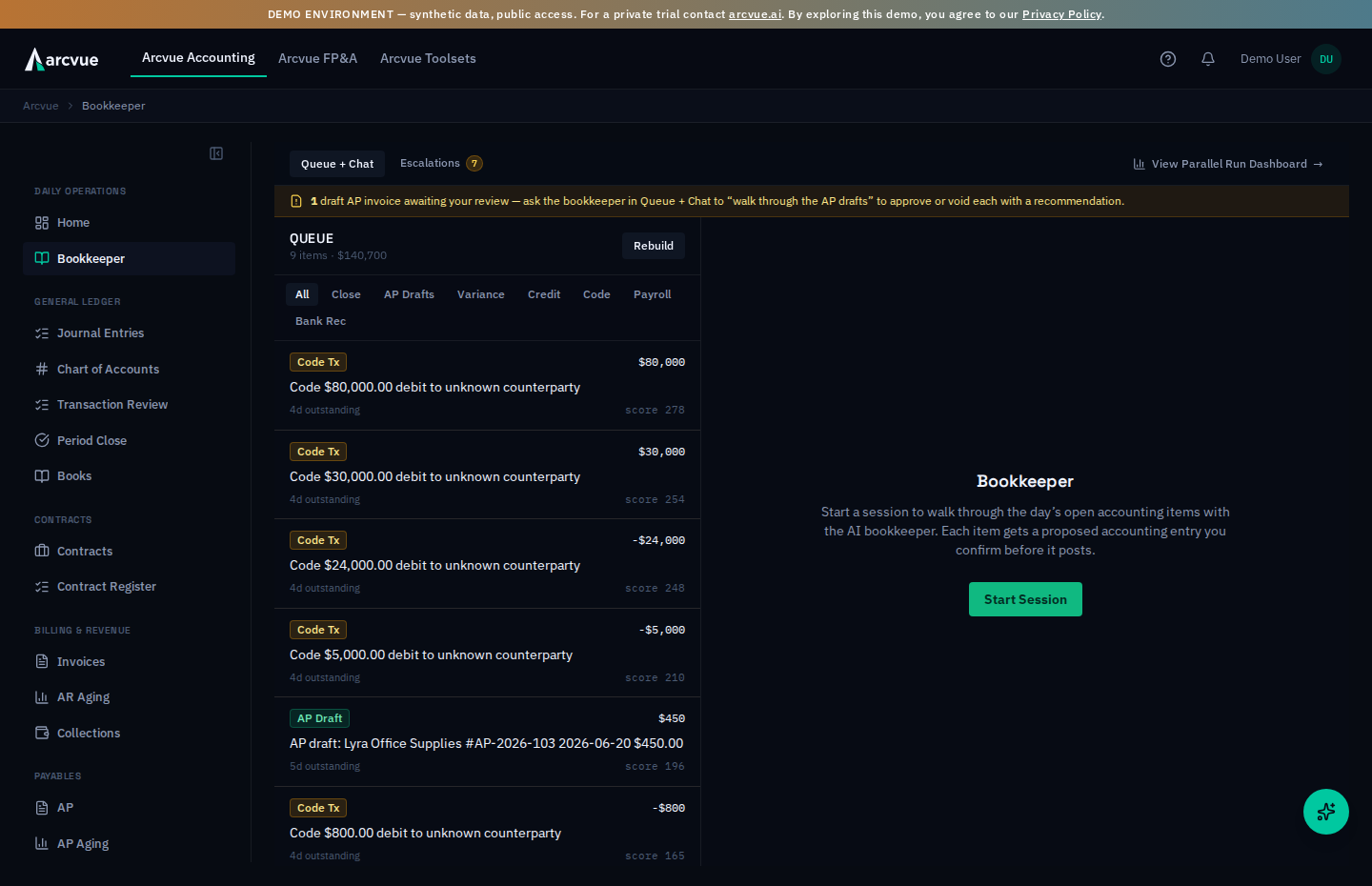
Arcvue has an AI bookkeeper that codes your transactions for you — it decides which accounting category every bank charge, vendor bill, card swipe, and payment belongs in. It handles the overwhelming majority on its own. The few it isn't sure about, it hands to you in a short daily queue, and you settle each one in a quick back-and-forth chat. This guide explains that daily review. It assumes you run the business but aren't a career accountant — the accounting ideas behind the decisions live in GovCon Accounting Concepts; read that once and this will make more sense.
Accounting → Daily Operations → Bookkeeper (/bookkeeper). Open escalations also lead the docket on the Accounting Home page; clicking that line lands you here with the Escalations tab already open. Code → on an uncoded row in Accounting → Cash → Feeds also brings you here, with that transaction already selected.
If you arrive from Feeds and the transaction is not here, a banner across the top says so — and that is the ordinary case rather than a failure: the queue holds only records still awaiting coding, so a row can offer Code → while already being handled elsewhere or not yet picked up. If you expect it to be here, use Rebuild on the queue panel; otherwise go back to Feeds. Nothing opens in its place — landing you on someone else's item would be worse than saying nothing was found.
Part 1 — The ideas you need first (read once)
What "coding a transaction" means
Every transaction has to land in a category — an account — so your financial statements, your invoices, and your indirect rates come out right. "Coding" is just assigning that account. "Software," "Travel," "Subcontractor labor," "clearing a vendor bill we already owed" — those are codings.
What the bookkeeper does on its own vs. what it escalates
The bookkeeper reads each transaction (the bank descriptor, the vendor, the amount, any attached invoice, your past decisions) and codes it. When it's confident, it just codes it — you never see it. When it isn't — a new vendor it's never seen, an amount with no matching bill, an opaque payment that hides who got paid, a vendor whose history genuinely splits between accounts — it escalates: it puts the transaction in your review queue with a plain-English question instead of guessing.
Escalating is the system working correctly. A confident wrong answer is far more expensive than an honest "I need your help with this one."
A new vendor stops being a question once you have agreed with the bookkeeper six times running. On each kind of item -- card charges, emailed invoices -- it keeps count of how often you chose exactly the account it had proposed for a vendor it had never seen. After six agreements in a row, and only for a charge no larger than any you confirmed in that run, it books its own proposal and tells you instead of asking: the card reads booked · new vendor, and the panel says what it booked and why. Left alone, the note closes itself after a week and that vendor is coded that way from then on without asking. One correction -- you give a different account -- and it goes back to asking until it has earned the right again.
One boundary applies while you're in the parallel run: the queue only ever asks about go-forward activity. A transaction dated before your parallel-run start — say, a historical vendor bill re-ingested from a backfill — is still coded and matched behind the scenes, but it never escalates to your queue. Those periods belong to your prior system of record, and there's nothing for you to teach on them.
The two stages of your authority (this changes over time)
If your company started its books on Arcvue, Confirm writes a permanent rule: the next identical transaction is coded this way automatically, and no note appears under the entry.
If you moved onto Arcvue from another system and are running the two side by side, Confirm means something lighter for now:
| Stage | When | What your Confirm does |
|---|---|---|
human_review | While your prior system is still your book of record | Records your decision as high-confidence guidance, used immediately. It becomes a permanent rule once Arcvue is your system of record. |
human_correction | Once Arcvue is your system of record | Your decision writes a permanent deterministic rule — the next identical transaction is coded this way automatically, forever. |
The note under the entry tells you which applies. While both systems run it reads "This answer guides the Bookkeeper right away, and becomes a permanent rule once Arcvue is your system of record." Once Arcvue is your system of record it reads "Arcvue is your system of record, so this writes a permanent rule." Same button, growing weight: while both systems run you are teaching; once Arcvue is your system of record, what you taught becomes law.
Part 2 — The daily review, step by step
Step 1 — Read the escalations
Go to Bookkeeper. It opens on Escalations, because that's the tab you can't run the books without — the queue and the chat can be skipped entirely; the open questions can't. A number badge on the tab is your morning glance — that's how many items need you.
The line above the list says what the list is holding. Both tabs open with one sentence: how many of these questions are keeping money out of the books until you answer them, the dollars, and where they came from -- 3 items are unbooked until you answer them — $1,291.21: 1 emailed invoice $1,200.00 · 2 card charges $91.21. That is the queue's whole purpose: nothing books until you get through it, so the line is the number to clear. A question whose event is already booked (a new vendor the bookkeeper booked on its own, an answer that posted on an earlier pass) is on the list but not in that number. When nothing is held the line says so quietly -- Everything the Bookkeeper could code is booked -- so the amber one means something when it appears.
You'll usually know before you get here: open escalations lead the docket on the Accounting Home page — with the count, the dollars at stake, and how old the oldest one is — and clicking that line lands you on this screen with the Escalations tab already open.
The escalation screen is three panels:
- Left — the queue. One card per item: who/what, the amount, the source (bank feed, bill.com, corporate card, payroll, email invoice), the reason it was escalated (new vendor, no invoice, needs context…), and the date. A source dropdown above the list lets you filter to one source at a time.
- Middle — the conversation. Where you and the bookkeeper work the selected item out. The conversation is kept. Step away, close the tab, come back tomorrow, and re-opening the item shows the exchange that got you where you are rather than starting over. It is also the record of WHY a cost was coded the way it was, which is the question an auditor asks long after the item is closed — so it stays readable on a resolved escalation, not only a pending one. An escalation answered before Arcvue began keeping conversations says so plainly; it does not show you an empty one, because nothing was kept and that is not the same as nobody having spoken.
- Right — the context rail. The source invoice (a View Invoice button that opens the actual document, plus its line items). This is so you can see the source instead of coding blind. That holds even when an email's invoice couldn't be read automatically — the rail still shows the original attachment, so you're never asked to decide on a document you can't see.
Each panel scrolls on its own — a long chat in the middle won't push the queue or the invoice off-screen.
The queue filters across the top are All, Close, AP Drafts, Credit, Code, Payroll, Bank Rec, Watch and Escalations — nine, and All is the default.
While your tenant is in parallel run, the Code, Credit, Payroll and
Bank Rec tabs are intentionally empty. Transactional coding work is
being done in the system of record during the parallel run, so those queues have
nothing to hand you.
An empty Bank Rec or Credit tab during parallel run is the design, not a
broken feed. It is worth knowing before you go looking for the outage: work
from All, which orders everything by priority, and the lanes with something
in them during the run are Close and AP Drafts.
A bank draft to your payroll provider is not raised here as a question. The payroll settlement run books it against wages payable once the provider's document for that pay period is in. A draft the run has not booked — the document is missing, or the run refused it — shows on Home as Payroll drafts not settled, which opens the bank feed.
The tab labels and the badge on each row are not the same words, which matters when you are looking for an item you know exists:
| Badge on the row | Tab that filters to it |
|---|---|
| Close Blocker | Close |
| AP Draft | AP Drafts |
| Credit | Credit |
| Code Tx | Code |
| Payroll | Payroll |
| Bank Rec | Bank Rec |
| Watch | Watch |
| Escalation | Escalations |
| Approval | none — under All only |
| Rate Var | none — under All only |
| Compliance | none — under All only |
Those last three have no tab of their own. An approval waiting on you, a rate-variance alert and a compliance alert are all reachable only from All, so a controller who works tab by tab will never see them. That is the strongest reason to work from All rather than sweeping the tabs.
Reaching the bookkeeper from anywhere
You do not have to be on this page. Open Arcvue Bookkeeper brings the bookkeeper in as a panel over whatever you are looking at, and Close Bookkeeper puts it away again — so a question that occurs to you while you are reading a statement does not cost you your place.
Step 2 — Pick an item and read the question
Click a card. The bookkeeper opens with a specific question — not "code this," but something like "This is a $450 outbound payment dated 5/31 with no vendor name on it. Was this paying an existing bill, or is it a new expense?" If there's an invoice, open it from the right rail and read the line items.
One card can stand for several transactions. When the same pattern repeats (say four identical monthly card payments), the queue collapses them into one card marked "4 payments · same pattern." You work it once.
When a card charge books. A corporate-card charge books the moment its feed syncs, as long as the bookkeeper can code it confidently: the account on the debit side, the card's payable on the credit, under the cardholder's card. A charge it cannot code books nothing and sits on this list -- that is the whole point of the list: nothing books until you get through it. Answer it here and it books that second; the confirm card shows the two legs before you confirm.
Some cards are not questions. A card tagged booked · new vendor is the
bookkeeper telling you it already booked a charge from a vendor it had not
seen before, because you had agreed with its last six such calls. The panel
opens with Booked, not asked: the account, the streak that earned it, and
one button, That is right, which confirms the account and teaches the
vendor. If the account is wrong, say what the charge was for in the chat as
you would for any question; the bookkeeper recodes the booked line by a
forward reclass -- the original entry stands beside its correction -- and it
goes back to asking about new vendors until it has earned the right again.
On the Queue tab the same item's card wears an emerald booked to
A payment whose invoice has since arrived. A bank payment the bookkeeper flagged as missing its invoice is a finding, not a question: there is no account to choose, because the payment is already coded. When the bill then arrives by email -- often as its own question a few rows down the same list -- the payment's card wears a blue invoice arrived · #N tag and its panel opens with The invoice has arrived: the vendor, the amount and the date of the bill, and one button, Open the invoice, which takes you to that item. Answer the bill; the payment closes itself on the next feed sync once the bill is booked. If the bill is not an open question (already answered, or booked another way) the panel says nothing is left to answer here. The match is the same amount to the cent, a bill dated within two months of the payment, and the same vendor; two bills that both fit are not matched, so a wrong pointer is never shown. A payment that reimburses an employee for an expense report is never flagged as missing its invoice: the expense report is its record.
Step 3 — Tell the bookkeeper what it is
Type in plain English in the middle panel — a full sentence or two, whatever the bookkeeper needs. "That's reimbursing an employee for travel on a specific contract." "This is clearing a vendor invoice we already booked in May." Press Enter to send (Shift+Enter for a new line). The bookkeeper responds, and as you go it narrows toward a concrete account.
Step 4 — Confirm (the one-click mechanic)
When the bookkeeper reaches a concrete proposal, a confirm card appears above the message box. Its heading is the ledger's own verdict on that proposal, from a dry run of the entry Confirm would book — never a fixed title. When the posting rules would post it, the card is green, headed This will post, and carries the entry laid out the way you would read it in a journal — one row per leg, Account, Debit, Credit, and a Total row:
This will post · +3 similar [ Confirm ]
Account Debit Credit 62.21.21 Employee Benefits $3,687.45 21.11.13 Accounts Payable $3,687.45 Total $3,687.45 $3,687.45 Confirm books this entry and writes a permanent rule. ?
(Before Arcvue is your system of record that line reads: Confirm books this entry; the answer guides the Bookkeeper right away and becomes a permanent rule once Arcvue is your system of record.)
When the posting rules refuse, the card is amber and headed This will not post, with the reason in the table's place — a bank line the ledger cannot pair with an invoice or a receipt from a single coding, for instance. Booked by another rail means a producer books this document itself (a term-loan payment, a card charge) and the line under it names which; Nothing to post means the item carries no coding yet. While the entry is still being derived the heading reads Deriving the entry… and Confirm waits; if it could not be derived the heading says so and Confirm still records your answer. The line under the card says what Confirm does in that state — Confirm books this entry and writes a permanent rule, or Confirm records the answer; nothing books from it — and the ? beside that line explains the derivation. When nothing books, the button reads Recording… rather than Booking… while it works.
One click books it. No modal, and the one field beside it is optional. That's the normal path. Three things ride on that card:
- The entry it will book — the account the bookkeeper proposed is the debit leg; the credit is the contra the posting rules derive for this kind of document (a bill credits accounts payable, a bank movement credits or debits the bank account it moved through). It is the same dry run the ledger itself performs before it posts, so what you see is what posts. If the heading reads This will not post, the line in the table's place says why, or which rail books it instead; Confirm still records your answer and books nothing. (The bookkeeper is only allowed a Confirm if it named a real, valid account in its explanation — it can't get a one-click Confirm on hand-waving.)
- "+N similar" (batch). If other queued items look the same, Confirm clears all of them in one click ("One confirm clears all 4"). The catch: batching is off for vendors that code more than one way and for opaque payments whose descriptors group unrelated payees — exactly the cases where "they look the same" would be wrong.
- The stage note — one sentence under the entry saying what your Confirm does right now: "This answer guides the Bookkeeper right away, and becomes a permanent rule once Arcvue is your system of record" while both systems run, or permanent-rule language once Arcvue is your book (see Part 1). A company whose books started on Arcvue sees no note at all.
After you confirm, the item leaves the list and the middle panel shows Booked with the vendor, the amount, and the entry as it actually posted — read back from the ledger, not from the proposal — until you pick the next item or press Dismiss. If the answer was saved but nothing posted, that card says Answer saved, no ledger entry and carries the reason instead. A Confirm Split shows its entry the same way before you press it: every coded leg on the debit side and one cash or payable leg for the whole document, so a split that does not add up is visible before it is booked.
Contract (optional) — which program the cost served
Beside the Confirm pill is a Contract picker listing your active contracts. It is the only field on this screen, and it is optional: leave it blank and Confirm behaves exactly as it always has.
The account says what a cost is. The contract says whose it is. They are two halves of one answer, and until this field existed only the first half could be given here — so an invoice could be coded to exactly the right direct account and still belong to no program.
- Set it when the cost served one program. Subcontractor labor, direct materials, other direct costs. The cost then reaches that program's margin, which is the only place anyone can see it.
- Leave it blank for an indirect cost. Most items are blank and that is the right answer. An indirect cost belongs to no single program, and a guess here is worse than a blank — it moves real money onto a program that never incurred it, and takes it from the pool that did.
- It never changes the account. Setting a contract attaches a program to the coding the bookkeeper already proposed. It is not a way to correct an account you disagree with; if the account is wrong, say so in the message box.
The picker lists Accounting contracts only. A contract that exists elsewhere in the platform but has never been set up in Accounting will not appear, and that is deliberate — pointing an invoice at a contract this product has never seen is worse than leaving it unattributed.
When an item's reason is a direct cost with no program, this field is the question being asked. The account is already right; the program is what is missing.
Legal entity — which company the bill belongs to
Some bills arrive without saying which of your companies they belong to. When that happens a Legal entity picker appears beside the account, listing your own entities. It is not shown on bills that already carry one.
Unlike the contract above, a blank here is not an answer. It is the reason the bill is stuck. Nothing reaches the ledger until an entity is chosen, so the field appears exactly on the items that cannot post without it and nowhere else.
- Choose the company whose books the cost belongs on. That is normally the company named on the invoice, not whichever account paid it.
- Nothing is preselected, on purpose. Defaulting to your main company would answer a per-invoice question with a company-wide guess, and a wrong entity moves real money between two sets of books.
- It only ever fills a blank. If the bill already worked out its own entity the picker does not appear, and it cannot be used to overrule one. An entity that came from the invoice or its contract stands.
If a bill should have carried an entity and did not, choosing one here is the whole fix — the coding is otherwise complete and posts as soon as the entity is stated.
When Confirm is refused
Confirm is not always accepted. When it is refused, the reason appears above the message box in the server's own words — read it there rather than clicking again. A refusal belongs to the item that earned it and clears when you select a different one.
Two you are most likely to meet, and they need different responses:
- The question is an amount, not an account. Some items ask how much — how much of a payment was principal, for example. No account can express an amount, so a single-account answer is refused whichever account you pick. Answer it in the message box instead.
- A setting is missing, not a coding. If the due-to/due-from accounts for an entity are not configured, an intercompany item cannot be coded until someone configures them. That is a settings change, not a decision about this transaction, and no answer here will clear it.
Some items are findings, not questions, and never offer a confirm card. Seven kinds cannot be answered by choosing an account, and the server refuses an account answer on every one:
- a deposit that paid the invoice it names short;
- a payment flagged as missing its invoice;
- a loan payment with no principal step in effect for its date;
- a loan payment the bookkeeper had already booked;
- an installment-note payment whose amount matches none of the note's installments;
- an outflow that looks like the payment of a liability Arcvue declared, but matches no open one;
- a receipt that could have paid more than one invoice.
On these the panel opens with an amber note saying what the item is and what closes it (the Paid short panel for a short payment, for example, or fixing the loan's schedule when a principal step is missing). The bookkeeper says the same in the conversation instead of asking which account.
A refusal is the guard working. It means the answer offered could not be recorded truthfully — not that the item is stuck.
The entry it is about to make, and how to read it
When the proposal is a journal entry, the card shows you the entry itself before you confirm anything: one row per line with its Account, its Debit and its Credit, and a Total row underneath.
The same table appears on an escalation answer — the entry that answer will post, derived by the ledger's own rules rather than written by the bookkeeper — and on an AP-drafts review, where each draft carries the entry its coding booked (or will book) under its name and amount, so the verdict is about a booking you can read and not an amount alone. A draft the bookkeeper has not coded yet says so in place of the table.
The button tells you whether the books move. It reads Confirm & Post when confirming will write to the general ledger, and plain Confirm when it will not. The finished state says it again — Posted where the books moved, Done where they did not. You never have to work out whether an action touches the ledger; the button you are about to press says so.
On an older proposal that predates this, the card uses the posting wording. That is deliberate: where Arcvue is unsure, it would rather overstate what a confirm does than understate it.
A total that does not balance is a warning, not a stop
If the debits and credits do not agree, the card says so:
Entry is not balanced; the executor will reject it on post.
Confirm stays available, and pressing it will not post the entry. It is refused further down, by the part of Arcvue that actually writes. So an unbalanced preview is not something to push through — it means the proposal is wrong. Tell the bookkeeper what is wrong with it in the message box; that is the move that fixes it.
An empty cell is not a zero
A line shows an amount only on the side it has one. A blank Debit or Credit cell means there is no amount on that side — it is not a zero, and a line that genuinely is zero prints blank too. Negative amounts print in parentheses, as they do on any statement.
The confidence figure
Where the bookkeeper has one, a Confidence percentage sits in the corner of the card, colored green, amber or red as it falls. It is the bookkeeper's own estimate of how sure it is, not a measure of whether the entry is correct. A high figure on a proposal you know to be wrong is still wrong — read the entry.
Decline executes nothing
Decline leaves everything untouched and says so: nothing was executed. The card then asks you to tell the bookkeeper what you would like instead, which is the point — declining closes nothing on its own, and the next thing you type is what moves the item.
Step 5 — The special cases
Two of these write on your instruction rather than the bookkeeper's: Draft accrual prepares an accrual from the fields the question asked for and reads Drafting… while it works, and Confirm Intercompany books the cross-entity entry you directed. Neither is the bookkeeper deciding; both are it doing what you told it.
Vendors that code more than one way (polymorphic). Some vendors legitimately land in different accounts depending on what the charge was for — a consultant billed to two different proposals, say. For these, Arcvue will not flip the whole vendor on one decision. Before it books, it needs the discriminator — the contract or project that tells this charge apart. If your proposal already carries it, one click still works; if not, clicking Confirm opens a short form that asks "what distinguishes this charge?" The rule it writes is scoped to that context, never the whole vendor. A vendor whose confirmed history is clearly dominated by one account doesn't count as polymorphic — once one account clearly dominates, a single stray prior won't force a re-ask; the bookkeeper reuses the account your own history has already confirmed. Only vendors whose history genuinely splits come back to you for the discriminator.
Splits (one transaction, several accounts). Sometimes one payment is really several costs — e.g. a $2,080 charge that's $1,690 of M&A work plus $390 of business development. The bookkeeper proposes a split: a little tree of legs, each with its own amount and account. A single Confirm Split posts all legs in one step. The legs must sum exactly to the total — Arcvue won't write a partial split. If you disagree, keep chatting; a revised split replaces the old one.
On a company that keeps more than one entity, each leg also says which entity it books to. A small entity choice sits on every leg. Left blank, the leg takes the entity the coding carries. When the coding carries none, the tree says so above Confirm Split and the confirm refuses until every leg has one. The entry shown before you confirm is split by entity the same way — one batch for each — so the debits and credits you read are the ones that will post. The choices reset when the bookkeeper proposes a new split.
A vendor you have split before arrives pre-filled. When the bookkeeper refuses a single account because your own history splits this vendor, and your recent splits agree on the ratio, the leg tree opens already built from that allocation, captioned Pre-filled from your own last split of this vendor with how many recent invoices agreed. One Confirm Split posts it; if this invoice is different, tell the bookkeeper the new split and it replaces the pre-filled one. The ratio is read from your own prior splits, never configured, and it disappears the moment your answers stop agreeing.
Some splits arrive pre-built — no chat needed. A known-format carrier statement (for example, a group-insurance list billing that names every covered member) is read mechanically the moment its email arrives: Arcvue groups the member premiums by how each person actually charged their time (service-contract work vs not, plus an explicit third group for anyone it couldn't match to your roster or who charged no time in the statement's coverage period) and proposes the split with those groups as the legs — checksummed against the statement's printed total to the cent. A statement that doesn't tie out never proposes anything; it escalates with the document attached so you decide. And a federal payment carrying Prompt-Payment interest doesn't ask at all — see Part 3.
Paid short (a deposit named an invoice and paid less). When a payment arrives that names one of your invoices and is less than what you billed, the bookkeeper does not ask "which account?" — an account would book what arrived and leave the difference sitting on the receivable. The panel shows Billed, Received and Short — the three numbers the whole question rests on — and asks Why the invoice was paid short. The answer is one of three:
- Government offset — the payer withheld part of the payment for a debt it says you owe someone else (a state revenue department, another agency) and paid that party instead of you. The remittance usually carries a debt number, and the paying agency's letter has the rest. Name who was paid in Paid to (required for an offset) and put the debt, case or notice number in Reference.
- Customer deduction — the customer paid less on purpose: a disputed line, a credit it took, a fee it netted out.
- Write-off — the difference will not be collected, and the invoice closes anyway.
Then say where the difference books: one or more lines, each with an Account, an Amount and an optional Memo. The lines must add up to the shortfall to the cent — the panel shows what is still unassigned and will not book a partial answer. Use Add a line to split it (a tax withheld on your behalf and the interest and penalty on it belong in different accounts, because one is allowable and the other is not) and Remove to drop a line. Notes is for whatever an auditor should read next to it.
One click on Confirm — book the difference does three things: books what arrived as the receipt for the invoice, books the difference to the lines you named against billed receivables, and closes the invoice with the deposit as its payment reference. The disposition itself — why, to whom, under what reference — is kept as its own record and cannot be edited or deleted afterward; if it was wrong, the correction is a journal entry and the record stays.
Other buttons
The session button becomes its own past tense, and that is how you know where
you are. It reads End Session while a session is live, and Ended once
it is closed — at which point it is disabled, because there is nothing left to
end. A button reading Ended is not waiting for you.
Ask again re-runs the narration on a flux review, reading Asking… while it works. Rebuild Queue rebuilds the docket from scratch and reads Rebuilding…; use it when the queue looks stale rather than wrong.
- Defer — not now. The item leaves your queue and comes back later (it'll show a "⟳ returning" tag when it does).
- Mark duplicate — resolves the item as a duplicate: books nothing, and voids the linked invoice if there is one. Use it when the same invoice was forwarded or extracted twice.
- Confirm & Write… / Edit… — the manual override. Opens a form where you set the account, name, optional context, and notes by hand — use it when you want to type the account yourself or the chat hasn't reached a proposal.
- Already handled / no action — when the item was resolved outside this queue (you adjudicated the payment elsewhere, or the document is just supporting paperwork for something already booked), tell the bookkeeper so in chat. It concludes there is nothing to book, shows a sky-blue Confirm — close without booking button, and one click resolves the item without a GL write. It will never propose a $0 entry or park something in a suspense account to "close" an item. (The bookkeeper now recognizes most of these on its own: an email that's just supporting paperwork for a vendor you've already taught, with a matching payable already on the books, doesn't escalate at all.)
- Keep this instruction — when you state a rule in the chat ("from now on …", "always …", "never escalate …"), the bookkeeper answers the item as usual and offers the rule beside it as a Standing instruction card: your words as a quotation, where it applies, and what happens when an item matches. Keep this instruction records it with this escalation and the message it came from; Not now declines. Keeping a rule never changes the item on screen — use its own button for that. A rule that needs no one and already matches items in the queue offers Resolve them now right there.
- When you have given the same answer three times — a vendor whose escalations you have closed with nothing to book three or more times, and never booked, opens with the bookkeeper saying so: Confirm — close without booking is already on screen, and the Standing instruction card offers to keep it so the next one never reaches you. A vendor you have also booked gets no such offer — a vendor-wide rule would swallow its real invoices. The same item reached from the Queue tab's chat opens the same way: the bookkeeper proposes closing it with nothing to book, then the rule. In the escalation list, and on its card in the Queue tab, such an item wears a sky-blue nothing to book ×N before tag, so you can see the already-answered ones before opening any. And the third time you close a vendor with nothing to book, the rule card appears right after that confirm — the rule is offered the moment it is earned.
The Watch lane (entries that break their account's own pattern)
While a month is still open, Arcvue reads every entry against the account's own last six months and puts three shapes in the queue under the Watch badge — the day they land, not at close:
- New to this account — a counterparty that has never posted to this account in the window (a vendor showing up on an account it has never touched).
- An amount this account has never seen — a single entry larger than one and a half times the biggest entry the account carried in any of those months, and at least $5,000.
- The shape of a double post — the same counterparty or journal description posting the same amount twice this month. A reversal pair has opposite signs and is not one of these.
Each card says exactly what tripped and cites the entries, listed in the Entries cited row under the card: a cited journal entry opens with one click, and an entry kind that has no page of its own yet shows as a plain chip that says so. Nothing here is a model's opinion: the three detectors are arithmetic over the ledger, and they run every time the queue rebuilds — there is no separate job to schedule. An entry that stops looking unusual (voided, reversed) simply drops out at the next rebuild; its record stays.
You answer with the verbs on the card, and the answer is kept with the record:
- Expected — you recognize it; the item resolves and will not come back for that entry.
- Dismiss… — it is not a concern, and you say why in the Dismissal reason field before Save enables (Cancel backs out). The reason is what an auditor reads later, which is why the card will not take a dismissal without one.
- Flag for review — keep it in the queue for someone else to look at; the flag is recorded and the item stays open.
Before you answer, Explain asks the model to read the finding against the account's own months and say, in a sentence or two, what the break is and the one thing to open or verify next. Its lean (expected or review) and its confidence sit under the sentence, and the last line names the model and what the ask cost in tokens, because a sentence that costs money should say so. The model is given the entries and the history on the card and nothing else — the sentence is a proposal, and the verbs are still yours. When no model is configured for the tenant the card says so and stands on the arithmetic. Explain again drafts a fresh sentence; every ask is kept with the record, including the ones the model could not answer.
Every decision is append-only. Reopening a question means answering it again, not editing the earlier answer.
The green vendor-match card (confirm an identity once)
On some escalations a green card appears under the header in the middle panel:
Possible vendor match: Acme Supply Co. why the bookkeeper thinks these are the same vendor · [ Confirm same vendor ]
The same real-world vendor arrives under different names depending on the source — the bank descriptor's cryptic ACH string and the email invoice's proper company name look like strangers to a computer. When the bookkeeper is conservatively confident that the item in front of you is a vendor you already know under another name, it proposes the link instead of asking you to re-teach from scratch. Confirm same vendor locks the identity: everything you've ever taught about that vendor now applies to all of its names, and it stops re-asking every cycle. If the card is wrong — genuinely two different companies — just ignore it and work the item in chat as usual; nothing links without your click.
The purple adjudicator card (and what Agree/Disagree do)
On some escalations you'll see a violet card under the header:
AI ADJUDICATOR · DRY RUN — Dismiss — already covered · 90% confident reason text · [ Agree ] [ Disagree ]
A second AI — the adjudicator — reviews the escalation queue on its own every morning and records what it would have done with each item. Today it is in dry run: its verdicts change nothing and book nothing; they exist so you can grade them. Click Agree or Disagree after you've settled the item yourself. Those grades are the evidence that decides whether the adjudicator graduates to making recommendations, and eventually to clearing routine items itself — so grade honestly, including Disagree when it got the right answer for the wrong reason. No card means the adjudicator hasn't reviewed that item yet.
It speaks once, and again only when something changes. The line under the verdict says when it was formed and when the evidence was last re-checked -- Verdict formed 2026-09-13; evidence unchanged when re-checked 2026-09-19. Each morning the adjudicator re-reads the item's evidence (the vendor's bills, settled payments and emails); when nothing has changed it confirms the standing verdict and moves that date, without asking the model again. Only new evidence -- a bill arriving, a payment settling -- earns a fresh verdict, so a verdict that flips is telling you the evidence moved. A verdict that says the evidence has not been re-checked since predates this behavior and was never confirmed.
The fields an accrual question asks for
When the bookkeeper asks you to accrue something, it shows Billing history by month — the vendor's recent pattern, laid out so you can see whether this month is ordinary — and then asks for:
| Field | Notes |
|---|---|
| Amount to accrue | In dollars. |
| Expense account | The account code it should hit. |
Read Billing history by month before typing an amount. It is there
precisely so the number is a judgment about a pattern rather than a guess, and
it is the only part of the question the bookkeeper cannot answer for you.
Other escalations ask for a GL account code with an optional Account name (optional) beside it, and Notes (optional) for anything a later reader needs to know. The notes are the part that survives — the amount will be obvious in the ledger; why you chose it will not.
Asking about a closed month
Once a month is closed, the bookkeeper answers questions about it from the close's own workpaper. Ask why an account moved, what drove the change, or what the close said, and it reads the explanations you confirmed on the close page and cites the entries behind them. It tells you when an account has no confirmed explanation rather than inventing one, and it will not speak for a month that is still open — the workpaper is not final until the close is.
Part 2⅓ — What the bookkeeper can do, and telling it a rule once
The tab row reads Escalations · Queue + Chat · Skills · Instructions (a screen reader announces it as Bookkeeper sections). Two of those sit beside the day's work: Skills and Instructions. Between them they answer the two questions the chat used to leave you guessing at — what can I ask it? and how do I stop repeating myself?
The Skills tab
Skills lists every ability the bookkeeper has, each as a card: a title, one sentence on what it does, one or two example requests, and the screen where the same work is done by hand (By hand: …), so the chat is never the only way. Anything that shipped in the last thirty days carries a New badge, and the tab itself shows a count of new skills — the same way a tool announces the features it just gained. Open it once a week and you know what changed.
Under a skill's usage line, a card can also say how the skill behaves for your company right now, in the bookkeeper's own words -- for example that on card charges from a vendor it has not seen before it books its own proposal and tells you, because you agreed with its last six; or that it still asks, and how many more agreements it needs. These lines are earned from your own history, never configured, and a company with no such history sees none.
Click Ask: on any example and the sentence lands in the chat composer, unsent, with the chat brought to the front; edit it or send it as is. When the docket is clear the chat also offers a short row of these under Things you can ask, so an empty queue is never a dead end.
The chat also carries the normal-course processes a controller reaches for at month end, each over the same engine the matching screen uses. An entry names its kind — accrual, reclassification or correcting — and an accrual reverses itself on the first of the next month. Ask for a posted entry to be reversed into an open month, or for a draft that is waiting to be posted, and the bookkeeper reads the entry back to you first. Record a prepaid you paid once with its term, and it expenses monthly from the register. Ask what accruals a month needs: the bookkeeper previews each one with its reasoning and names the types it cannot ground, drafts them on your confirm, and posts each draft when you say so. Every one of these is a proposal you confirm; nothing posts on its own.
The cards come in two groups. Always on is the bookkeeper itself — the daily walk, reading the ledger, journal entries, escalations, the open-month watch, and standing instructions — and cannot be switched off. Accounting skills are the modules a business may or may not run: bank reconciliation, monthly invoicing, prepaids (paid once, or a rolling bill), corrections (reversing a posted entry, posting a waiting draft), the incurred cost submission, provisional rates, statements, the payroll report, compliance checks, the allocation check, manual AP booking, the outside accountant's adjustments, AP drafts review, period close (with the month-end accrual preview and drafts) and year-end close.
An administrator sees Turn off on each accounting skill. Off means the bookkeeper is not told the skill exists — it will not offer it, propose it, or answer with it, and its examples leave the tab; the card reads Off and offers Turn on. Use it for work your company never does (a business that files no incurred cost submission has no use for that skill), not to hide a skill someone finds noisy. Nothing is deleted, the manual screens stay where they are, and every change is recorded with your name.
The Instructions tab
Instructions is where you tell the bookkeeper a rule once. Before this tab existed, the same rule — historical import artifacts in closed periods need no action — had to be typed into two consecutive queue items on the same afternoon, because the conversation had nowhere to keep it. Now it is kept, and the bookkeeper reads every active instruction on every turn, in the queue walk and in the escalation chat, and names the one it applied ("per your standing instruction #12").
More often you will not type here: state a rule in the chat and the bookkeeper proposes a Standing instruction card showing the rule in your words, where it applies and what happens when an item matches (Tells the Bookkeeper or Needs no one). Keep this instruction keeps it exactly as shown; Not now declines it. A card whose rule has no words, or names a scope without the one it applies to, says so and cannot be kept.
Add an instruction takes the rule in your words — write it as a rule that applies next month, not as an answer to the item in front of you — and where it applies: every item, or one vendor, one account, one contract, one kind of queue item, or one escalation reason (then name the one it is about).
For a scoped rule, When an item matches chooses what happens to a queue item the rule names: tell the bookkeeper, which applies the rule when it reasons (the default), or Needs no one — the item is resolved the moment it arrives, with the rule recorded as the reason, so it never reaches you. The match is exact (the vendor, account, item type or escalation reason as written), and an item Arcvue cannot close safely — a bank movement nothing else books — stays in the queue and its card says the rule wanted it closed and why it was not. A rule that does this wears a Needs no one badge on its row, and the row counts the items it has resolved; click the count (Show the items this rule resolved) to list them, newest first, with the date, the item and its amount. A rule reaches items that arrive after it is kept; items already waiting in the queue are yours to confirm — the row says how many open items match and Resolve them now closes them the same way, telling you how many stayed open because Arcvue would not close them on its own. Retiring a rule leaves those items resolved and sends new ones to you. Click Keep this instruction. Below the minimum length the button stays disabled and the form says so.
Above the list, Answers you have given three times names the vendors you have closed with nothing to book at least three times and never booked, with no rule yet — the rules you have already earned. Keep this instruction on a row keeps that vendor's rule (it needs no one; matching items are resolved before they reach you); Not now puts the row aside on this device until that vendor is closed the same way again. A vendor you have ever booked is never offered here.
You will more often not type here at all. When you state a rule in the chat — "from now on …", "always …", "never …" — the bookkeeper proposes keeping it as a Standing instruction card, quoting your words, and asks you to confirm; it never keeps a rule without your confirm, whatever its confidence. The kept instruction records that it came from the chat, with the session and message that produced it. A rule kept while resolving an escalation reads from an escalation with the escalation's number, which opens it.
When you change your mind in the chat — "actually, always …" — the bookkeeper's card says Replaces #N with the old rule's words struck through; Keep this instruction retires the old rule and keeps the new one in one step. The retired rule shows replaced by #M on this tab.
A kept instruction is never edited. To change your mind, click Replace on the row: the form opens seeded with the old words, you rewrite them, and Keep the replacement keeps the new rule and retires the old one in the same step (Cancel backs out). To stop a rule without a successor, click Retire; the row asks why in a box named Why this instruction is retired (kept with the record), then Retire it does it and Keep it backs out. Retired rules stay on the list — click Show retired to see them, with who retired each and why, and Hide retired to go back — because an auditor asking why a class of items was dismissed must find the rule that decided them, as it was written.
Part 2½ — The AP drafts worklist (the amber banner)
When the Bookkeeper page shows an amber banner — "N draft AP invoices awaiting your review" — there are vendor bills sitting in draft: captured (usually from the email inbox) but not yet approved into your payables. They stay invisible on your financial statements until you disposition them.
The banner carries Walk through them, which opens Queue + Chat with the question already written in the composer; you can also open the tab yourself. Unlike the Escalations tab, Queue + Chat is a conversation over the whole docket: if it's empty, click Start the walk and the bookkeeper speaks first, presenting the next open item (a watch finding, a question it escalated, a pending coding) with what it proposes; answer it, or click Skip for now to snooze it, and the next item is presented until the thread reads Nothing left on the docket. You can also type in the composer at the bottom at any point. (This composer sends on Cmd/Ctrl+Enter, not plain Enter — the placeholder reminds you.) Say "walk through the AP drafts." The bookkeeper lists every draft with a recommendation per item:
- approve — no conflicting history; the bill enters the normal approval lifecycle.
- void — the vendor already has a settled bank payment that matches; the draft is likely a duplicate of a bill you already paid. Approving it would book the expense twice.
Give your verdicts in plain English, in batches if you like ("approve 2, 6, and 8; void 4 and 5 — duplicates of paid invoices"). A void needs a one-line reason. Two habits keep this clean:
- Scan for the same invoice number appearing twice in the list (a re-sent email creates a second draft). Approve one copy, void the rest — the recommendation column won't always catch twins inside the draft list.
- A "REVISED" invoice supersedes its original. Approve the revised one, void the original.
The banner counts exactly what the chat walks — if the banner says 30, the walk-through covers those same 30.
Part 2¾ — Bill.com account mapping (do this once, and stop guessing)
If your AP invoices arrive through Bill.com, that system has its own list of GL accounts and they are opaque to Arcvue until somebody says what they mean. Open Accounting → Bill.com Mapping and state, once per account, which Arcvue account it corresponds to.
This is the difference between coding that is derived and coding that is guessed. Once an account is confirmed, every future invoice on it codes deterministically from your mapping. While it is unmapped, that invoice falls back to the model's best reading — which is a reasonable answer and not a known one, and it is the reason unmapped accounts stall AP coding.
Unmapped accounts are listed first, because those are the ones costing you something today. The unmapped filter narrows to just them.
The table
| Column | What it is |
|---|---|
| Bill.com account | The account as the AP system names it |
| Mapped to (Arcvue COA) | The Arcvue account you have stated it means |
| Status | Mapped, or still needing a decision |
| Conf. | Who confirmed it |
| Updated | When |
Each row carries how its mapping was arrived at: Auto (number) when the account numbers matched, Auto (name) when the names did, and Confirmed once a person has agreed with it.
Auto (number) and Auto (name) are proposals, not decisions. They
tell you what the system matched on, and a name match is the weaker of the
two — two accounts can share a name and mean different things, while a number
match is exact.
Map Bill.com account opens the dialog for setting or correcting one; Cancel closes it without recording.
A human confirms, and only a human
The control is Confirm mapping, and it reads Confirming… while it saves. Nothing else in the system writes this mapping.
Nothing infers this mapping and nothing tries. It is not a gap waiting to be automated — the decision is which of your accounts an external account corresponds to, and that is a fact you hold and the system does not. Stating it is a one-time act that then clears every invoice on that account, which is why it is worth doing deliberately rather than leaving to be sorted per invoice.
If a mapping later proves wrong, confirm it again with the right account; the record keeps who decided and when.
Part 3 — When something looks wrong
| What you see | What it means | What to do |
|---|---|---|
| An outbound payment with no vendor name ("Outbound ACH," "Internal Transfer") | The bank descriptor hid the payee. This is the #1 source of escalations. | Don't ask "what kind of expense is this?" Ask which bill it paid. The bookkeeper will surface any open invoice/accrual that matches the amount and date — that's almost always the answer (see Concept 1). |
| A subcontractor payment with no invoice | If they're a timesheet subcontractor, there is no invoice — the cost came in through their timesheet. | Confirm it's clearing the timesheet accrual; don't go hunting for a document that was never going to exist (Concept 3). |
| A federal receipt booked as a two-leg split you never asked for | The agency paid more than the invoice you billed — the excess is Prompt-Payment interest. Arcvue matched the payment's remittance reference to your billed invoice and split it: the invoice amount relieves receivables, the excess books to your interest-income account. The memo names the invoice and the interest to the cent. | Nothing — that's the books' convention, applied automatically. (A standalone interest payment from Treasury — its remittance reference ends in "-INT" — books whole to interest income the same way. Neither happens until your interest-income account is configured; until then these receipts book the way they always did.) |
| The bookkeeper proposes a single account but the charge was clearly two things | It coded blind to a split. | Tell it the breakdown in chat; it'll come back with a Confirm Split leg tree. |
| No Confirm pill even though the chat seems settled | The bookkeeper didn't name a concrete, valid account — by design it won't offer one-click Confirm on a vague answer. | Ask it to state the account code explicitly, or use Confirm & Write… to set it yourself. |
| "…becomes a permanent rule once Arcvue is your system of record" under every Confirm | Normal while both systems run. Your decision is used now and becomes a permanent rule when Arcvue is your system of record. | Nothing to fix. From then on the note reads "Arcvue is your system of record, so this writes a permanent rule." |
| A transient banner: the assistant couldn't respond | A momentary AI-service hiccup. The bad turn is not saved. | Send the message again. |
How your decisions get better over time
Every Confirm teaches Arcvue. During the parallel run your decisions are high-confidence guidance, used right away; once Arcvue is your system of record they become permanent rules, so the same transaction never reaches your queue again. A queue that shrinks week over week is the system learning from you. When it says "Nothing to review. The bookkeeper is fully caught up. 🎉" — that's the goal state.
Next: Flightdeck — the live board that shows whether your books are being fed, coded, and balanced correctly right now, and, while you are going live, how close Arcvue is to reproducing your prior accounting system before cutover.
Arcvue explains the month (the flux review)
On the close page, Arcvue explains the month puts one card in front of you per material account movement, proposes a sentence explaining it, and locks your decision into the period as the flux workpaper. The explanation is bound to the drivers shown on the card and cited by entry — it is not a free-text summary of the month.
The controls across the top change with what has happened. Before anything has been read there is one button, Explain <month>. While it runs it reads Reading… and the cards resolve one at a time. Once a review exists the button becomes Explain what's left — it works the accounts still undecided rather than starting over — and two more appear beside it: Read again, which re-reads the month from scratch, and Export workpaper. Ask about this month sits at the end and is described in its own section below.
The bar under each card is named What produced the change, and reading it correctly is the whole skill.
- Each segment is one driver, sized to its share of the month's change. Hover a segment for that driver's name and dollars; the legend beneath repeats all of them with the number of entries behind each.
- A hatched segment is drawn for whatever the entries do not explain — hover it and it says Not explained by any single driver. The bar is telling you how much of the month it could not attribute, which is the one thing a summary sentence cannot show you.
- A driver pushing the other way is drawn against the grain, as a separate thin bar below the main one in the opposite color, tipped Partly offset by …, and prefixed offset · in the legend. It is not netted into the segments, so the gross movement stays visible.
- The arrow and the color are two different facts. The arrow is the direction — the sign of the change. The color is whether the change is good for the client. A movement can therefore be up and green, or up and red, and those mean opposite things.
Every state the panel can be in says which one it is, rather than showing an empty card: nothing prepared yet; not eligible because the month before is still open, quoting the close's own reason; reading; a proposal with its cites and a confidence; unsure, which shows the coverage figure and hands you an open field with no sentence in it; refused or errored, said plainly with the pen handed to you; no model configured for this tenant, which keeps the manual path and the same lock; and decided, showing the locked line with who decided it and when, and a way to reopen it.
Why the rates moved
Below the flux review on the close page, Why the rates moved shows, for the month being closed against the month before it, each indirect pool's rate and how it changed. Nothing here is estimated: a rate is pool cost over base, so its change is split exactly into a Pool cost effect (what the pool's own spending did to the rate at this month's base) and a Base effect (what the base moving did to the rate at last month's pool cost). The two bars are drawn from one zero line and add up to the change, so you can see at a glance whether a rate rose because the pool spent or because the base shrank under it.
- Under each effect are the counterparties behind it, with the entries cited; open a cite to read the entry. When the entries do not account for the whole change, the panel says what share they do. Last 12 months, under a pool's bars, repeats the same split month by month — a line for the rate, broken where a month has none, over paired bars for the two effects — so you can see whether this month is a trend or an outlier; hover a month for its numbers.
- A pool that has no rate says why: an intermediate pool is allocated onward, a base with no reader does not compute, a base that was zero has no rate to compare. The story reads the month you are closing against a finished prior month; if the month before is still open, the panel says so and waits for it.
- The bases is told once, below the pool cards, not repeated on each one — every pool sitting on the same base shares one base story, so the drivers that moved direct labor are stated a single time. A pool's own bars say what the base did to its rate and then point here for why the base moved.
- Pools with nothing to explain lists, at the end, the pools with no story to tell, each with its reason in place of a number — commonly that there was no pool cost in either month, so the rate simply stays where it was. A pool is in that list because there is nothing to say about it, not because something failed.
- Draft the explanation asks Arcvue for a one- or two-sentence explanation written only from the drivers shown, with its confidence; a refused or cut-off draft says so by name. Confirm keeps it under your name. Write it yourself opens Your explanation, where Save keeps your words instead and Cancel discards them. Set aside records that the draft is not right. Reopen lifts a decision so the pool can be drafted again.
- The confirmed text is the starting point for that pool's forward-pricing justification.
Ask about this month
Beside the flux review's explain control, Ask about this month opens the Bookkeeper chat with the month's question already written — what moved and why — so the workpaper and the conversation about it are one click apart. The chat answers from the confirmed close explanations and the account movements on the page, citing the entries; edit the question before you send it if you want something narrower. Nothing is sent until you press send.